Learn how to use Tags in Umbrella to effectively categorize and segment your contacts. This guide covers how to create new tags, apply existing tags to contacts, and manage your overall tag list for better organization and to prepare for powerful automation features.
Navigate to the Contact:
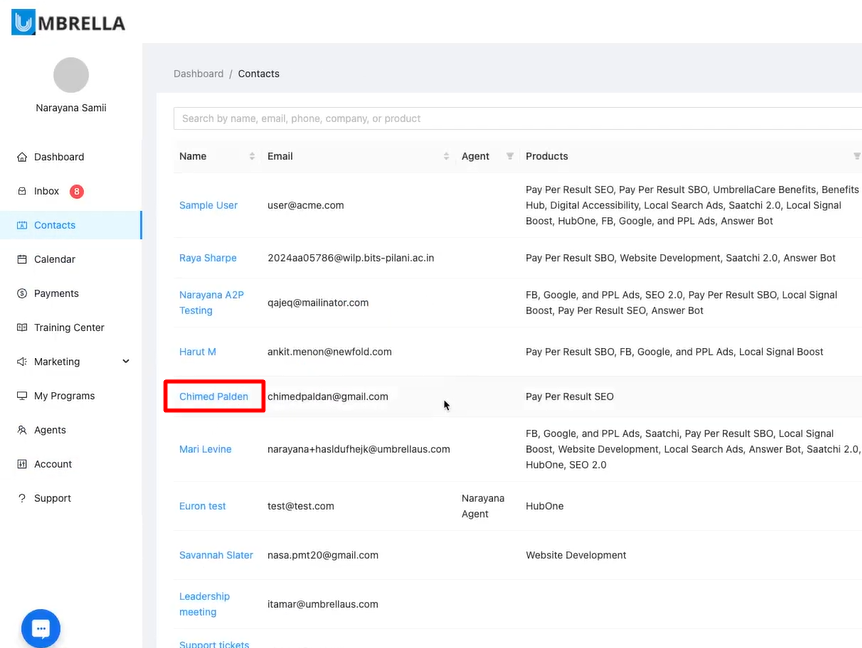
Go to the Contacts section in the left-hand menu.
Find and click on the name of the contact you wish to tag (e.g., "Chimed Palden")
Enter Edit Mode:
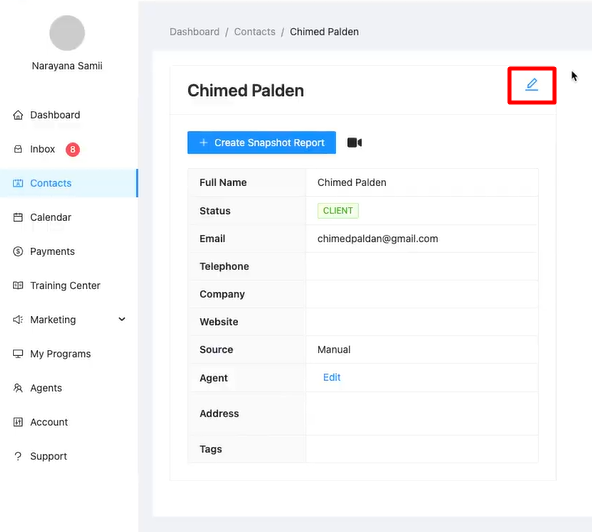
Click the Edit icon (the pencil symbol) near the top-left of the contact details section.
Locate the Tags Field:
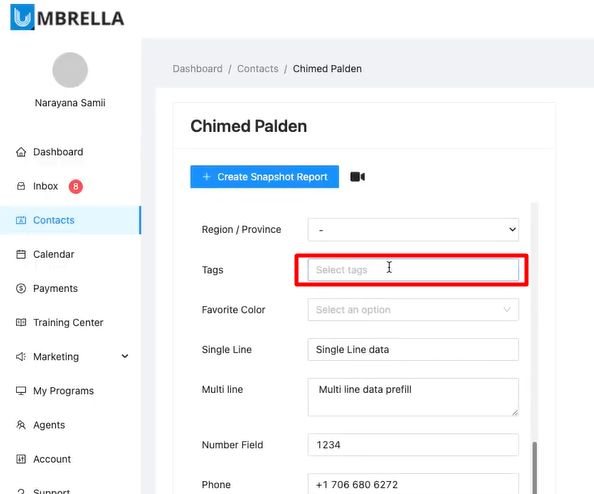
Scroll down the contact information fields until you find the field labeled Tags.
Add a Tag: You have two options:
a) Create and Add a New Tag:
Click into the "Tags" field.
Type the name for your new tag (e.g., "Most_valuable_customer").
Press Enter on your keyboard or click the suggestion that appears with "(new tag)" text. The tag will appear with an 'x' next to it in the field.
b) Apply an Existing Tag:
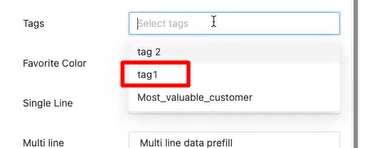
Click into the "Tags" field.
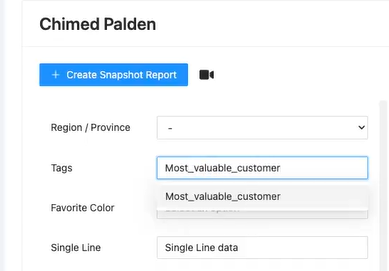
A dropdown list of previously created tags will appear.
Click on the desired tag from the list (e.g., "Most_valuable_customer"). The tag will be added to the field
Save Changes:
Scroll to the bottom of the edit form.
Click the Save button.
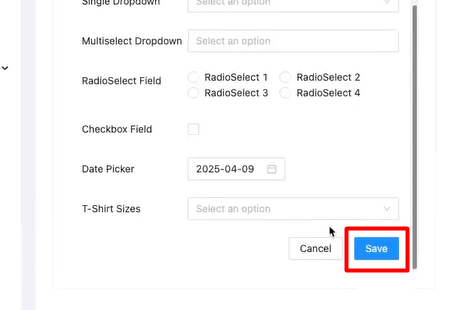
You will see a confirmation message like "Contact updated successfully," and the tag(s) will now appear in the read-only view of the contact's details.
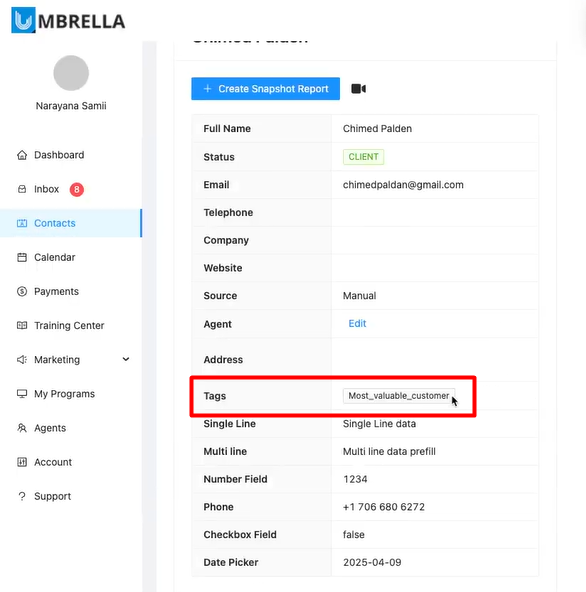
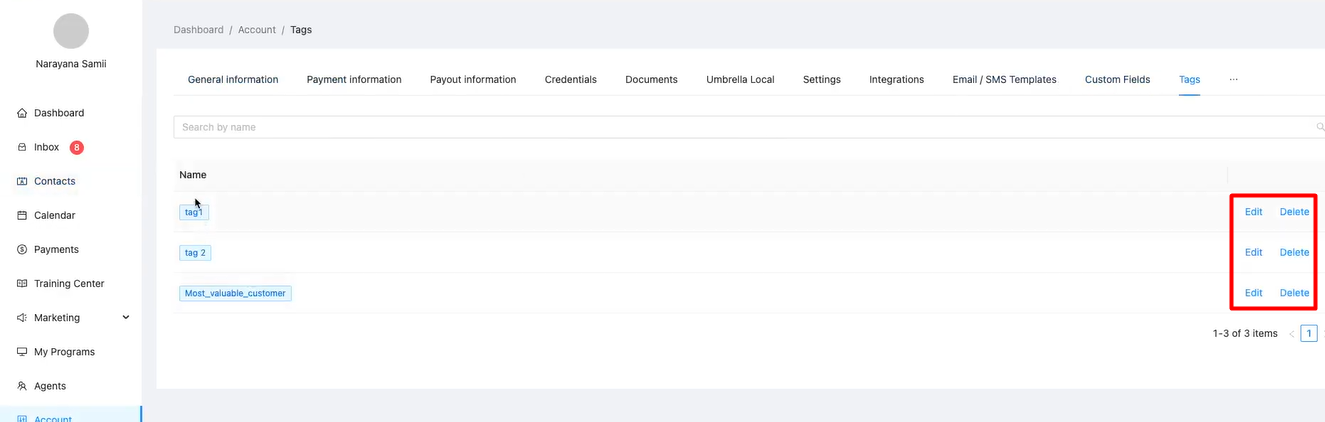
You can view, edit, or delete all the tags created across your account in one central location.
Navigate to Account Settings:
Click on Account in the left-hand menu.
Go to the Tags Tab:
Within the Account settings page, click on the Tags tab.
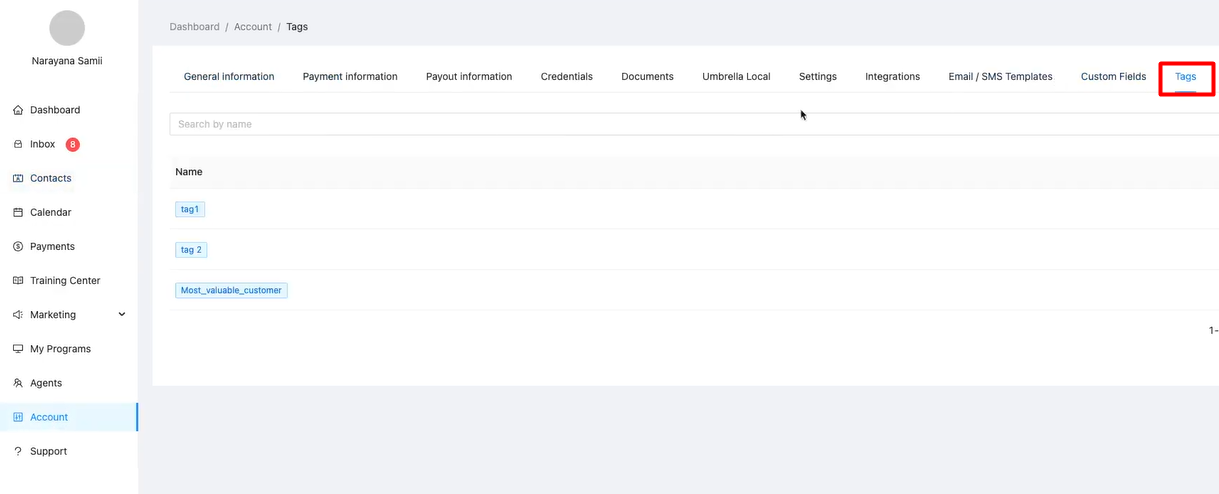
View, Edit, or Delete Tags:
This page lists all tags currently created in your account.
For each tag, you have Edit and Delete options.
Edit: Allows you to rename the tag. Changes will reflect on all contacts that have this tag.
Delete: Permanently removes the tag from the system and from all contacts it was assigned to.
Using tags effectively helps maintain an organized contact database and unlocks powerful targeting capabilities within Umbrella.
