The SPO Reporting Portal allows members and their clients to monitor campaign performance, keyword rankings, and overall progress in real time. Through the portal, members can manage client campaigns, review keyword activity, and provide clients with direct access to their own reporting dashboard.
This article explains how to access the portal, understand the reporting interface, manage client accounts, and share dashboard access with clients.
After your SPO order is confirmed, you will receive an order confirmation or welcome email containing your portal login credentials. This email includes three pieces of information required to access the portal:
The portal login URL
Your username
Your password
To access the portal, open the login URL provided in your email or navigate directly to:
Enter the username and password provided in your confirmation email and click Sign In.
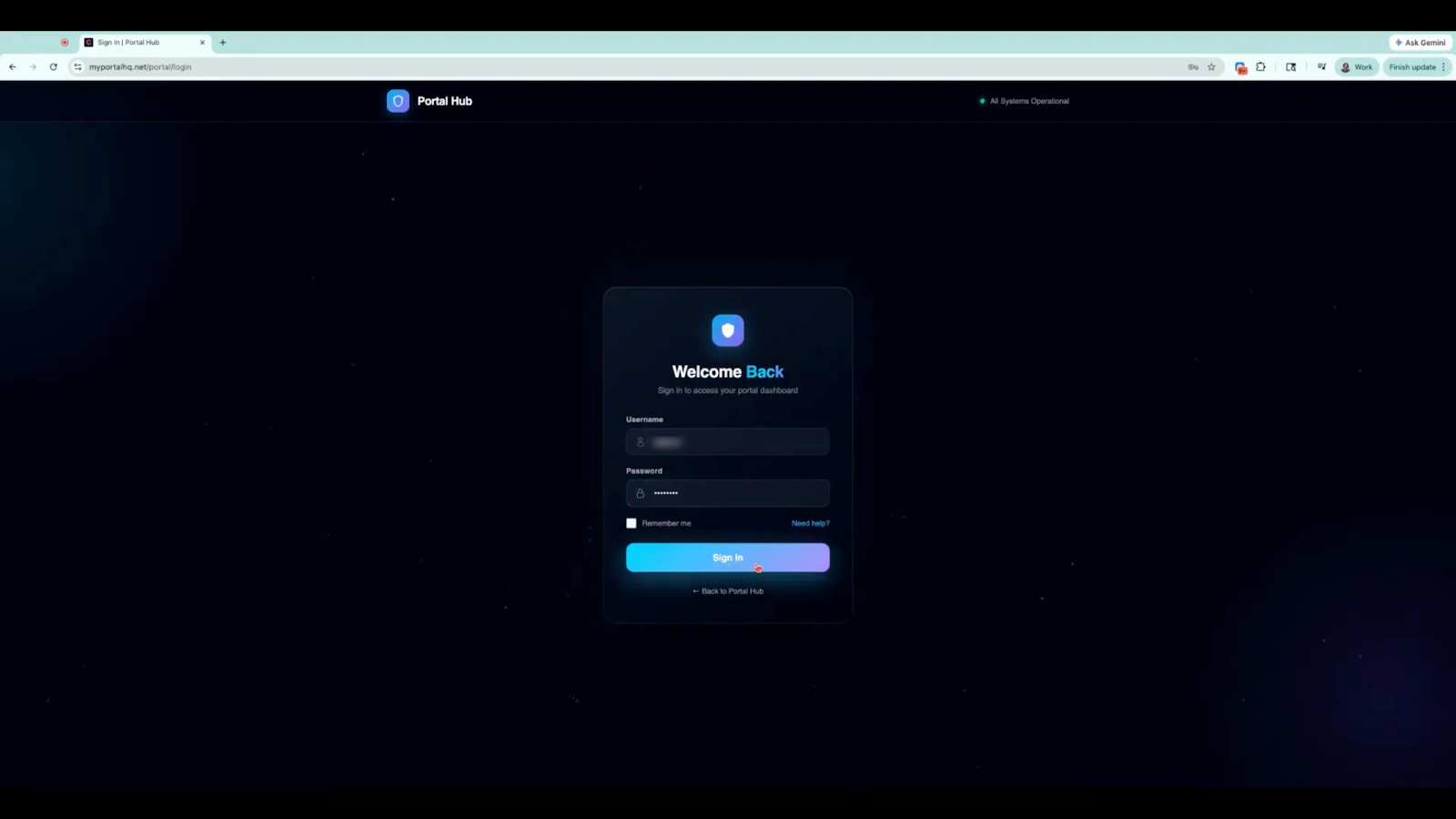
Once logged in, you will have access to the SPO reporting environment where you can view campaign dashboards, monitor keyword rankings, and manage client accounts.
When logging in for the first time, you will land on the Dashboard, which provides an overview of your campaigns and clients.
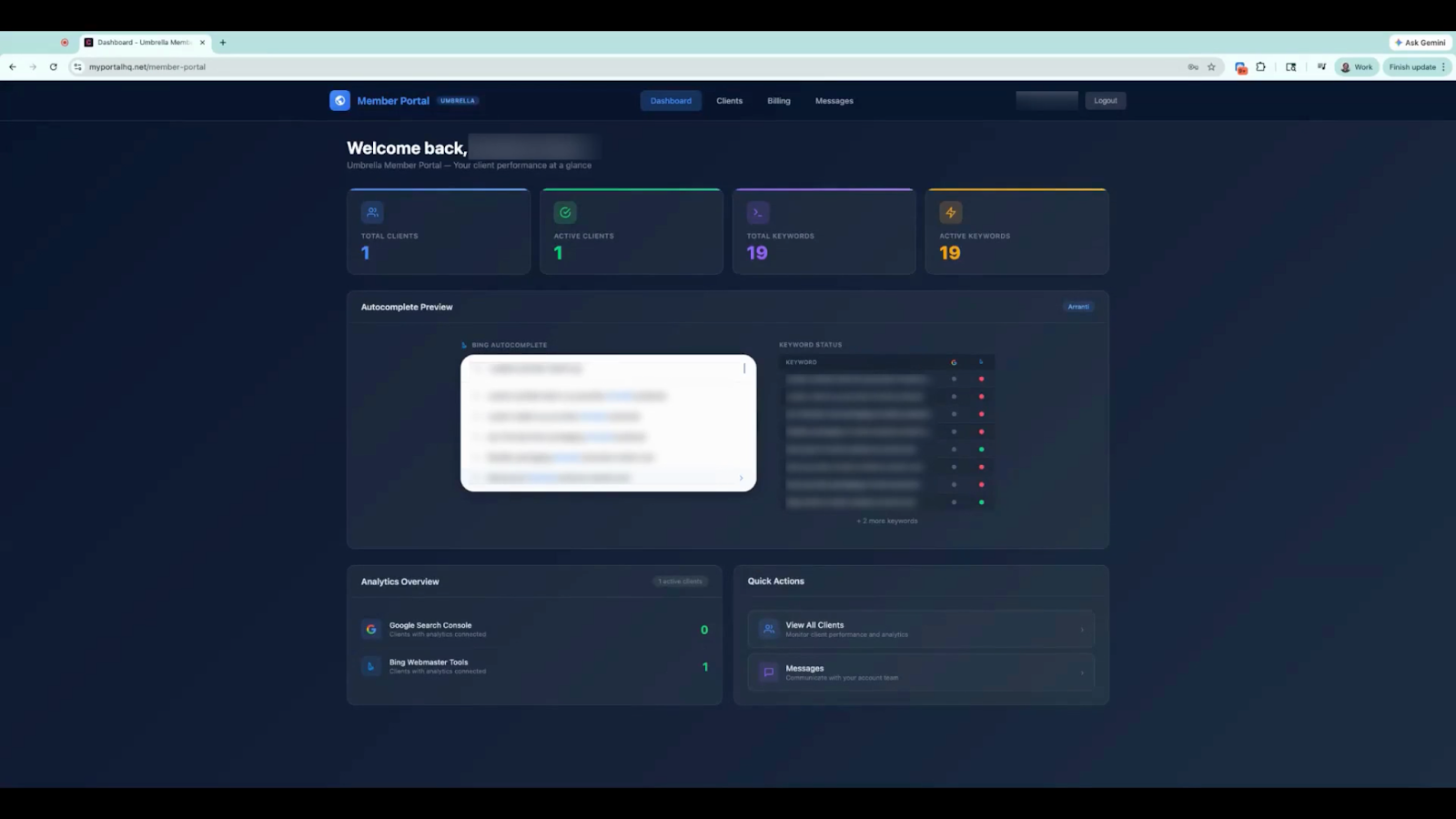
The Dashboard is designed to give a quick snapshot of all activity across your SPO campaigns.
From this page you can see:
Total Clients
The number of active clients currently in the portal.
Total Keywords
The total number of keyword phrases across all campaigns.
Active Keywords
Keywords that are currently being tracked and monitored.
Campaign Preview
A snapshot view of one of your campaigns and the associated keywords.
Analytics Overview
A set of indicators showing whether required analytics tools have been connected.
If the analytics overview displays a green indicator, it means the necessary connections are properly configured and reporting is functioning correctly.
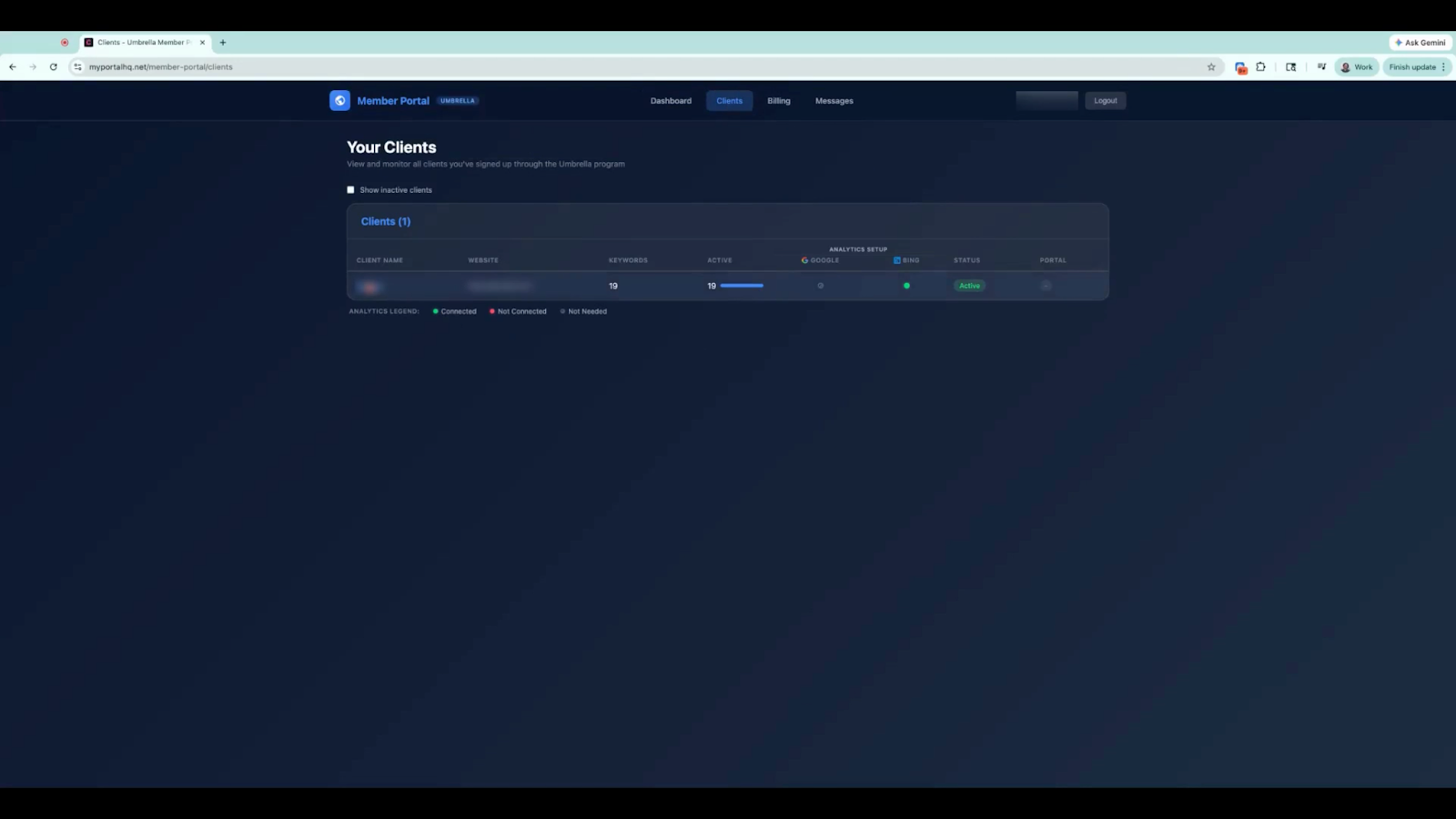
The Clients section provides a detailed overview of all campaigns submitted through SPO.
Each client entry includes the following information:
Client Name
The business name associated with the campaign.
Website
The client’s website URL.
Keywords
The number of keyword phrases included in the campaign.
Active Status
Whether the campaign keywords are currently active.
Analytics Status Indicators
These color-coded indicators help you quickly identify campaign status:
Green Dot
The keyword is live and appearing in Google or Bing autocomplete results.
Gray Dot
The keyword is still being processed.
Red Dot
The SPO team is actively working to get the keyword live.
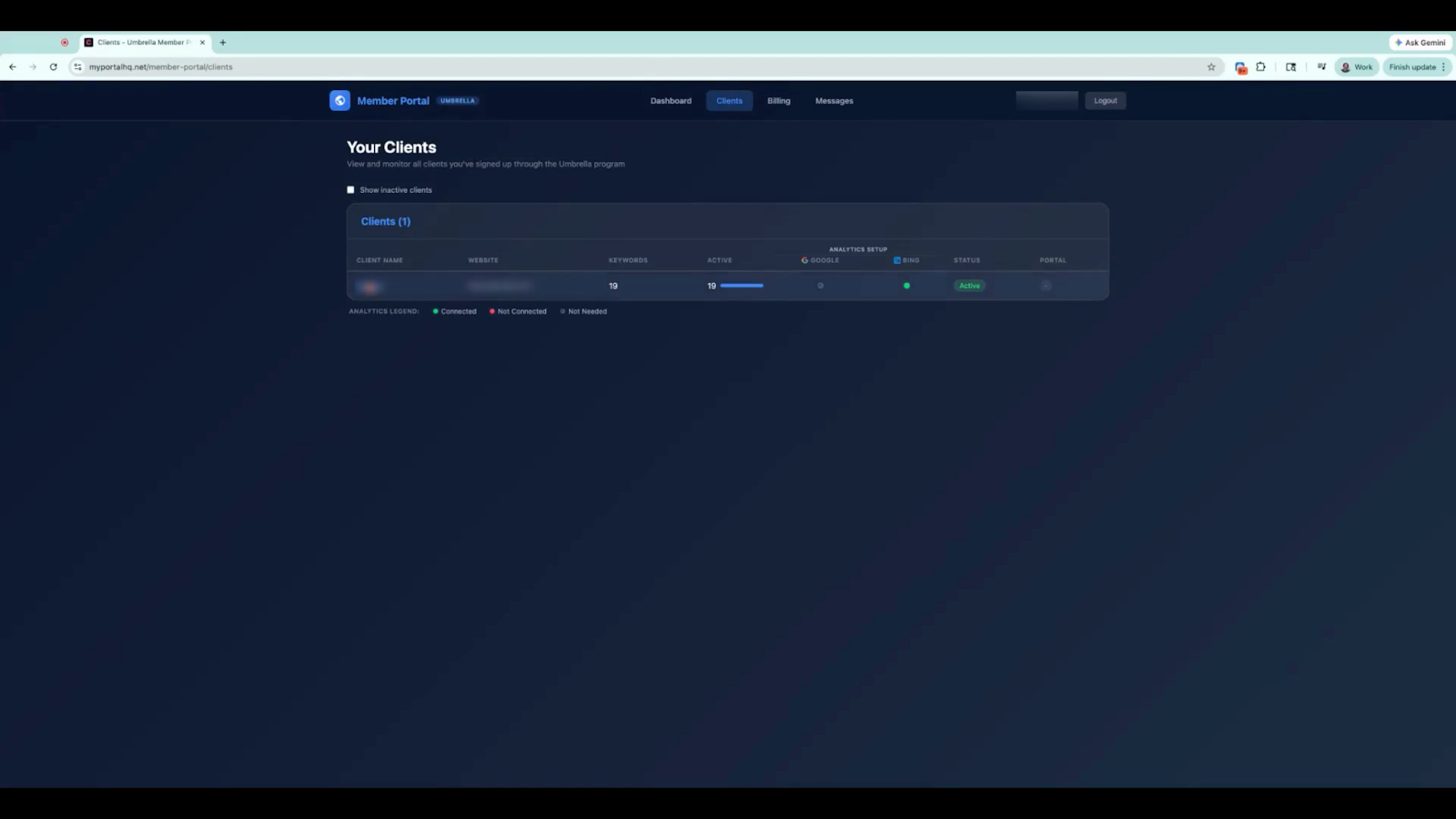
The portal also displays indicators showing whether analytics integrations are correctly connected.
Green Checkmark
Analytics tools are connected and functioning correctly.
Red Indicator
Analytics tools are not connected. You may need to contact your client to complete the setup.
Circle with a Line Through It
Analytics integration is not required for the campaign because no Google or Bing keywords require that tool.
Selecting any client from the Clients page opens a detailed campaign view.
This section provides deeper insight into the campaign including:
Analytics Connection Status
Displays whether Google Analytics, Google Search Console, and Bing Webmaster Tools are connected or required.
Complete Keyword List
All keywords included in the campaign.
Ranking Positions
The ranking location of keywords in autocomplete suggestions, shown as positions such as 1, 2, or 3.
Live Keyword Status
Shows whether the keyword currently appears in Google Autocomplete (AC) or Bing Autocomplete.
For example, if a keyword displays Position 1 with a green indicator, it means the client’s business appears as the first suggestion when users type that keyword phrase in the search autocomplete dropdown.
Members can also grant clients direct access to their reporting dashboards. This allows clients to independently monitor their campaign performance and keyword rankings.
To enable this, open the Clients section within the portal and select the client whose dashboard access you want to activate.
Within the client profile, scroll to the bottom of the page and select Activate Portal. Once activated, the system generates login credentials for the client.
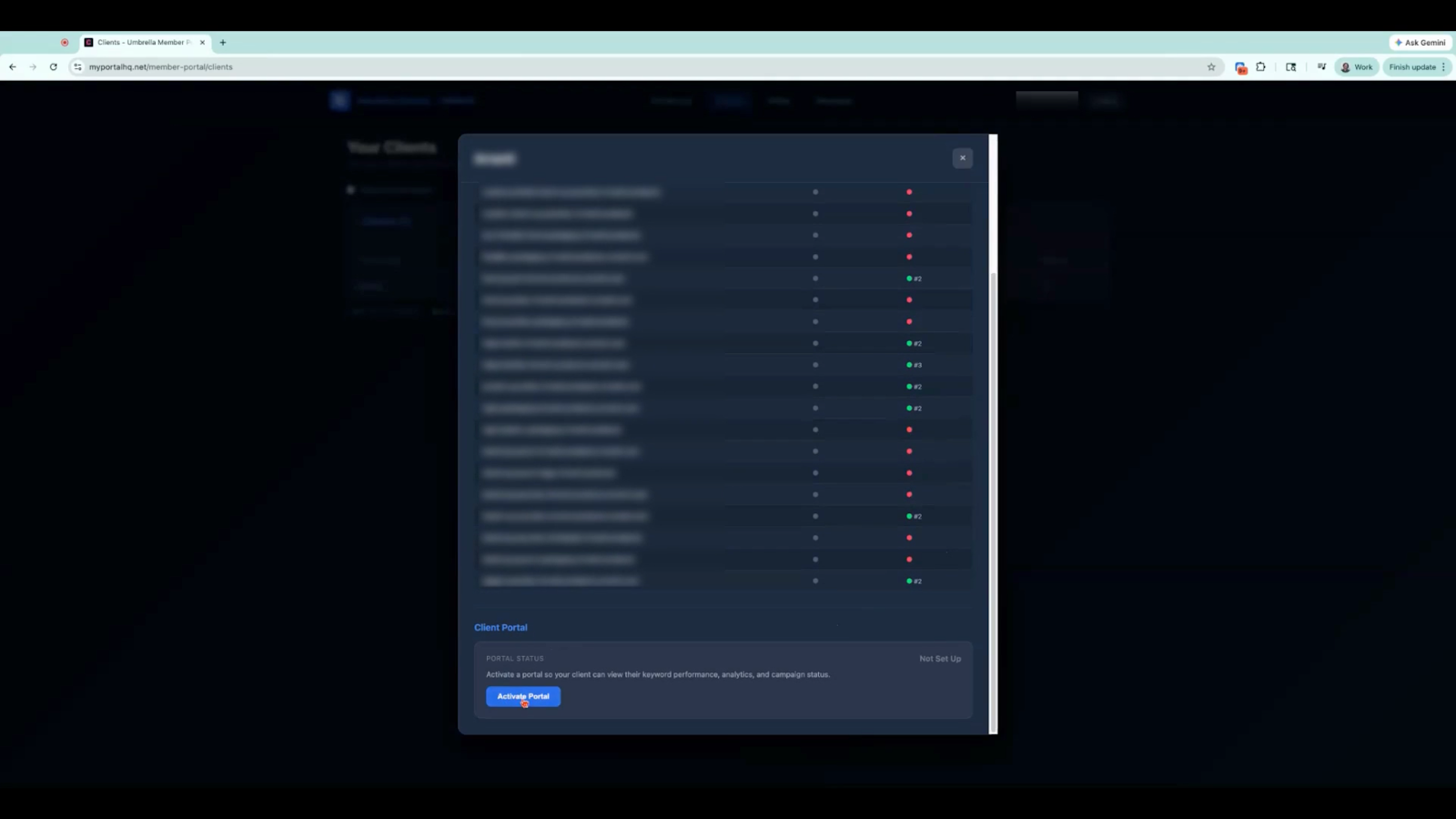
You will then receive the client’s portal login information, which includes:
Login URL
Username
Password
It is important to copy and paste these credentials exactly as shown to avoid login issues. After copying the information, send the credentials to your client so they can access their reporting dashboard.
Clients can access their campaign reporting portal using the login credentials provided by the member.
They simply open the login URL, enter their username and password, and select Sign In to Portal.
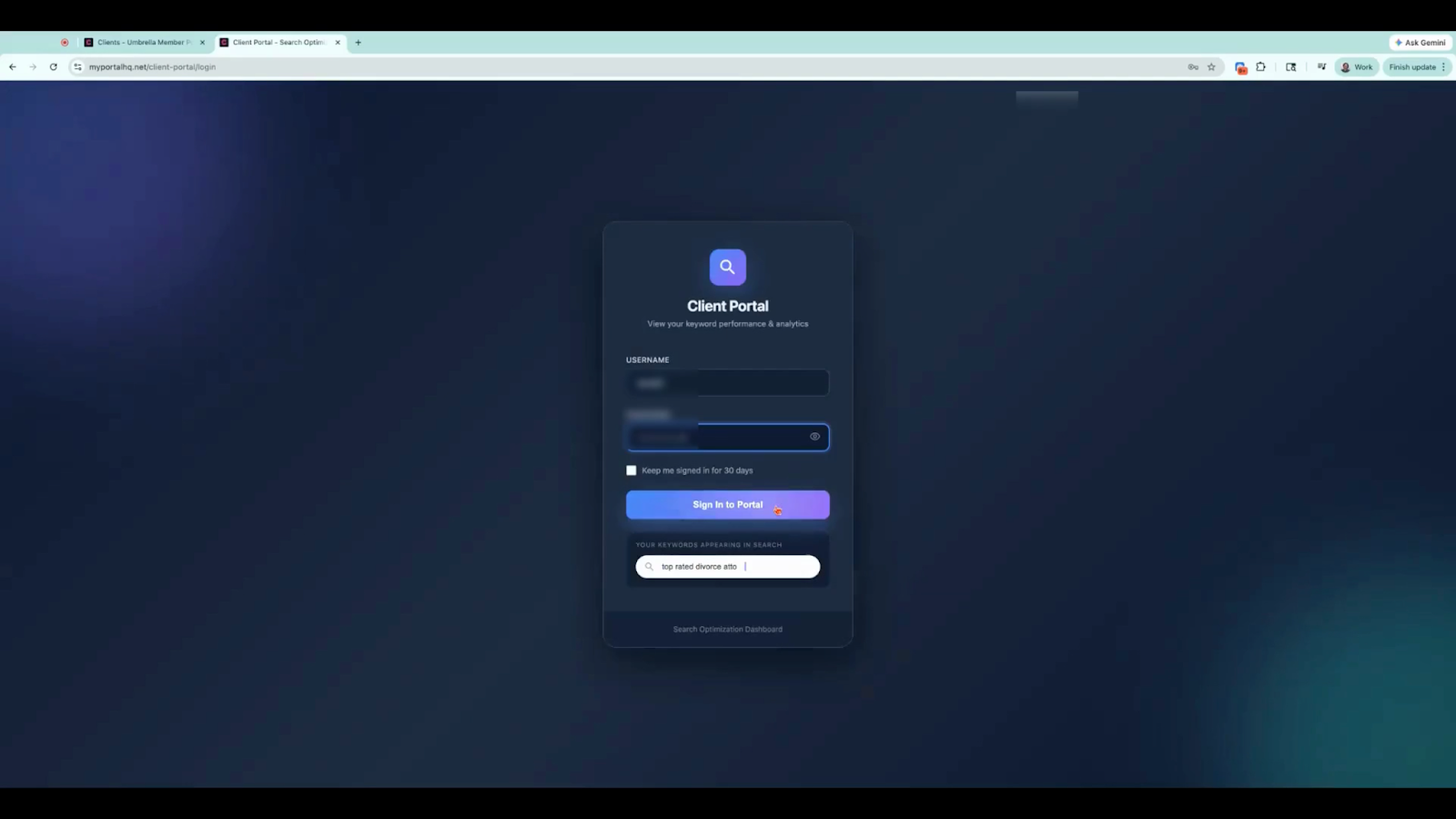
After logging in, clients will see their reporting dashboard displaying their business name, campaign data, and keyword performance. The portal interface typically displays a gray-labeled reporting dashboard where clients can view campaign progress and rankings.
Both members and clients can monitor keyword activity directly within the portal.
Within the dashboard menu, selecting Keywords displays campaign performance data including:
Keyword rankings
Ranking position changes
Campaign performance metrics
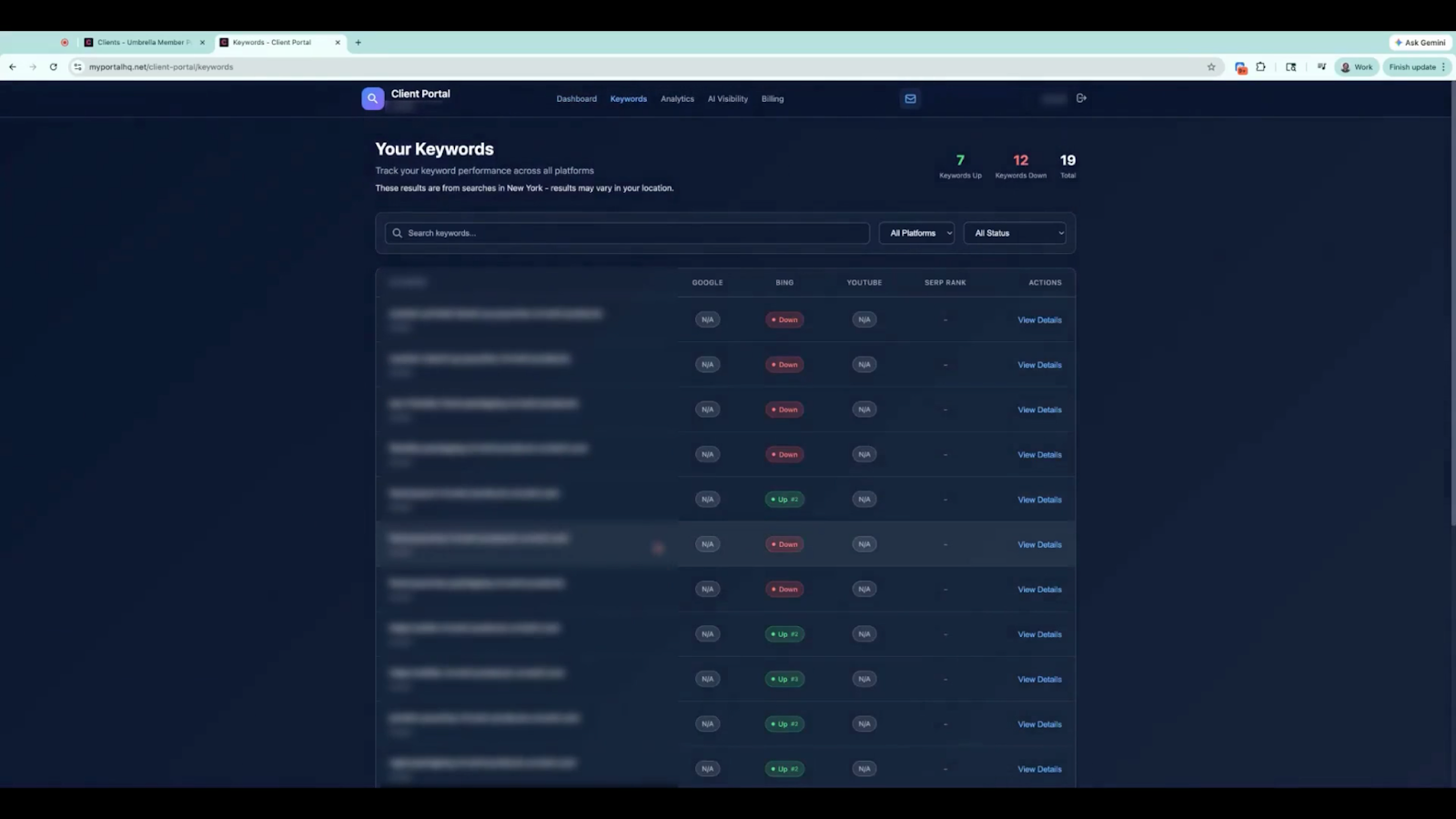
This information allows members and clients to track the effectiveness of their campaigns and monitor how keywords appear in autocomplete search results.
After submitting an SPO order, the portal updates according to the following general timeline:
Day 1
The order is submitted through the Umbrella portal.
Day 1–2
Administrative staff process the order.
Day 2–3
The order moves to the processing department and portal credentials are sent.
Day 3–4
The new client appears in the portal with all assigned keywords.
Once the client is added, the Total Clients count on the dashboard will increase and the campaign will be visible on the Clients page.
The SPO portal updates automatically in real time. As keyword statuses change, the portal reflects those updates immediately.
For example, if a keyword was previously inactive but becomes live, the status indicator will automatically update to a green dot when you next view the portal.
No manual refresh or update request is required—the portal always reflects the most current campaign data.
All communication with the SPO team must take place through the Umbrella Dashboard Inbox, not through the client portal.
The Messages section inside the SPO client portal is provided for reference only and is not used for active communication.
If you need assistance, have questions, or require updates regarding a campaign, please send your message through the Vendor Inbox in your Umbrella account.
To get the most value from the reporting portal:
Use the Dashboard for a quick overview of campaign performance
Check the Clients page for detailed campaign information
Monitor color indicators to quickly identify campaign status
Contact clients when analytics connections are missing
Regularly review keyword rankings to track campaign progress
The SPO Reporting Portal provides a centralized location to track campaign performance, monitor keyword rankings, and demonstrate results to your clients—all in one convenient interface.
