Bing Webmaster Tools allows you to monitor your website’s visibility in Bing search results, submit sitemaps, and manage SEO performance.
This guide walks you through:
Creating / accessing your account
Adding and verifying your website
Inviting the SPO team
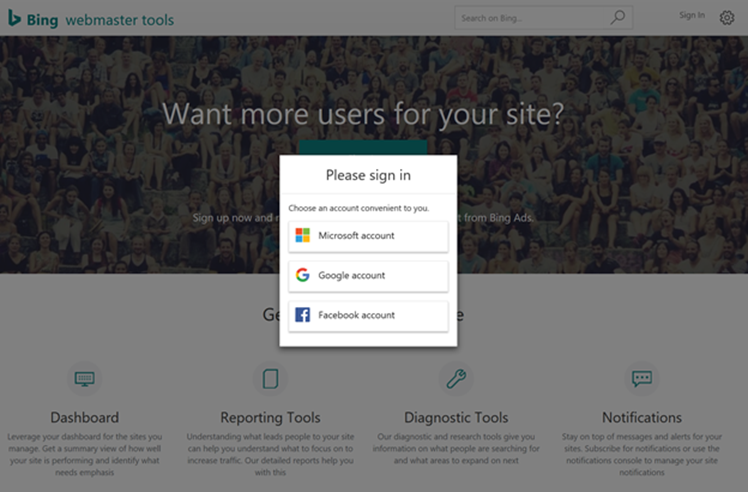
Go to: https://www.bing.com/webmasters
Sign in using your Microsoft or Google account
If needed, create an account
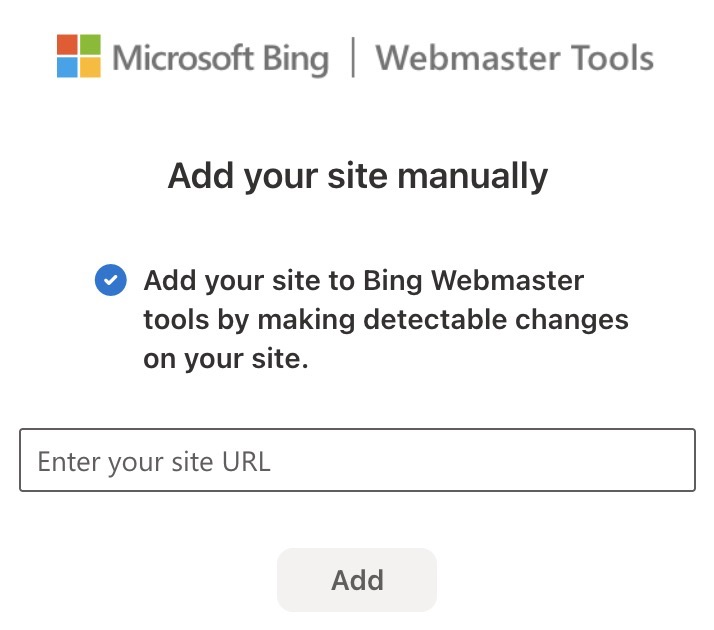
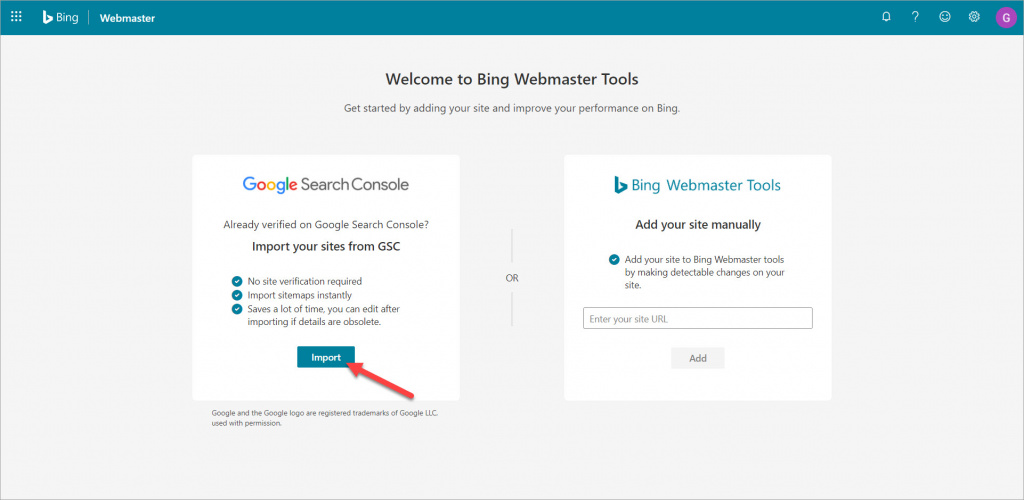
Click Add a Site
Enter your full website URL (including https://)
Click Add
If available, you may choose Import from Google Search Console instead.
Choose CNAME record to DNS
You will use this information to create a CNAME in the next steps in your domain hosting provider’s DNS settings.
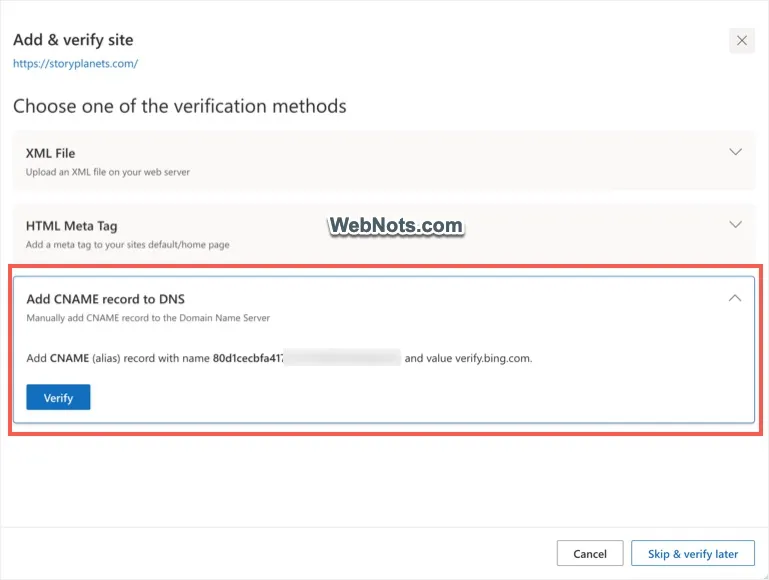
The CNAME record must be added inside the platform where your domain is managed (e.g., GoDaddy, Namecheap, etc.).
If you manage your domain through Umbrella, see the section after Step 6 for navigation steps to access your DNS settings.
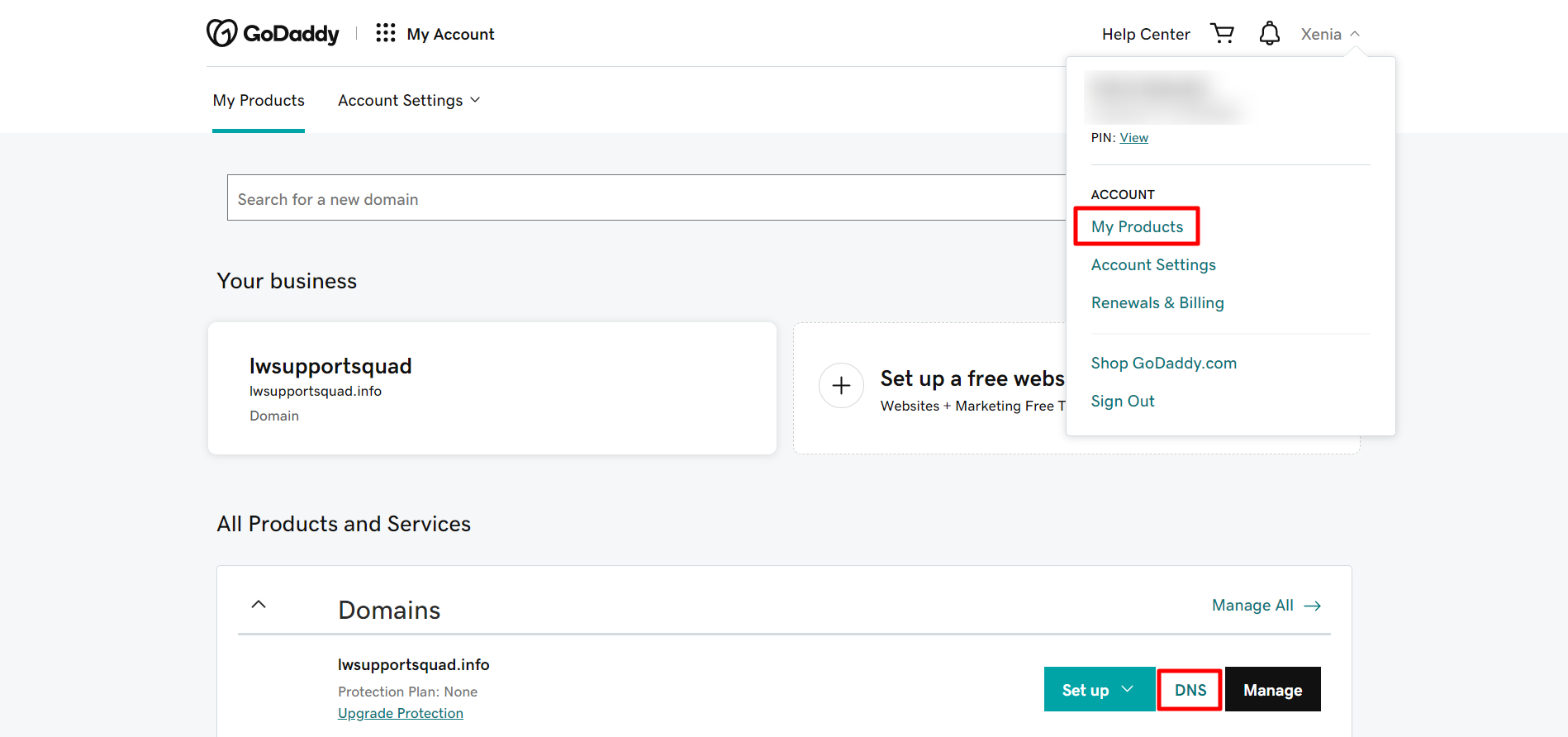
Log in to your domain hosting provider (e.g., GoDaddy, Namecheap, Cloudflare, etc.).
Navigate to your domain’s DNS Management section.
Locate the CNAME Records area.
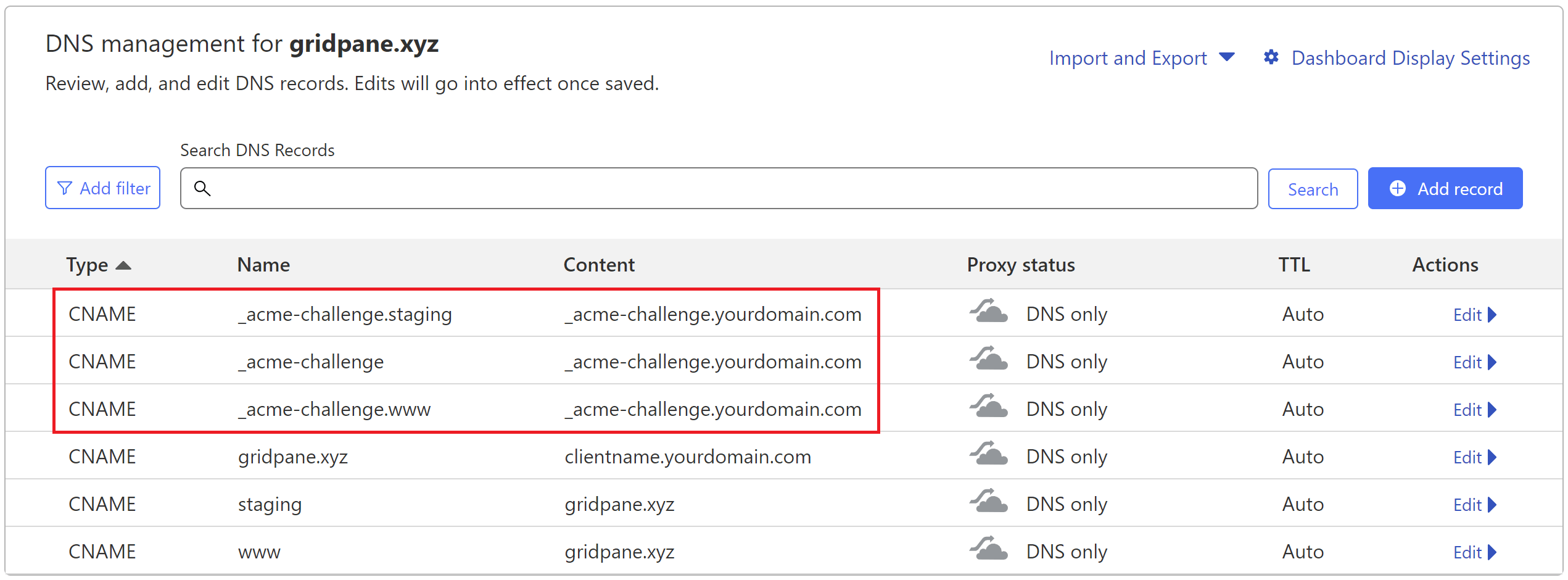
Click Add Record.
What to paste into each field
When adding the CNAME record:
The Host / Name is the exact string shown in Bing under CNAME verification (usually a random string such as a1b2c3d4). from Step 3.
The Value / Target / Points to must be entered exactly as:verify.bing.com
Most DNS providers automatically append your domain name to the Host field. Do not manually add your domain again.
Return to Bing Webmaster Tools.
Click Verify.
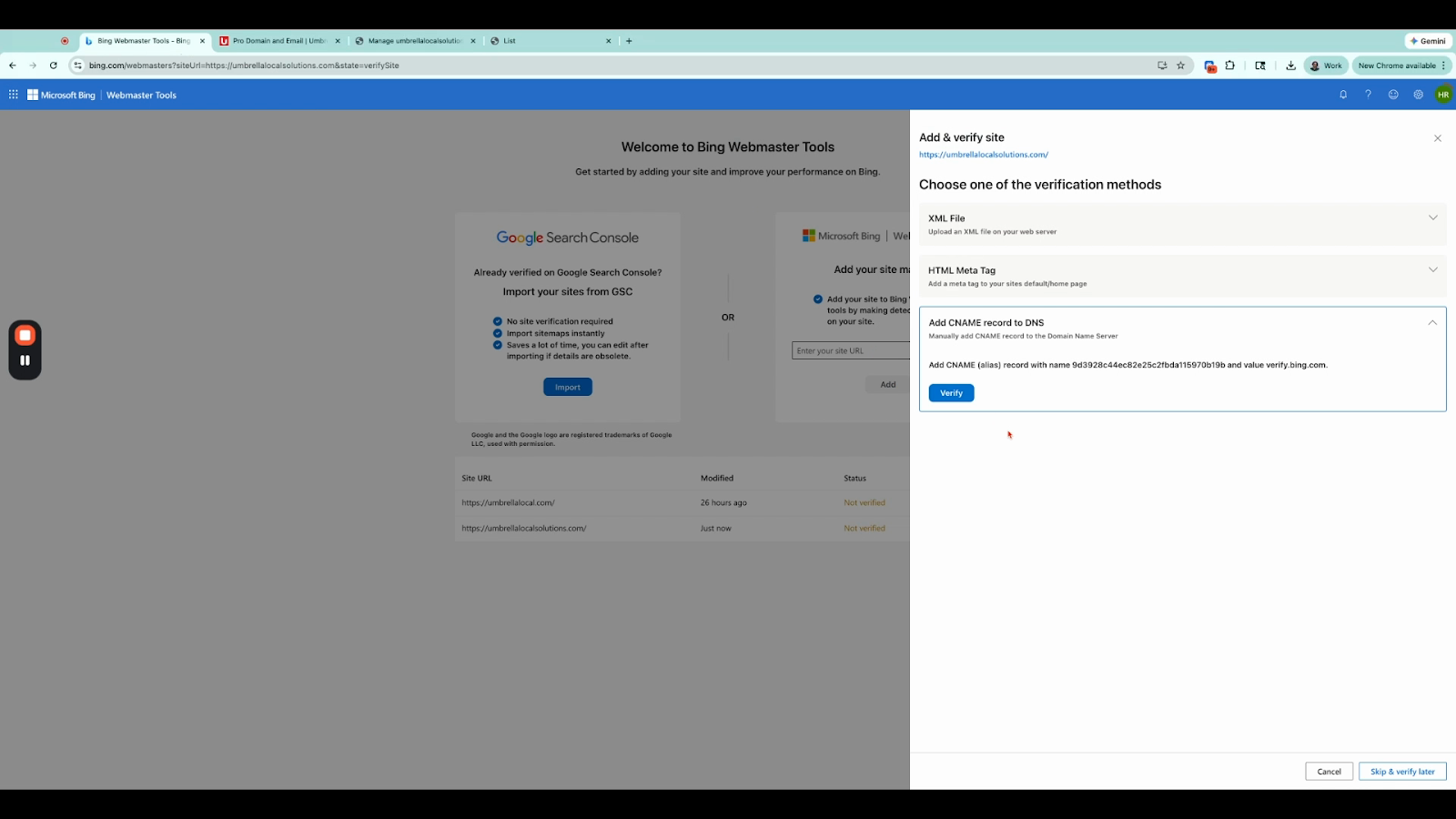
If verification fails:
Wait 5–10 minutes for DNS propagation.
Click Verify again.
Once verified, your website will show as successfully added.
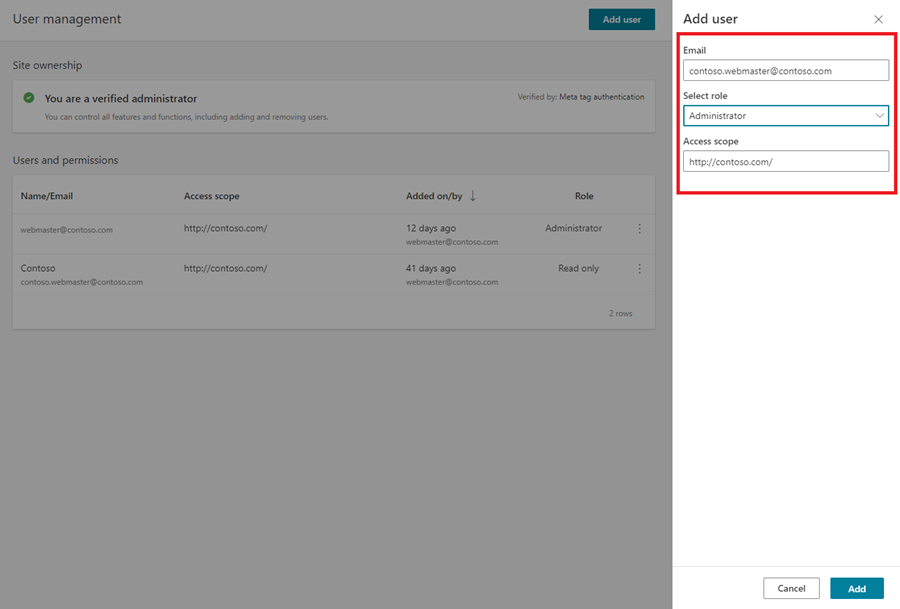
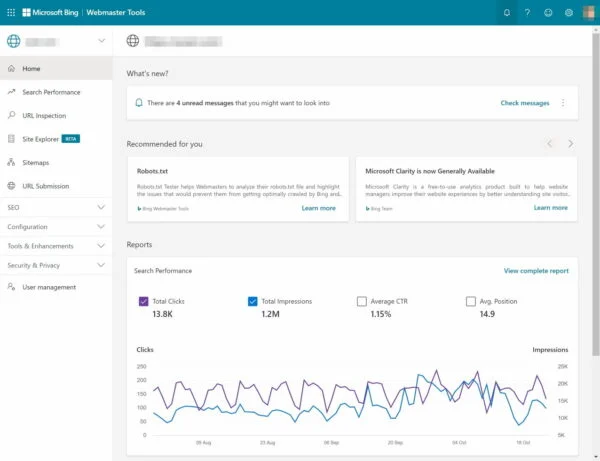
Go to User Management (bottom-left menu)
Click Add User
Enter:
[email protected]
Select role: Read/Write
Ensure correct site access is selected
Click Add
That’s it! Your Bing Webmaster Tools account is set up, your website is verified, and the SPO team has access.
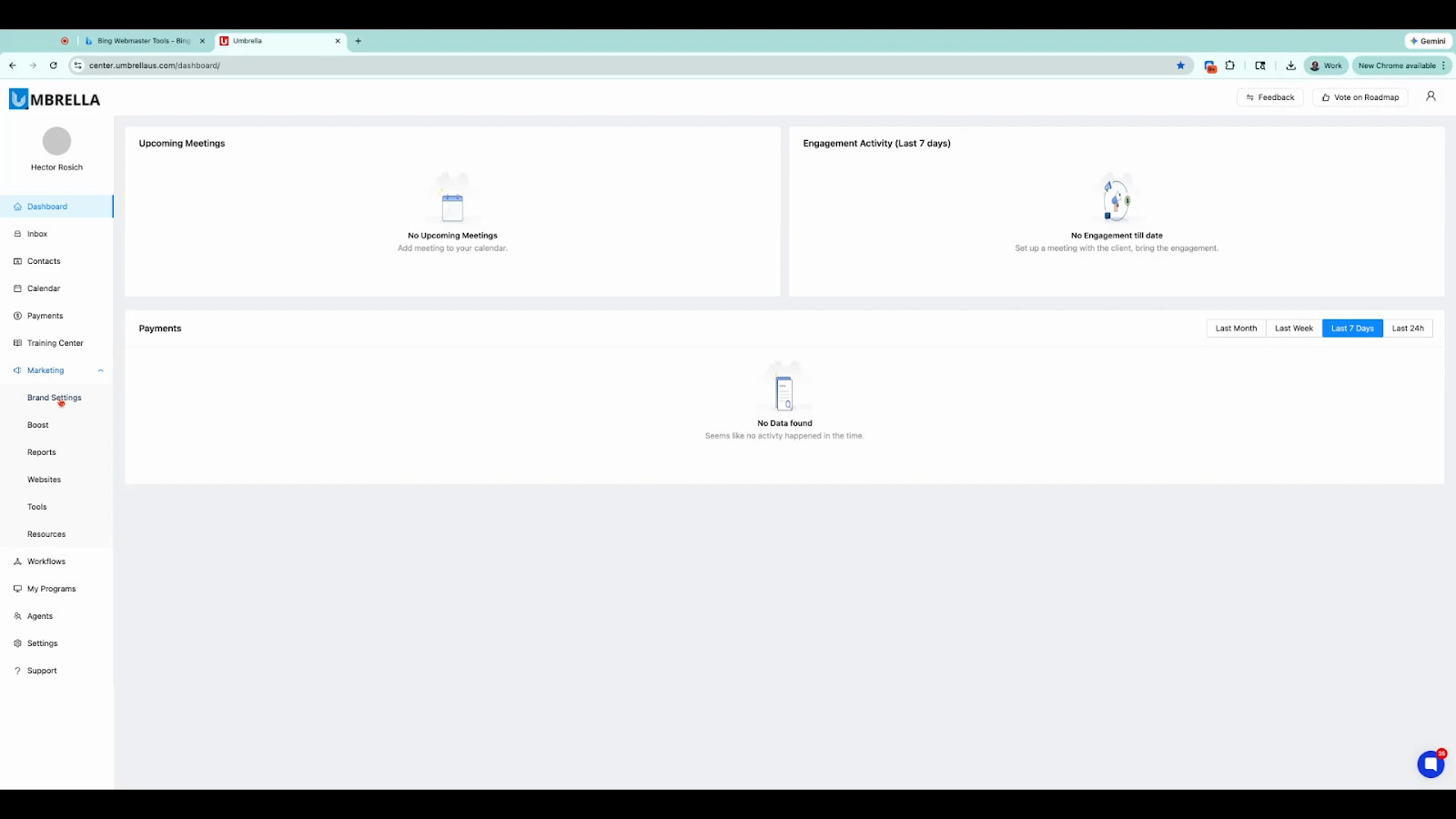
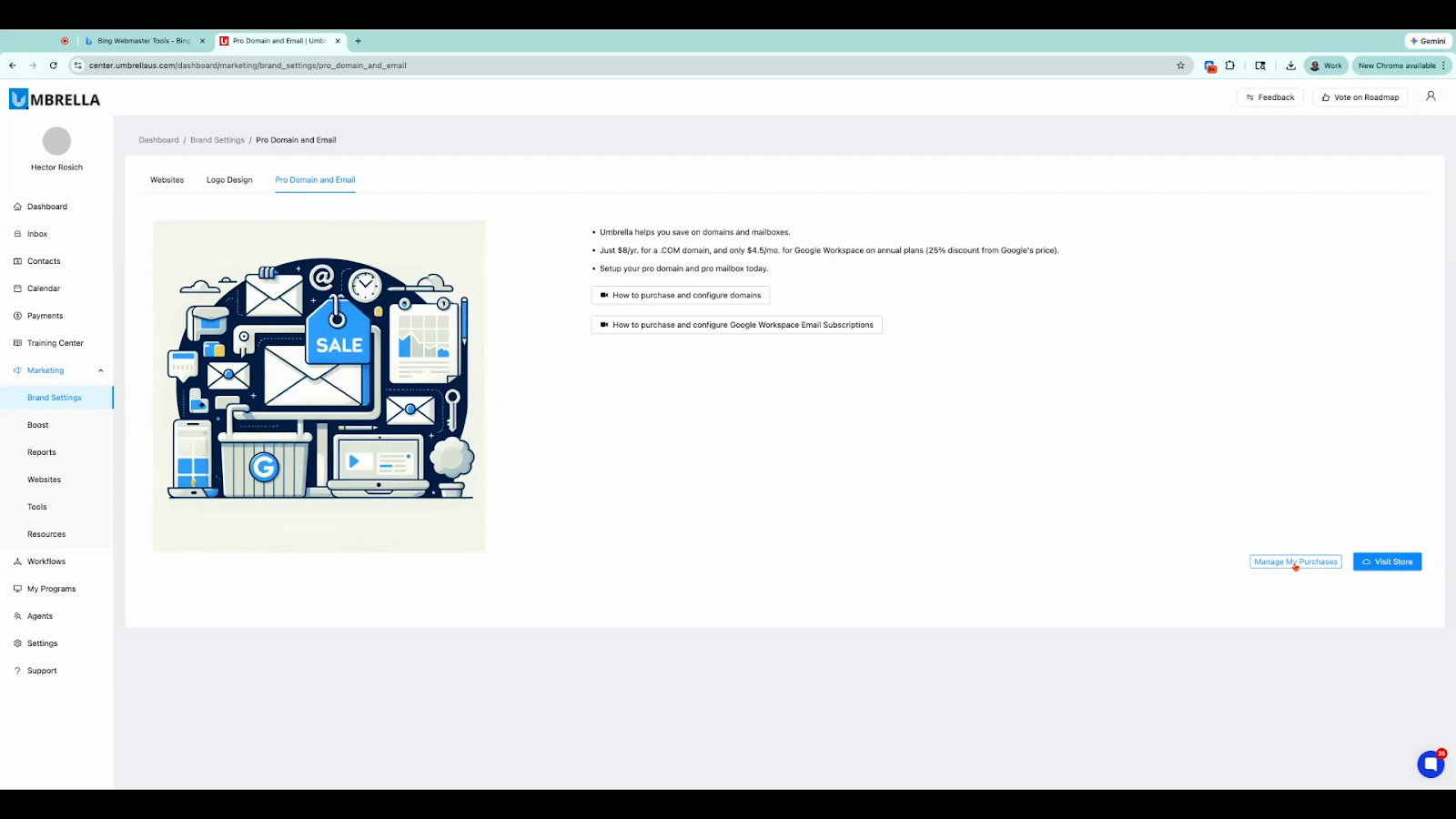
Log in to your Umbrella dashboard.
Navigate to Marketing → Brand Settings.
Click Pro Domain and Email.
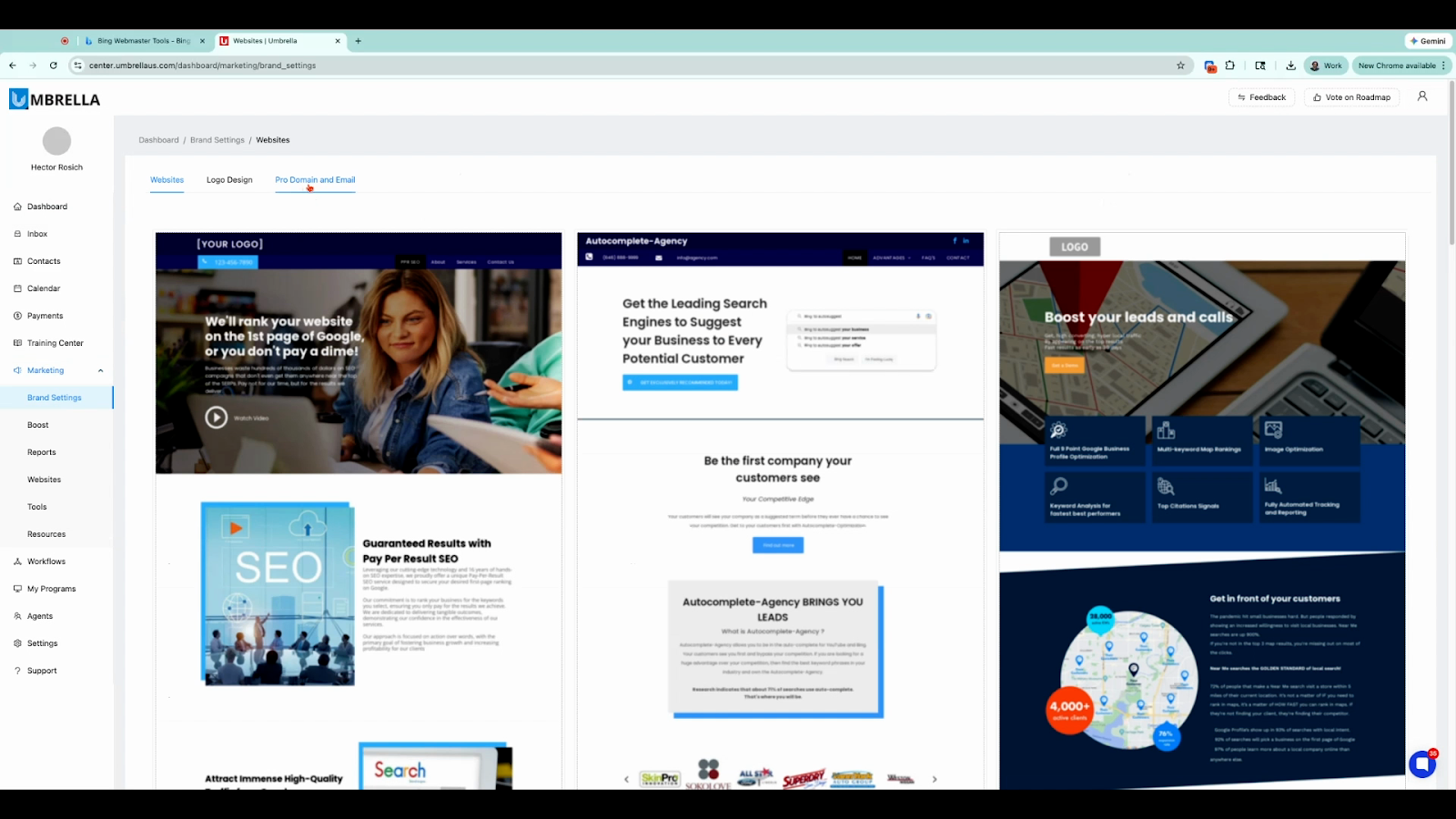
Select Manage My Purchases to access your domain list.
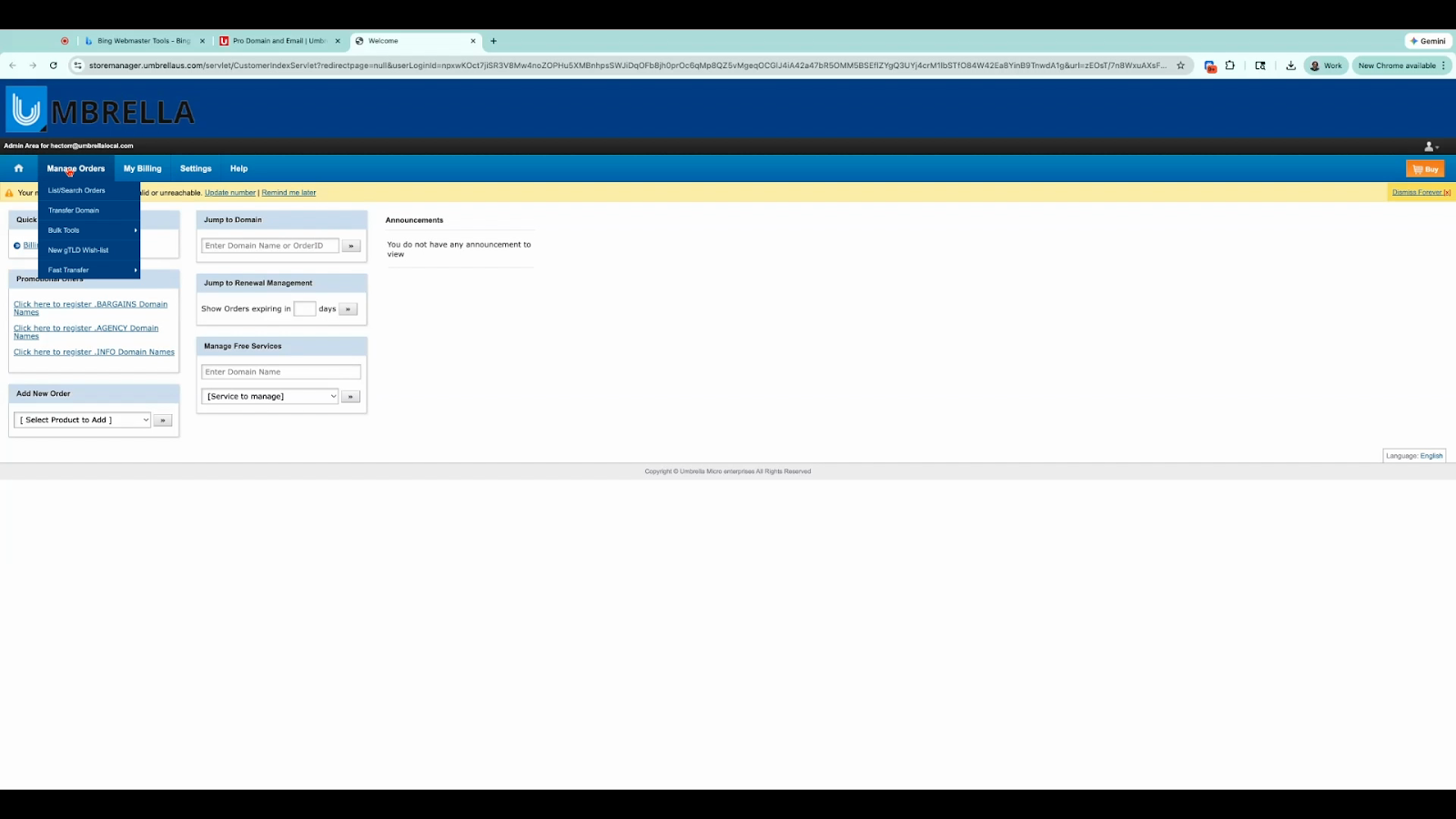
Click Manage Orders → List/Search Orders.
Select the domain you want to verify.
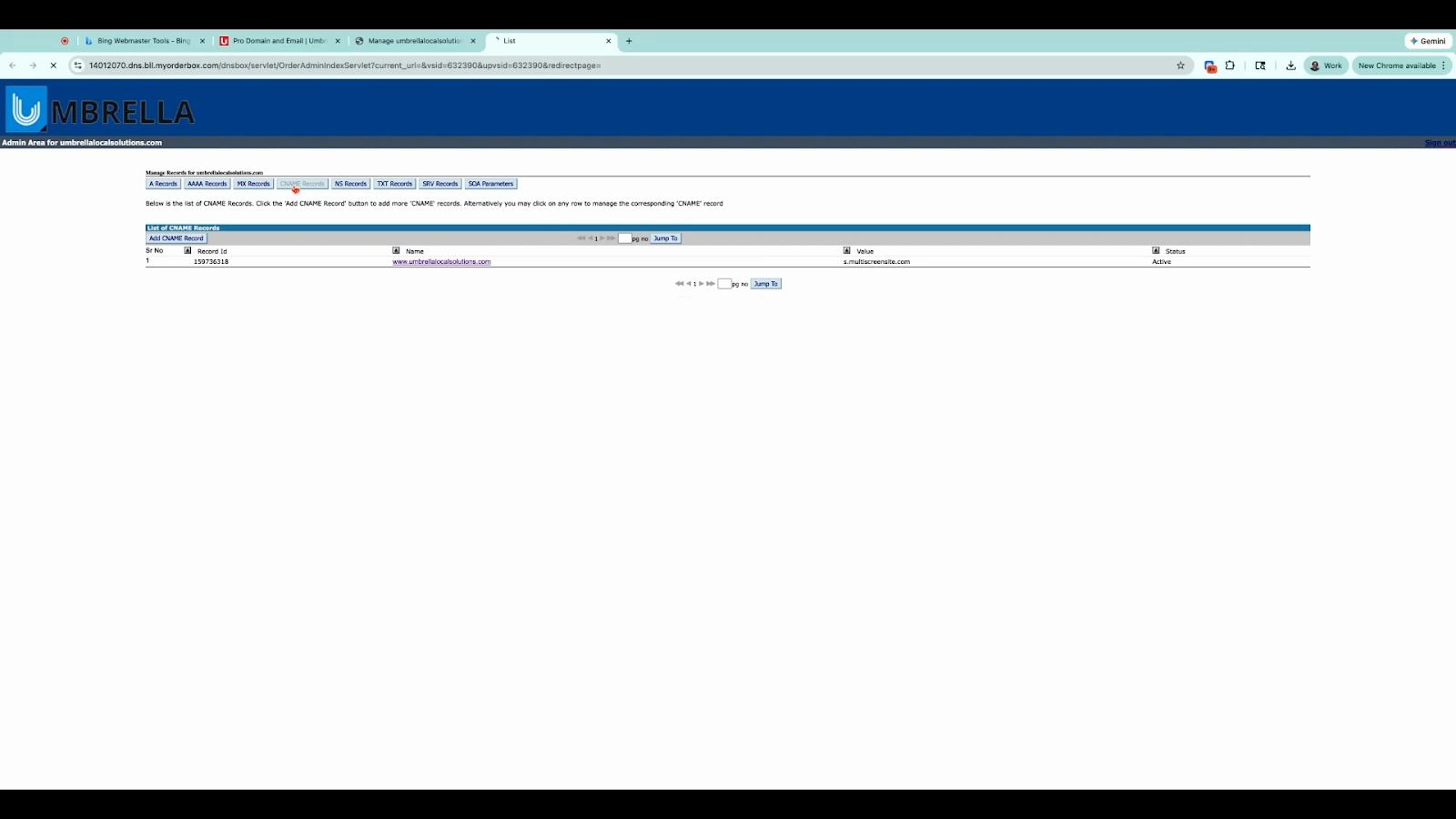
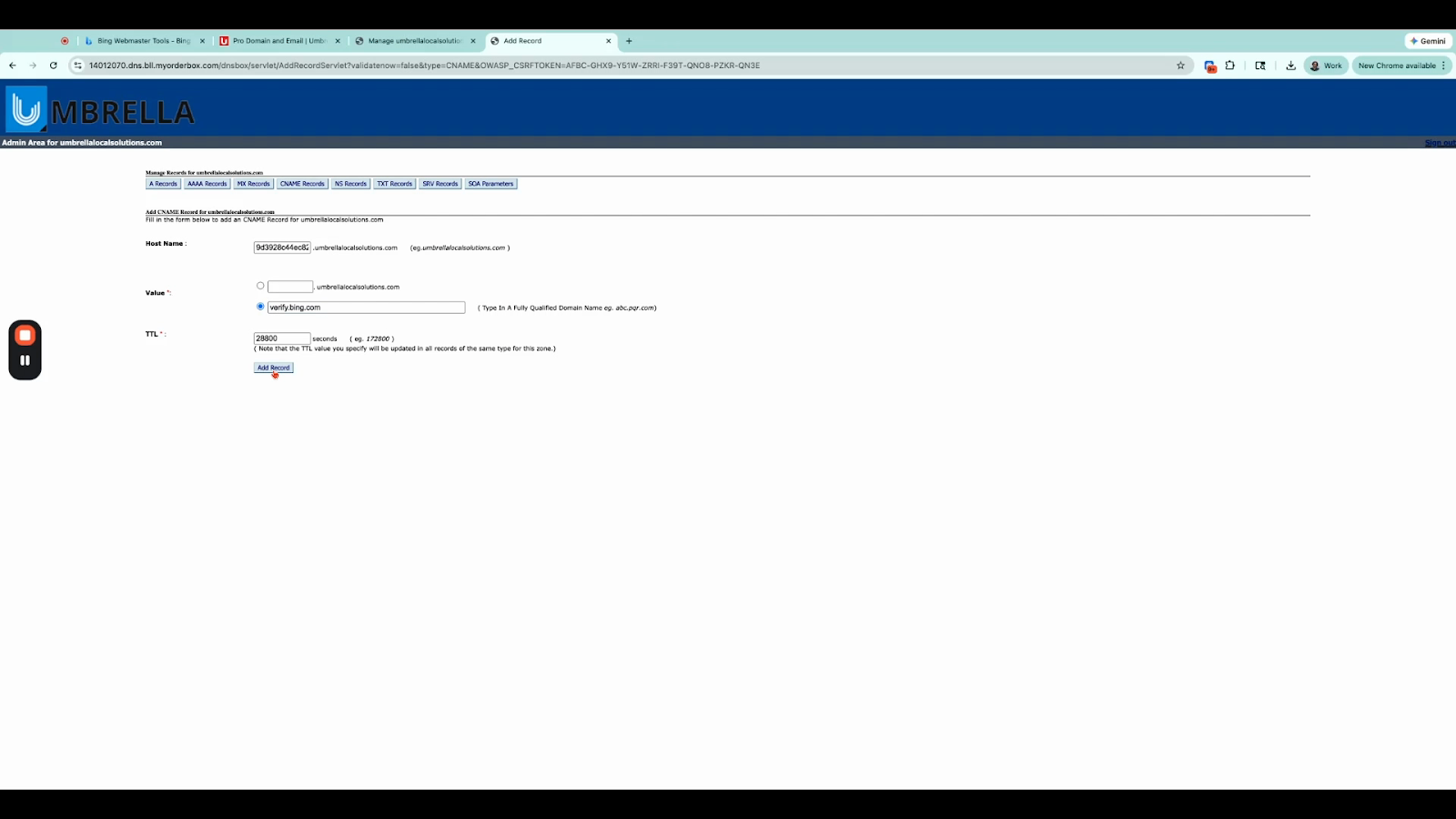
Open the domain settings and scroll to DNS management and switch to the CNAME Records tab.
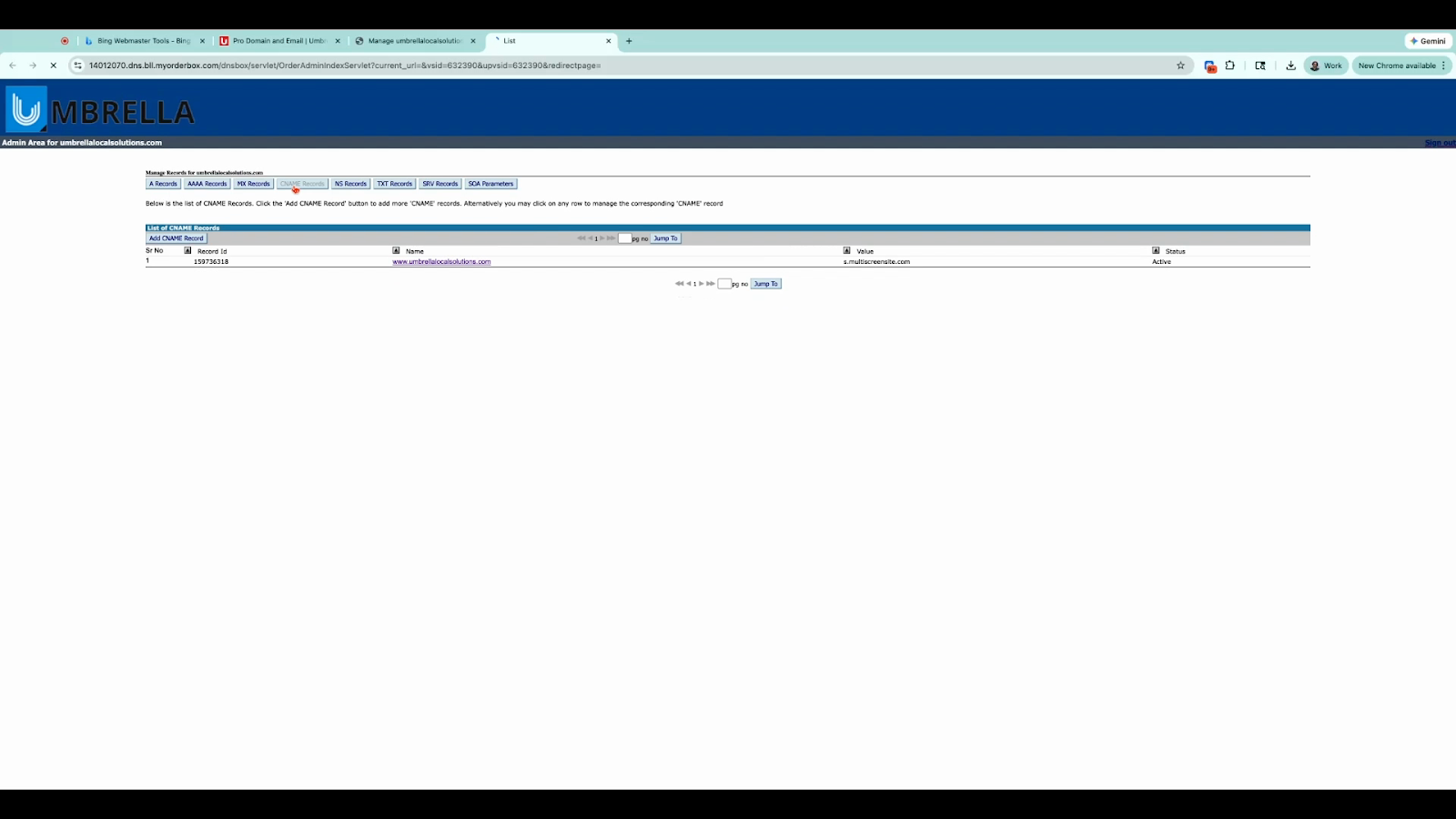
Click Add CNAME Record.
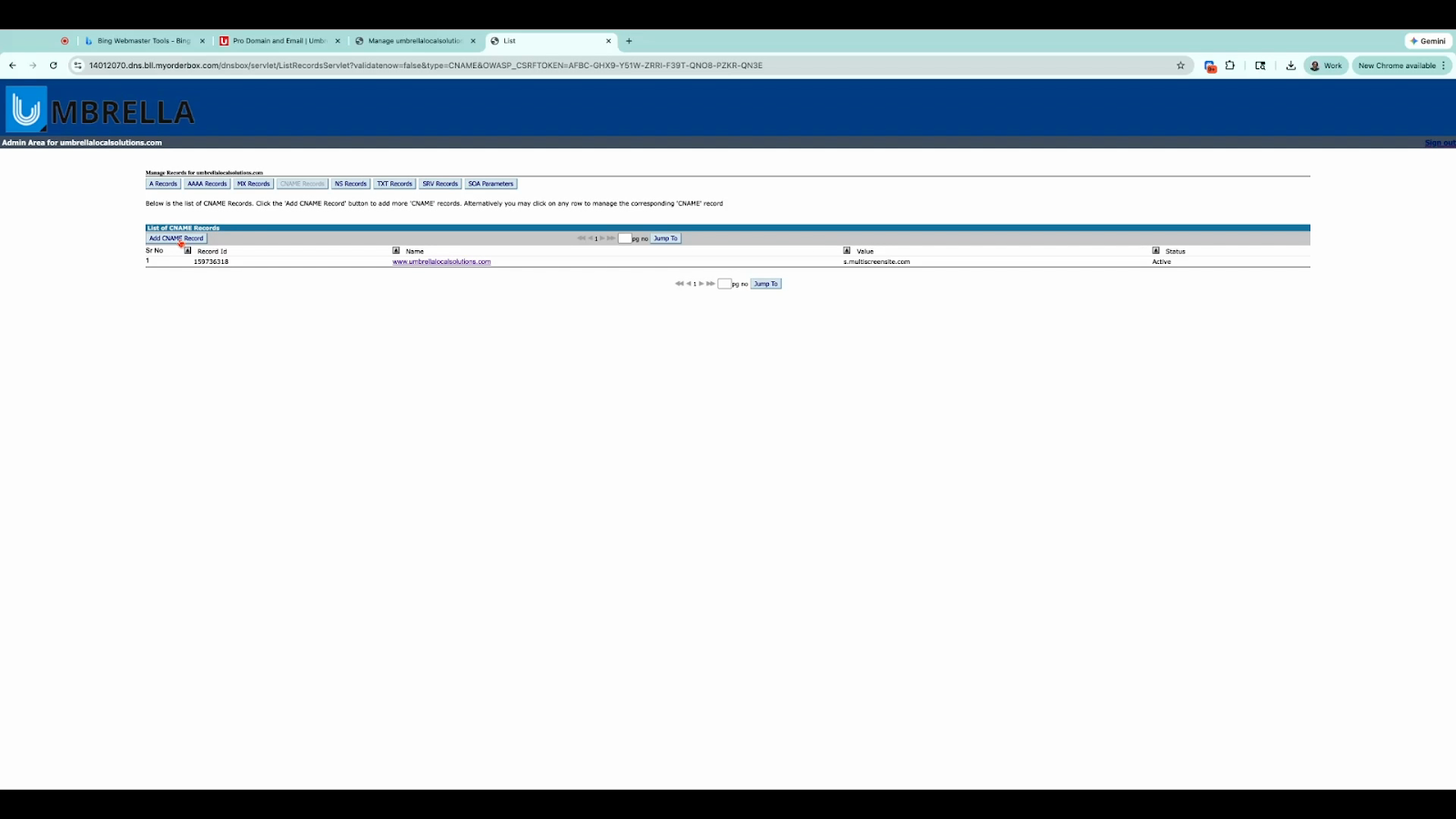
Paste:
What to paste into each field
When adding the CNAME record:
The Host / Name is the exact string shown in Bing under CNAME verification (usually a random string such as a1b2c3d4). from Step 3.
The Value / Target / Points to must be entered exactly as:verify.bing.com
Most DNS providers automatically append your domain name to the Host field. Do not manually add your domain again.
Click Add Record to save.