Use this checklist to ensure every client is eligible for the Ugo service before starting onboarding. Completing these steps helps avoid issues later and keeps campaigns running smoothly.
Our objective is to review the business prerequisites necessary to submit a campaign:
GBP CID
GBP Unique Address
Website admin access
Website Unique image
Consistent NAP (Name, Address, Phone number)
GBP Category and Keywords
Step 1: GBP CID
Get the CID number from the client’s Google Business Profile.
Type the business name and city into Google, then click the Maps tab.
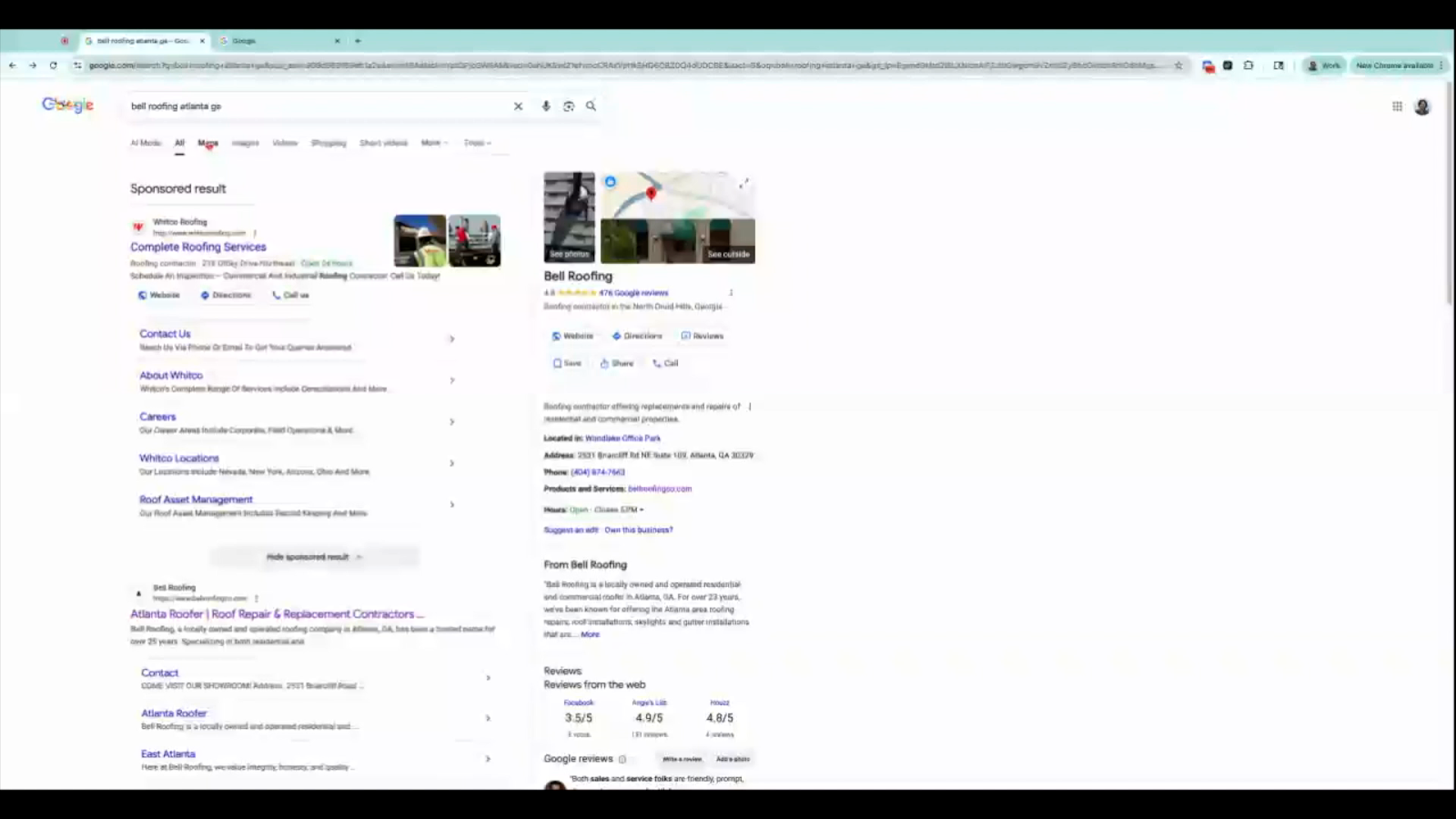
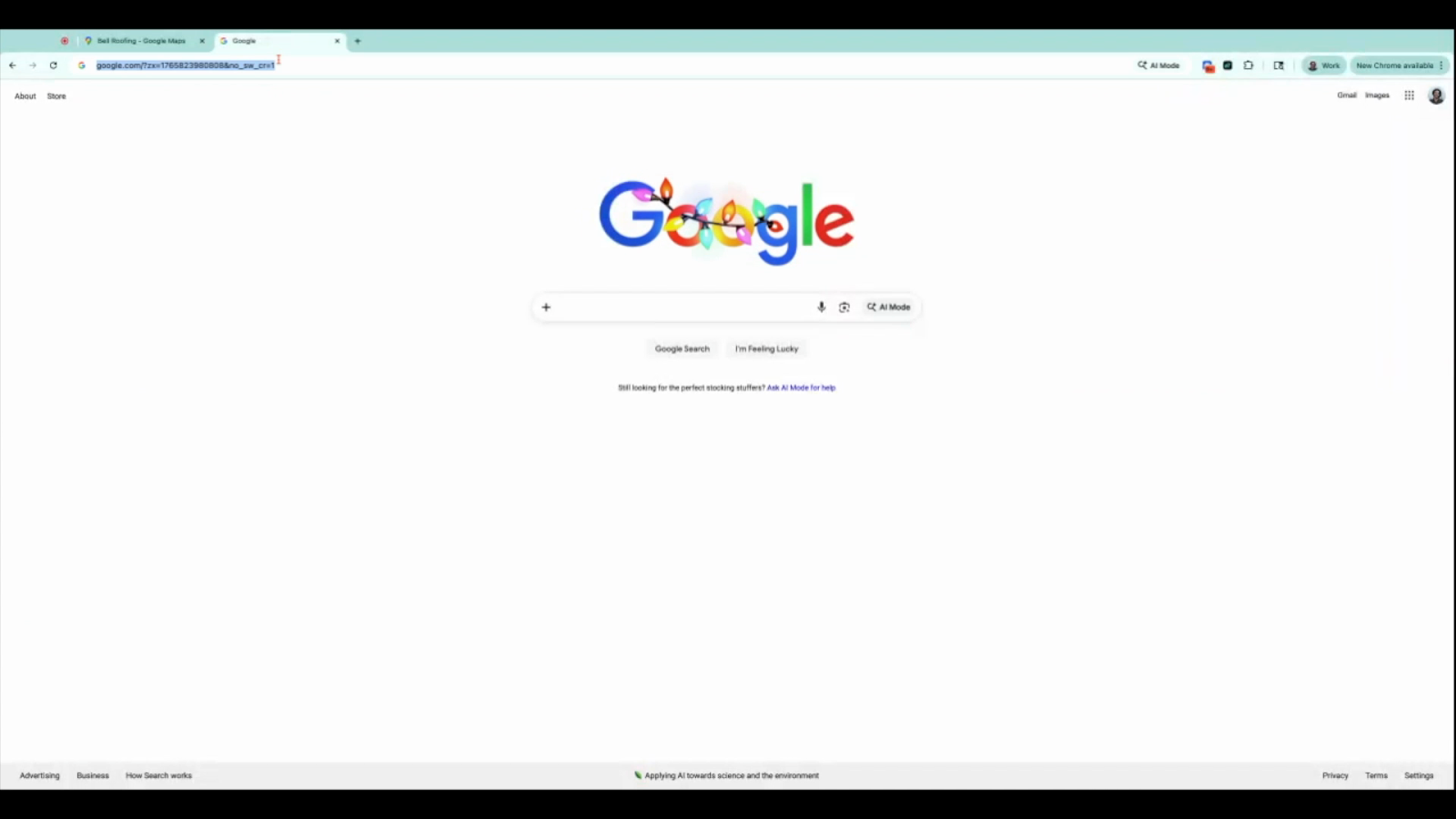
Copy the full URL from the address bar on the business’s Google Maps page.
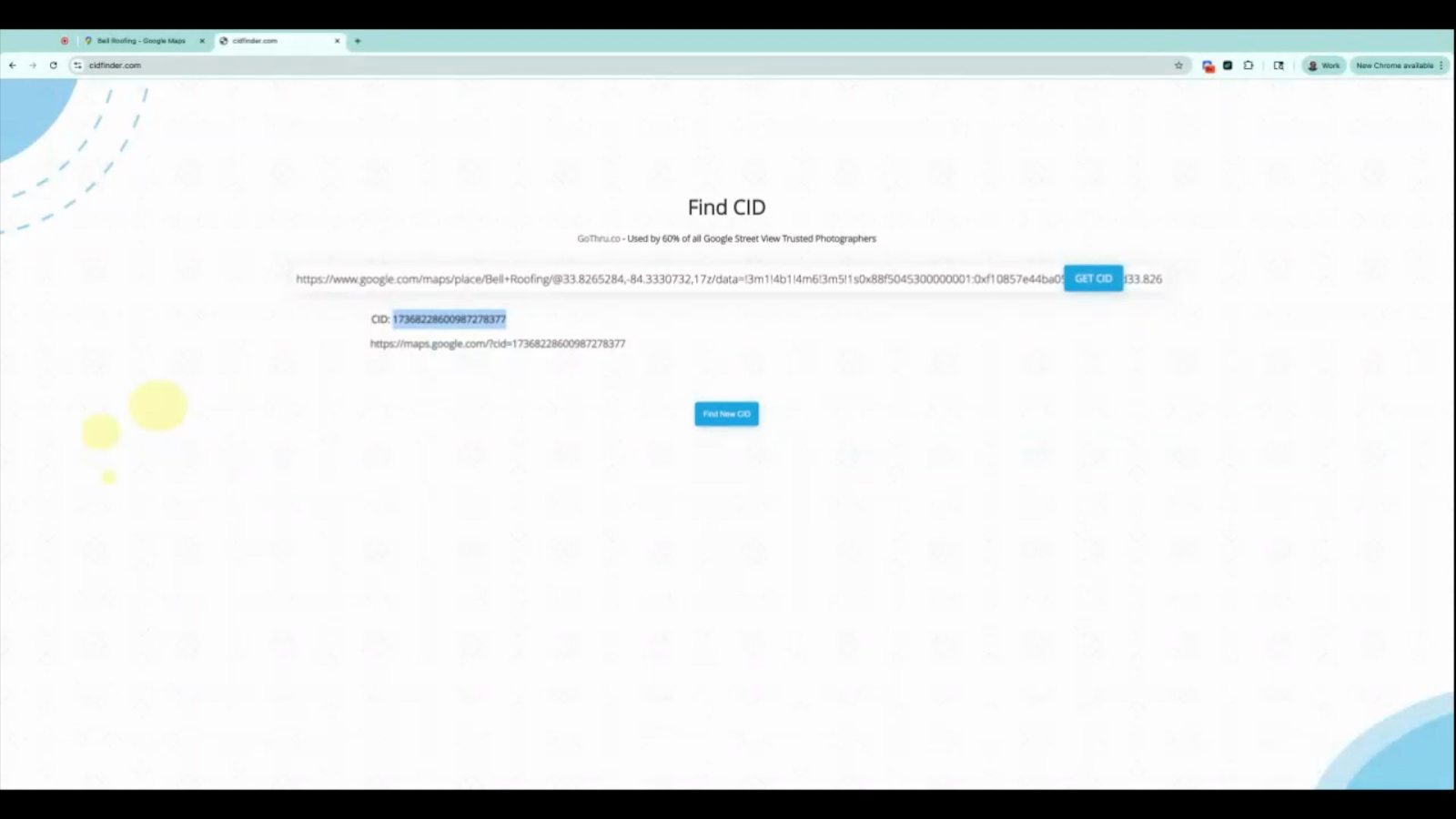
Visit cidfinder.com. Paste the URL into the field and click Get Cid.
Copy the CID number that appears. To ensure it is the correct CID, you can click the link under the number to confirm it takes you to the correct business listing.
Step 2: GBP Unique Address
Check if the business address appears on more than one Google Business Profile.
Copy the complete address and search it on Google Maps. Scroll down to review other businesses listed at the same location.
If more than one business appears, the listing should include a unique suite, unit, or identifier. This helps Google clearly distinguish the business from others associated with that address and reduces listing overlap.
If the address is not uniquely identified, updating it with a distinct suite or unit designation is recommended so the business can be treated as its own location.
Service area businesses (those without a visible address) are not eligible — the address must appear on the Google Business Profile.
Step 3: Website admin access
Ensure the client can provide website admin access. Admin access is mandatory because the website may need optimization for best results with uGeoRank.
Step 4: Website Unique image
Check that the homepage features a unique image.
Go to the website and look for the main homepage image.
If it’s a stock or template image, confirm the client is willing to use a unique photo.
Google prefers unique images, which helps with business legitimacy and ranking. If unsure, ask the client directly.
Step 5: Consistent NAP (Name, Address, Phone number)
Confirm the business info is consistent across all platforms.
Check that the name, address, and phone number (NAP) match on the Google Business Profile, website, and other major listings.
Listings on platforms like Yelp and Nextdoor should also match exactly. If an address isn’t shown, that’s fine, but any displayed address must be identical. Consistency helps building trust online.
Step 6: GBP Category and Keywords
Verify that the services you’ll promote match the client’s primary Google Business Profile category.
On Google Maps, look up the business and review their main category on the Google Business Profile.
Check the website for listed services and make sure they match the category. For example, if we want to use the “Commercial Roofing” keyword, we must ensure it falls under the “Roofing Contractor” category.
Test this by searching “[service], [city], [state]” and review the business categories of the top results.
Repeat for each service. Only services under the primary category are eligible for promotion. Services from unrelated categories (like plumbing for a roofing contractor) aren’t eligible.
Completing this pre-onboarding checklist ensures your client is fully eligible for uGeoRank, preventing issues during setup. Confirm every item before moving forward to guarantee a smooth and successful campaign launch.
