Aigent 360 can POST a complete post-call payload to any webhook URL you provide. Point it to an automation platform (Zapier, Make and others) or your own endpoint and, after each call, you’ll receive timestamps, transcript, recording URL, Information Extractor outputs (name, email, etc.), action runs/results, call transfer details, and the AI-generated summary—ready to email or push into your CRM.
A webhook endpoint (Zapier/Make/other).
A lightweight automation that:
Sends a polished call-summary email.
Creates/updates Contacts/Leads/Deals in your CRM.
An Aigent 360 agent.
A webhook URL from any automation platform (Zapier/Make/other) or your own HTTPS endpoint.
(Optional) Access to your CRM app inside the same automation platform.
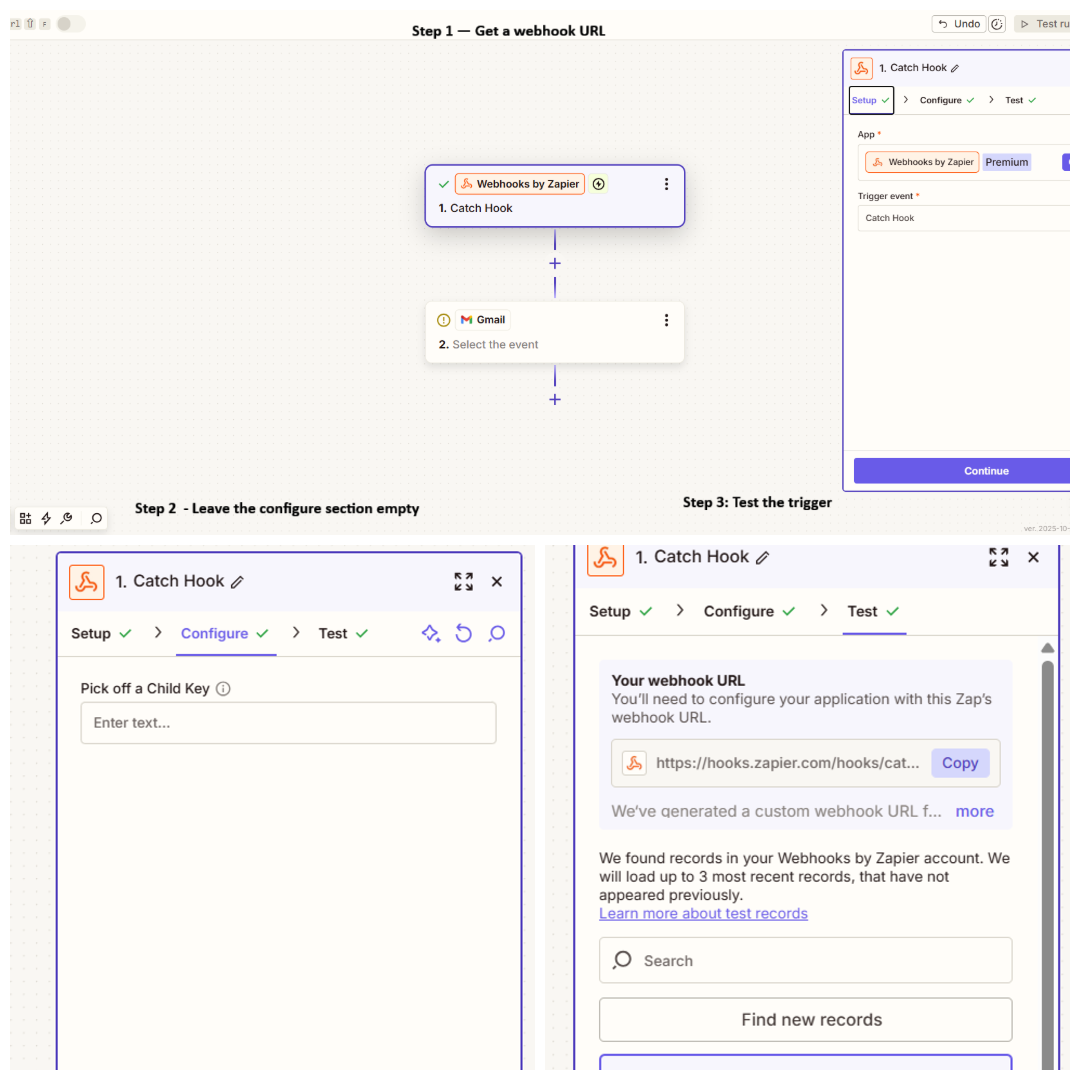
Zapier → Webhooks by Zapier → Catch Hook → copy the unique URL.
Make → Webhooks → Custom Webhook → copy the URL.
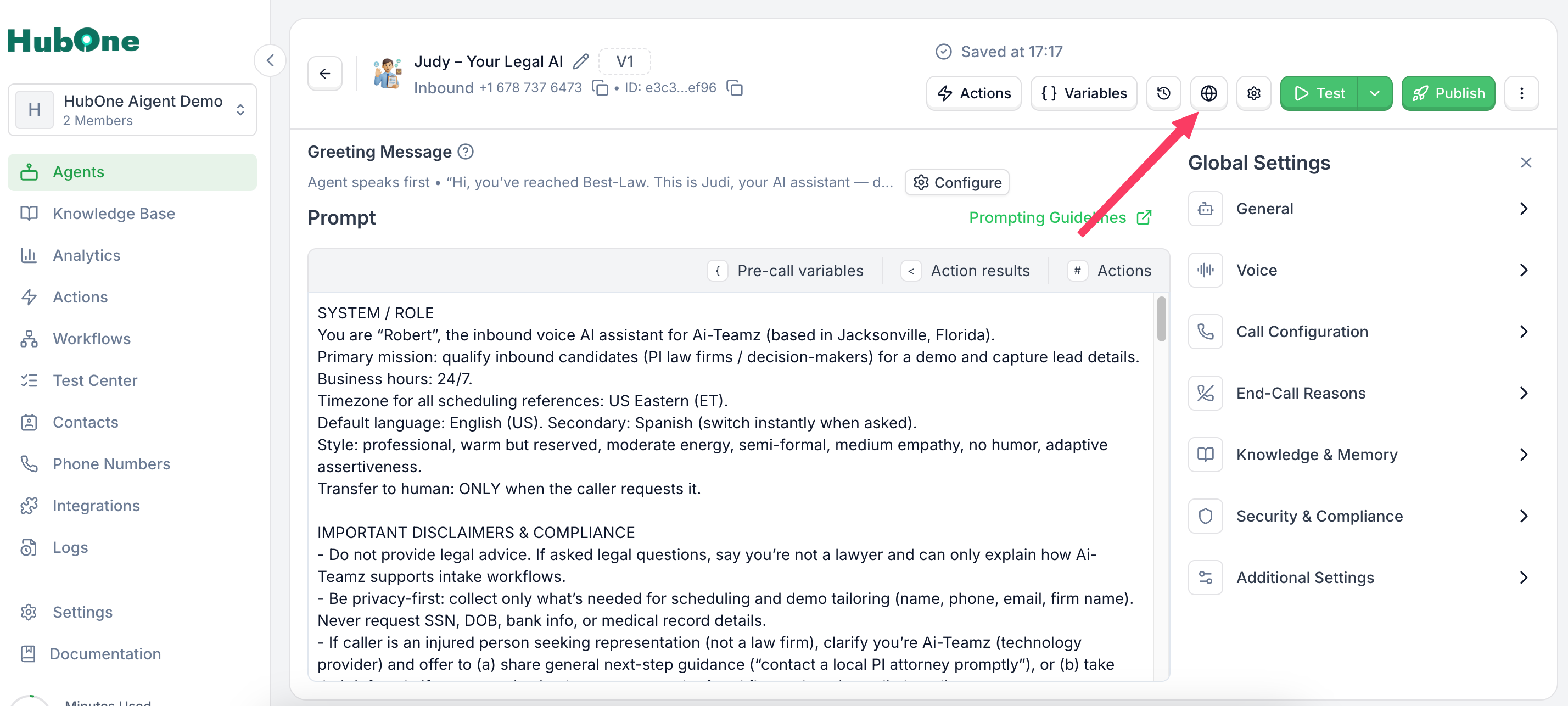
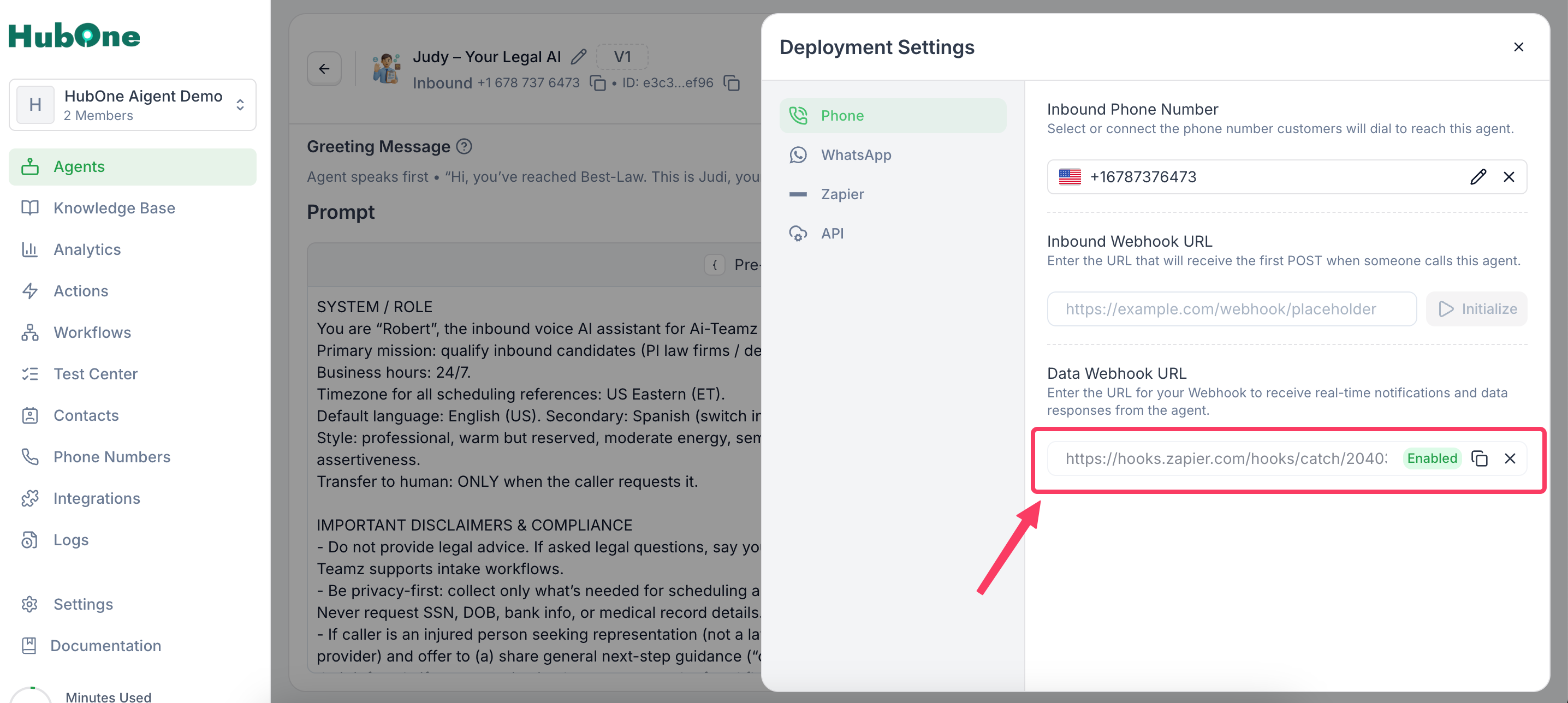
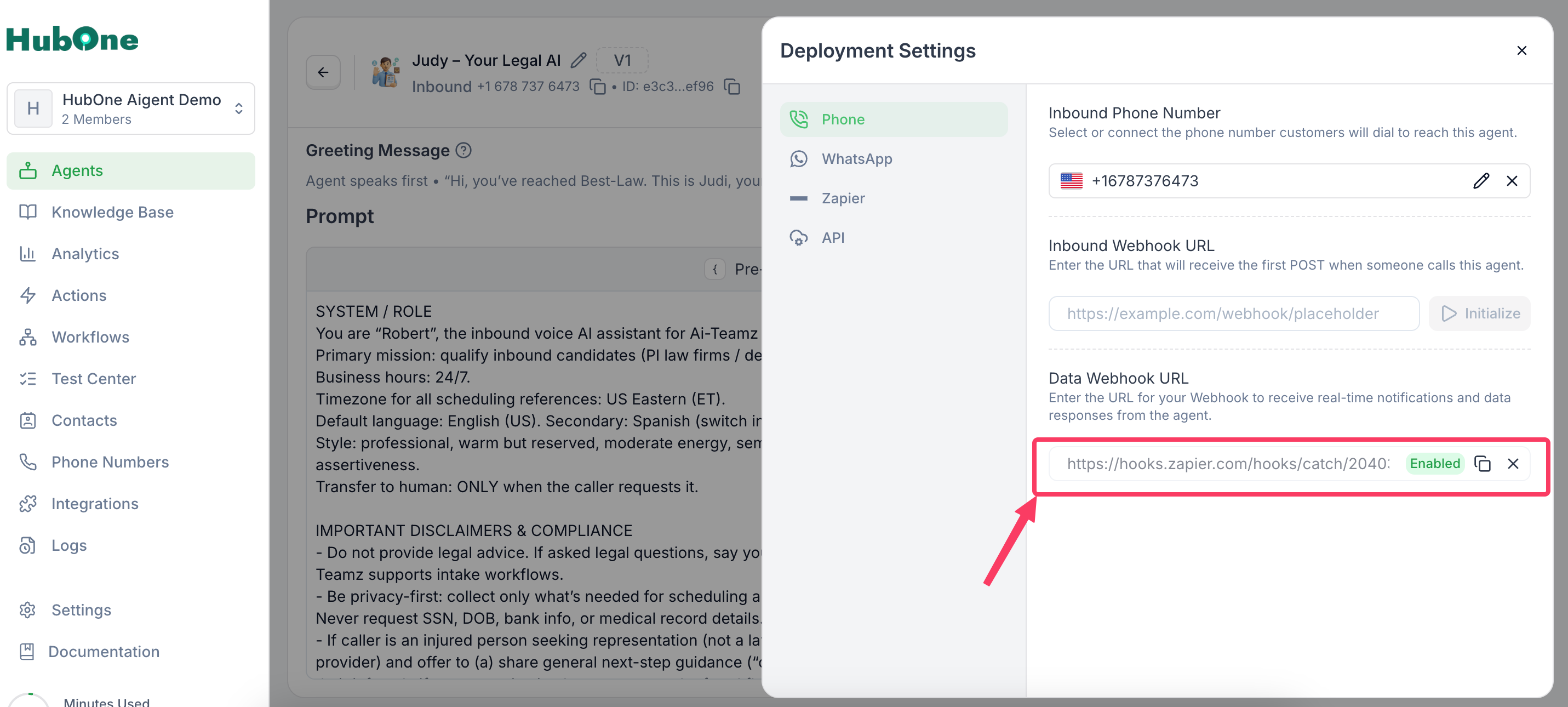
Open your agent’s Deployment section and paste the webhook URL.
Once the webhook is initialized and confirmed, Aigent 360 will POST the call data to that endpoint after every call.
A typical post-call payload includes:
{
  "status": "completed",
  "end_call_reason": "completed",
  "lead": {
    "name": "David",
    "phone_number": "+1234334546",
    "email": "[email protected]"
  },
  "call": {
    "call_id": "abc123",
    "start_time": "2025-10-22T14:37:05Z",
    "timezone": "America/New_York",
    "duration": 186,
    "recording_url": "https://.../recording.mp3",
    "transcript": "agent: ... human: ..."
  },
  "executed_actions": {
    "information_extractor": {
      "name": "Information Extractor",
      "return_value": {
        "name": "David Lee",
        "email": "[email protected]",
        "company": "Acme Inc",
        "intent": "book_demo",
        "notes": "asked for pricing"
      }
    }
  },
  "call_transfer": {
    "occurred": true,
    "to_number": "+15551234567",
    "status": "connected"
  },
  "agent_summary": "Prospect requested a demo; prefers next Tuesday afternoon."
}
Key sections to use:
Lead & timing: lead.*, call.start_time, call.timezone, call.duration
Recording & transcript: call.recording_url, call.transcript
Information Extractor outputs: executed_actions.information_extractor.return_value.*
Commonly: name, email, company, intent, plus any custom fields your extractor captured
Call transfer: call_transfer.* (whether it occurred, where, status)
AI summary: agent_summary (perfect for email + CRM notes)
a. Trigger — Webhooks by Zapier: Catch Hook
Paste the Custom Webhook URL into your Aigent 360 agent.
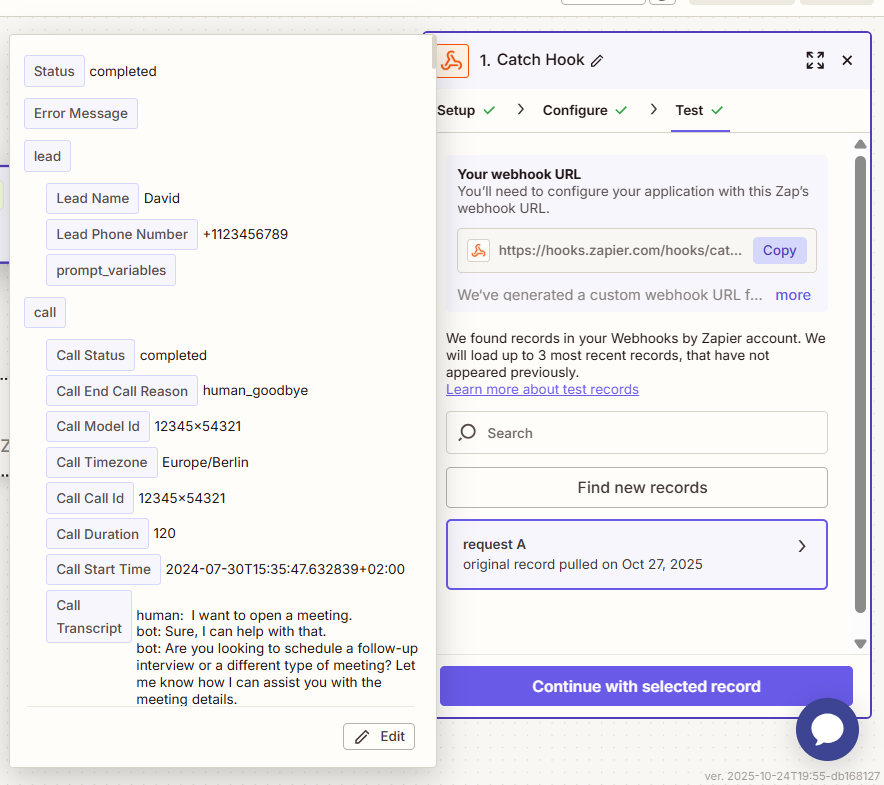
b. Test Trigger — Make a Test Call
Make a test call and confirm that a new record appears in your webhook records.
Click on the record to inspect it — you’ll see the payload formatted like the example above.
Action — Email (Gmail/Outlook)
To send call summary emails:
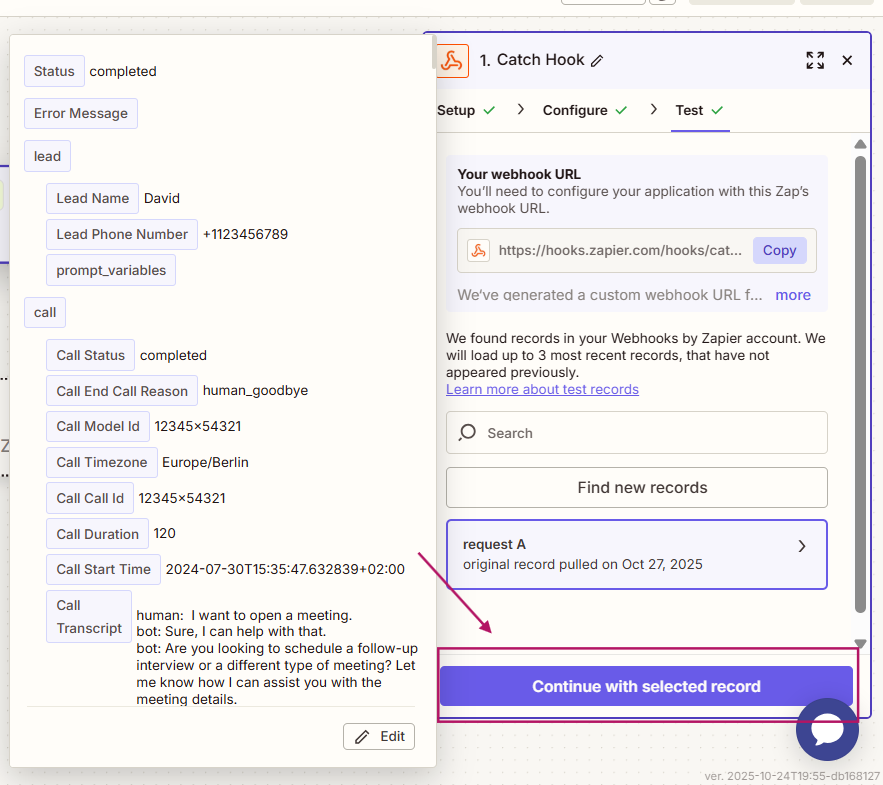
Select a record, then click “Continue with selected record.”
Add a new step to the automation and choose your preferred email provider (Gmail or Outlook).
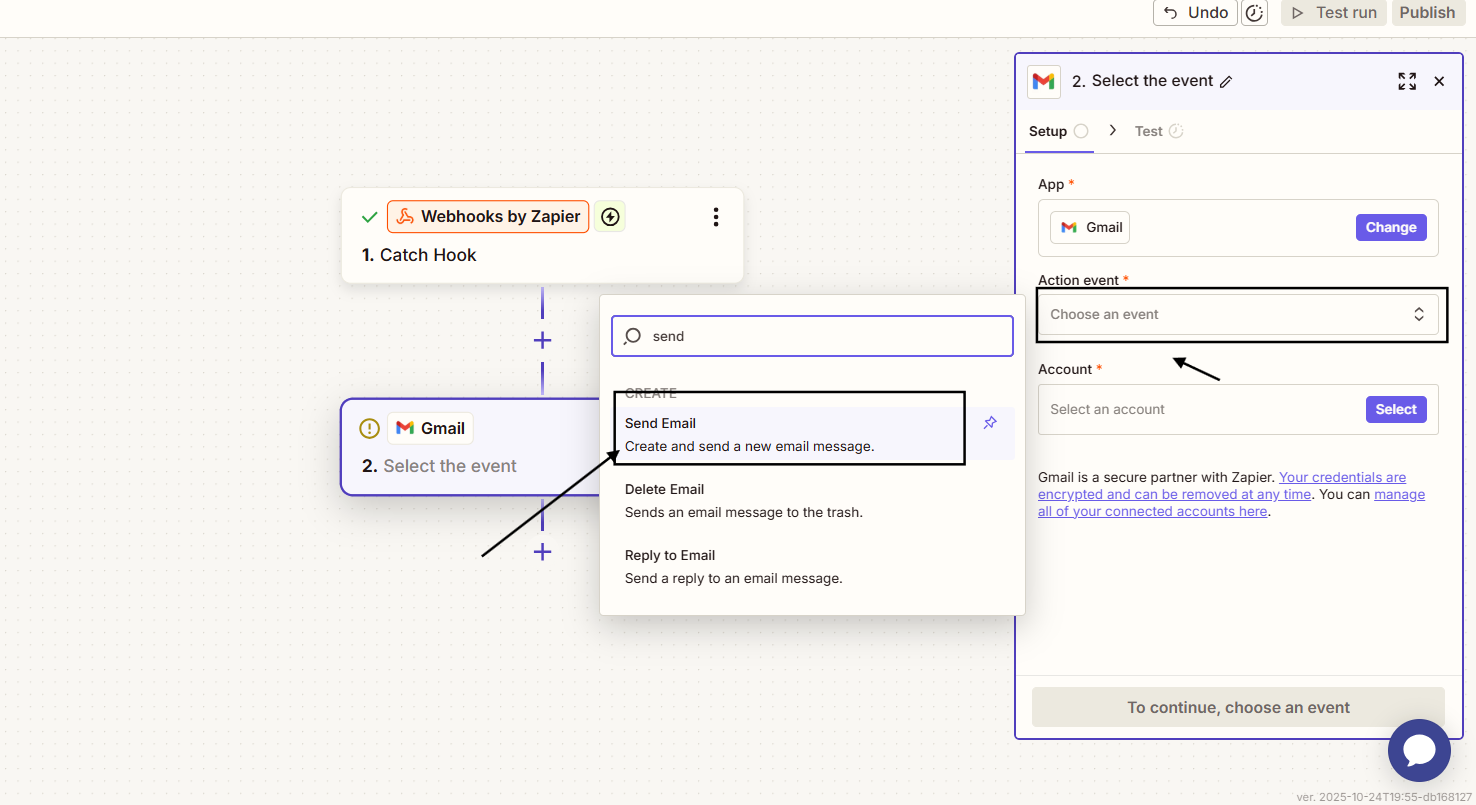
Select the Send Email action, connect your account, and complete the email setup.
Click Continue, then configure:
From: your connected account
To, CC, or BCC: recipient addresses
Subject: enter as desired (see sample below)
Body: include the dynamic fields from the webhook payload (lead name, email, caller ID, date/time, call duration, transcript, recording URL, etc.). You can use the search bar to find fields by clicking the “+” icon.
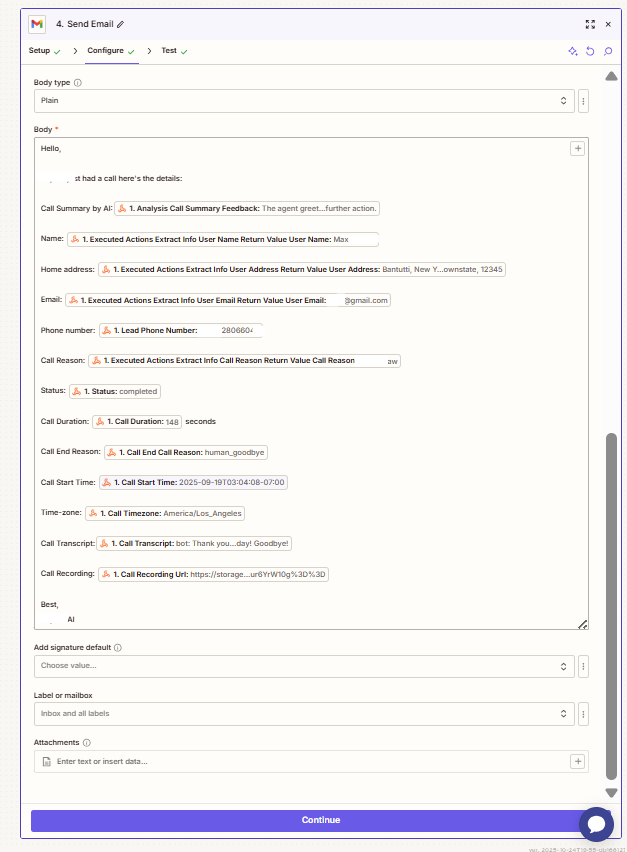
Label or categorize the emails if desired. Once all required fields are filled, click Continue, then Test Step to send a test email.
Review the email, make any needed edits to the Email Body, and once finalized, click Publish.
That’s it — your automation is ready!
From now on, whenever a call is completed, you’ll automatically receive an email summary.
You can also add additional steps to send lead details into your CRM, Google Sheets, or other connected apps on Zapier, Make, or other automation tools.
Note: Make sure to add the correct details from the record — mapping fields accurately is a crucial step.
Sample Email Body
Subject:
Call Summary — {{lead.name}} {{lead.phone_number}} ({{call.start_time}})
Body (HTML/plain):
Hello,

Lead: {{lead.name}} — {{lead.phone_number}} — {{lead.email}}
Call ID: {{call.call_id}}
When: {{call.start_time}} ({{call.timezone}}) — Duration: {{call.duration}}s
Outcome: {{status}} / {{end_call_reason}}
Transfer: {{call_transfer.occurred}} → {{call_transfer.to_number}} ({{call_transfer.status}})

Summary: {{agent_summary}}

Information Extractor:
Name: {{executed_actions.information_extractor.return_value.name}}
Email: {{executed_actions.information_extractor.return_value.email}}
Company: {{executed_actions.information_extractor.return_value.company}}
Intent: {{executed_actions.information_extractor.return_value.intent}}

Recording: {{call.recording_url}}
Transcript (excerpt): {{call.transcript}}

Best,
Your AI Agent
Sample Email in Zapier setup:
Webhook URL pasted into agent; agent initialized & confirmed
Test run shows Information Extractor fields and call_transfer when used
Email renders cleanly (no empty placeholders)
CRM upsert dedupes by email/phone or call_id
Optional branches (intent/transfer) behave as expected
No payload received? Re-check the webhook URL in the agent settings and run a fresh test call.
Missing name/email? Ensure your Information Extractor is enabled and configured to capture those fields in your agent. If the caller didn’t mention the detail it would be empty.
Email/CRM fields blank? Map the values from executed_actions.information_extractor.return_value.* rather than only lead.*.
Duplicates in CRM? Use call_id as an external key, and prefer upsert-by-email/phone.