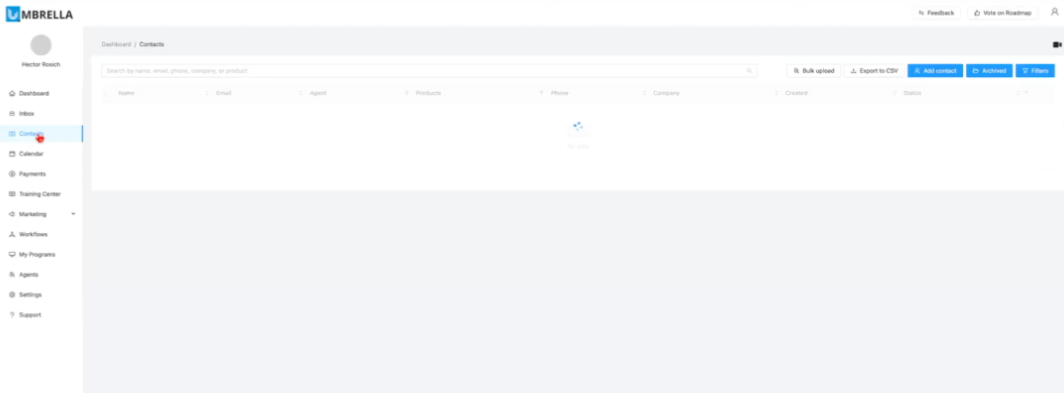
To begin, you need to establish a direct connection between the Lead Scrape app and your Umbrella dashboard using the Umbrella API key.
Open your Umbrella Dashboard.
Navigate to Settings.
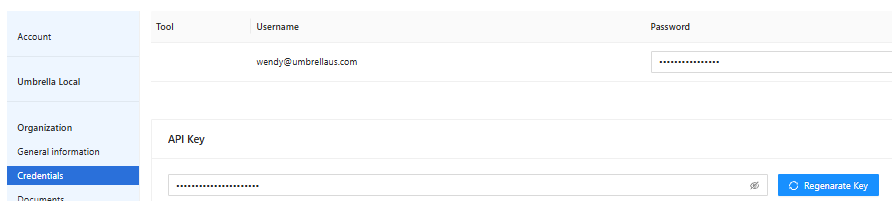
Go to Credentials.
Locate the API Key section.
Click Regenerate Key to ensure you are using the most current one.
Click the eye icon to reveal the key.
Copy the API key to your clipboard.
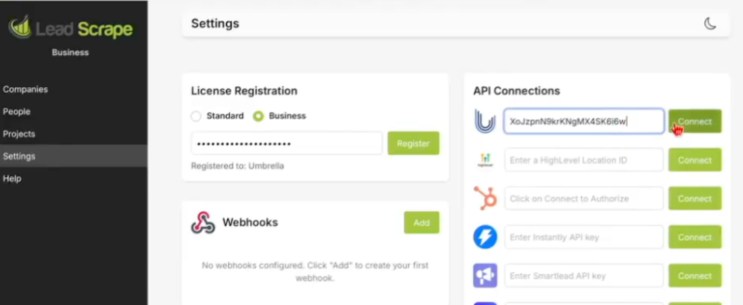
Open the Lead Scrape application.
Go to the Settings area.
Find the API Connections section.
Paste the Umbrella API Key into the designated field.
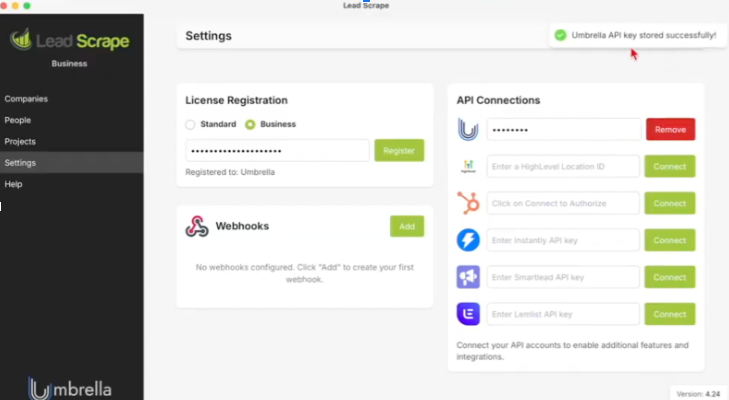
Click Connect.
A success message, "Umbrella API key stored successfully," confirms that the connection is active.
Once connected, you can use Lead Scrape to find new leads and export them to your Umbrella account.
In Lead Scrape, switch to the Companies tab (or People tab, depending on your search target).
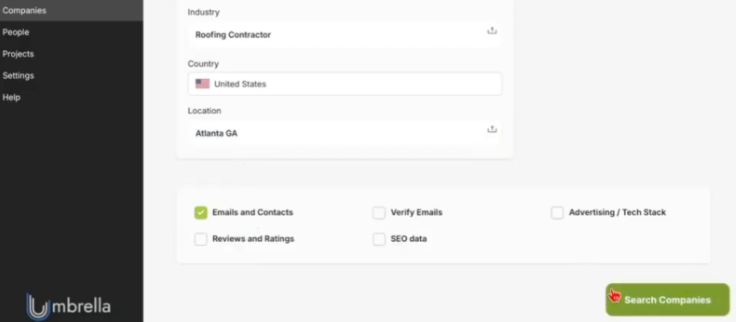
Enter your desired Industry (e.g., Roofing Contractor).
Enter the desired Location (e.g., Atlanta, GA).
Ensure the search options (e.g., Emails and Contacts, Reviews and Ratings) are selected based on the data you want to retrieve.
Click Search Companies.
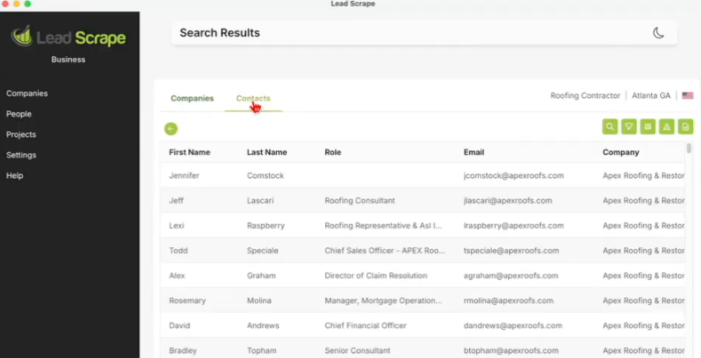
The results will populate a full list of companies and contacts in the specified area.
After the search is complete, navigate to the Contacts tab within the Lead Scrape search results.
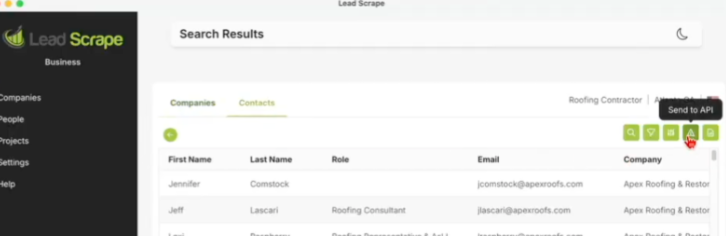
Click the Send to API button (often displayed as a small green icon).
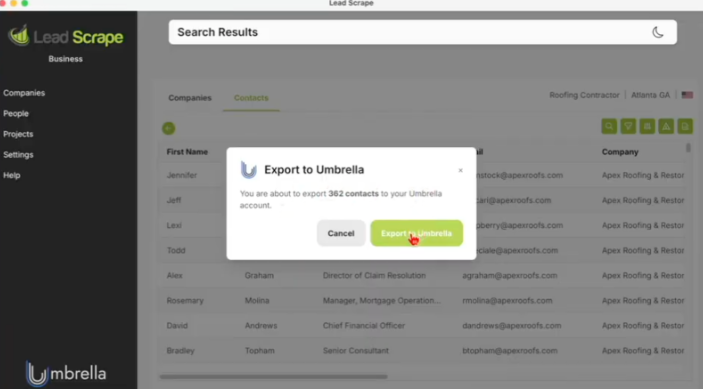
A dialog box will confirm the number of contacts about to be exported (e.g., "You are about to export 362 contacts to your Umbrella account").
Click Export to Umbrella.
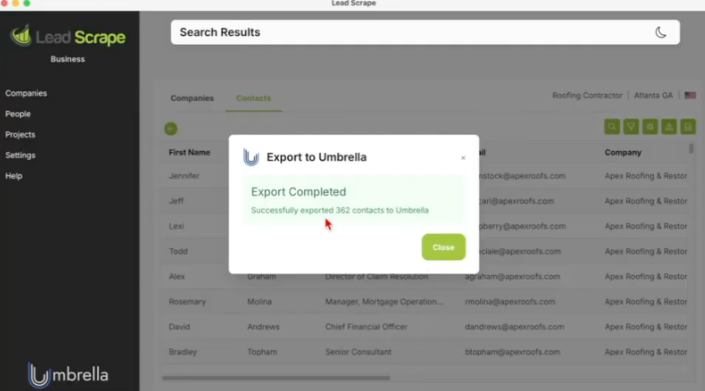
The export process will start. A confirmation message, "Export completed," will display when the contacts have been successfully transferred.
The newly exported leads will now be visible in your Umbrella Contacts section.
Go back to the Umbrella Dashboard.
Click on the Contacts section.
Refresh the page if the new contacts do not immediately appear.
The list will now include the new leads, showing details such as company name, phone numbers, email addresses, and the date they were added.
You can now interact with these contacts directly within your Umbrella dashboard (e.g., start conversations, view contact history).