A production-ready way to fetch real-time availability and create confirmed bookings using the Google Calendar that’s already connected in your Umbrella account.
Why this approach
Instead of pushing your assistant to talk to Google APIs directly (OAuth, FreeBusy, Events), you’ll call Umbrella’s Aigent hooks. Umbrella resolves free/busy against your connected Google Calendar, applies your calendar preferences, and returns clean slots. When you book, Umbrella creates the event in Google Calendar and hands back the details (start/end, Meet link when available). Fewer moving parts, fewer auth headaches.
What you’ll build
Aigent360 Custom Action (GET) → fetch available slots from Umbrella.
Aigent360 Custom Action (POST) → create a booking via Umbrella.
Guardrails: solid validation for time, email, and slot selection; graceful error messages; tidy success confirmations.
What you’ll need
Google Calendar connected in Umbrella CRM (Umbrella account → Calendar → Connect your calendar).
AiGent ID (workspaceId) and AiGent Webhook Token from Umbrella
(Contacts → pick your Aigent360 contact → Integration Details panel).
Now go to Aigent360 and actions section and then create Custom Actions.
Security reminder: never expose the webhook token in chat/Prompt. Keep it stored in the action’s auth/parameters and out of user-visible prompts.
Important: Parameter names, query keys, and variable placeholders in Aigent360 are case-sensitive. Use the exact names shown in this guide (e.g., start_date_time, time_zone, workspaceId, webhook_token).
Don’t see a Webhook Token or Workspace ID in your 360 account? Please contact the support team. We’ll provision them for your account before you proceed.
From the Aigent360 contact page in Umbrella:
AiGent ID (aka workspaceId) - e.g. 175308799775×1495572336182587
AiGent Webhook Token - keep this secret
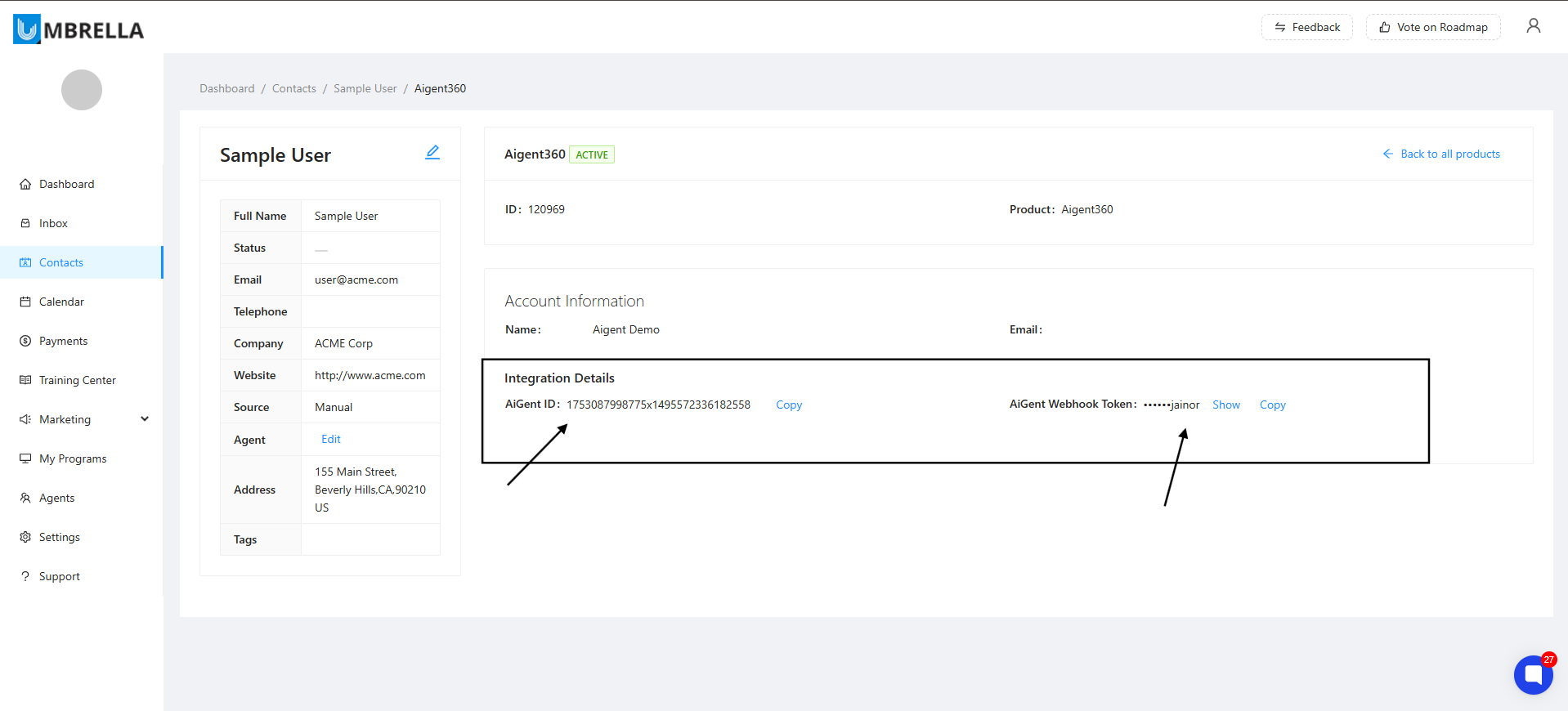
Goal: Let your assistant retrieve open times from your Google Calendar (via Umbrella) for a window and time zone, so the user can pick a slot.
In Aigent360: Actions → Custom actions → Create new
Action name: checking_available_slots
Description: Invoke this action when caller wants to find available slots in a calendar to book appointment.
Method: GET
Endpoint URL:
https://center.umbrellaus.com/hooks/aigent/available_slots/<workspaceId>
Example:
https://center.umbrellaus.com/hooks/aigent/available_slots/1753087998875×1495233618255870
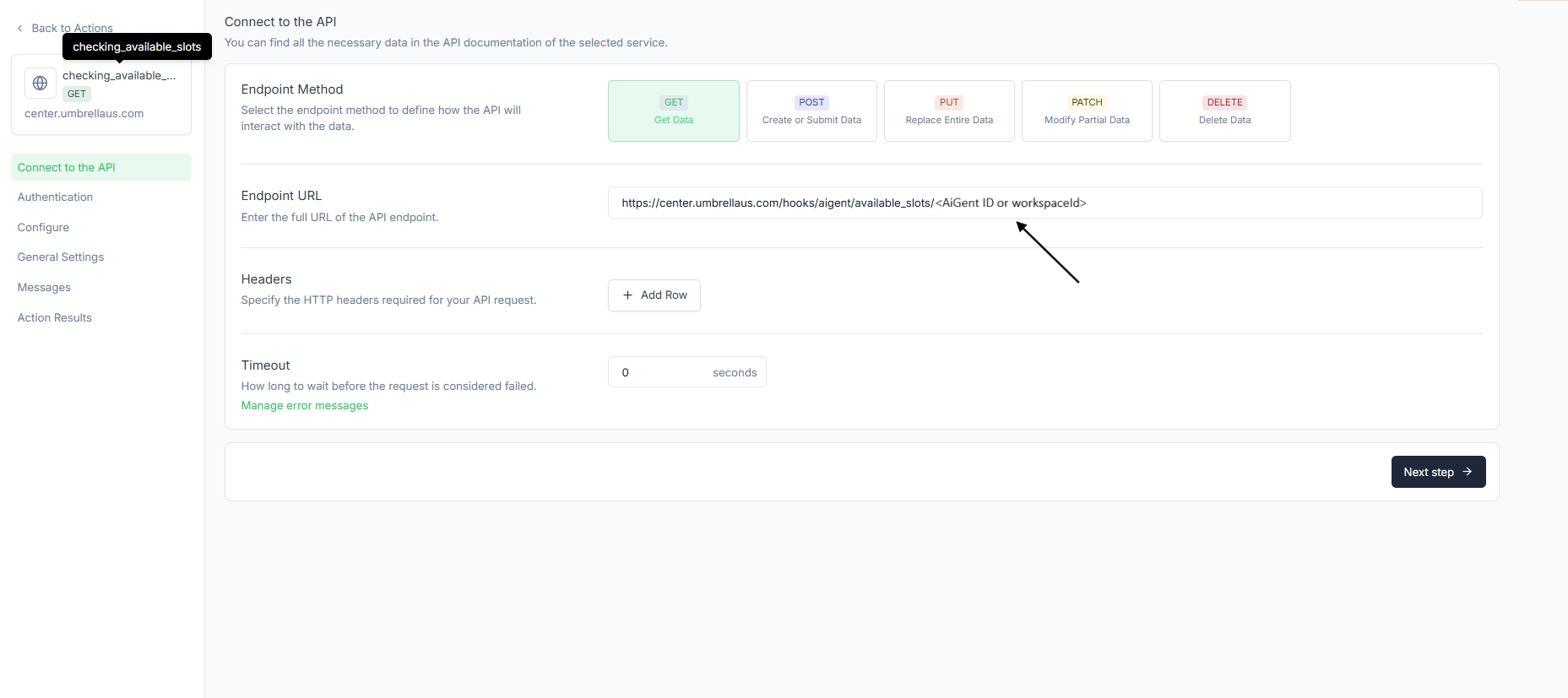
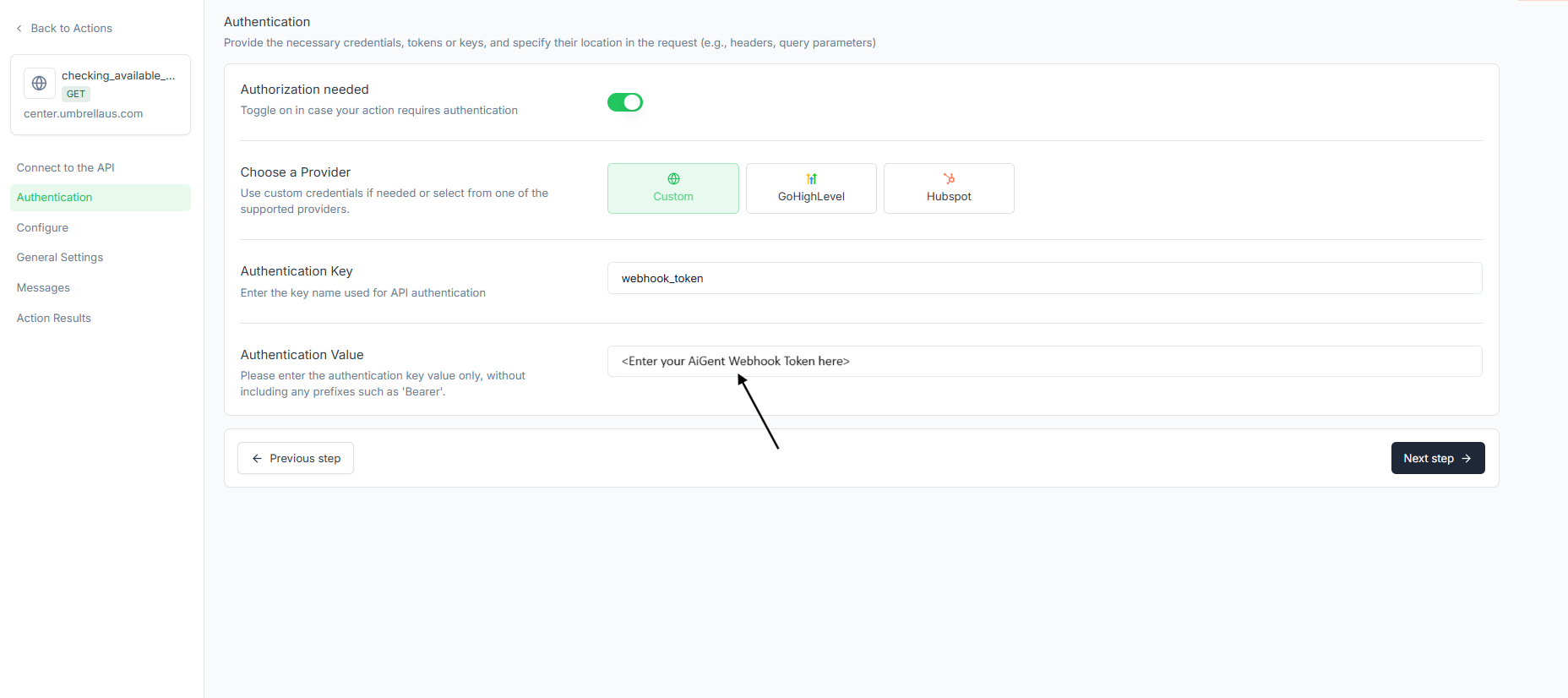
Authentication (Custom):
Key: webhook_token
Value: <YOUR_WEBHOOK_TOKEN>
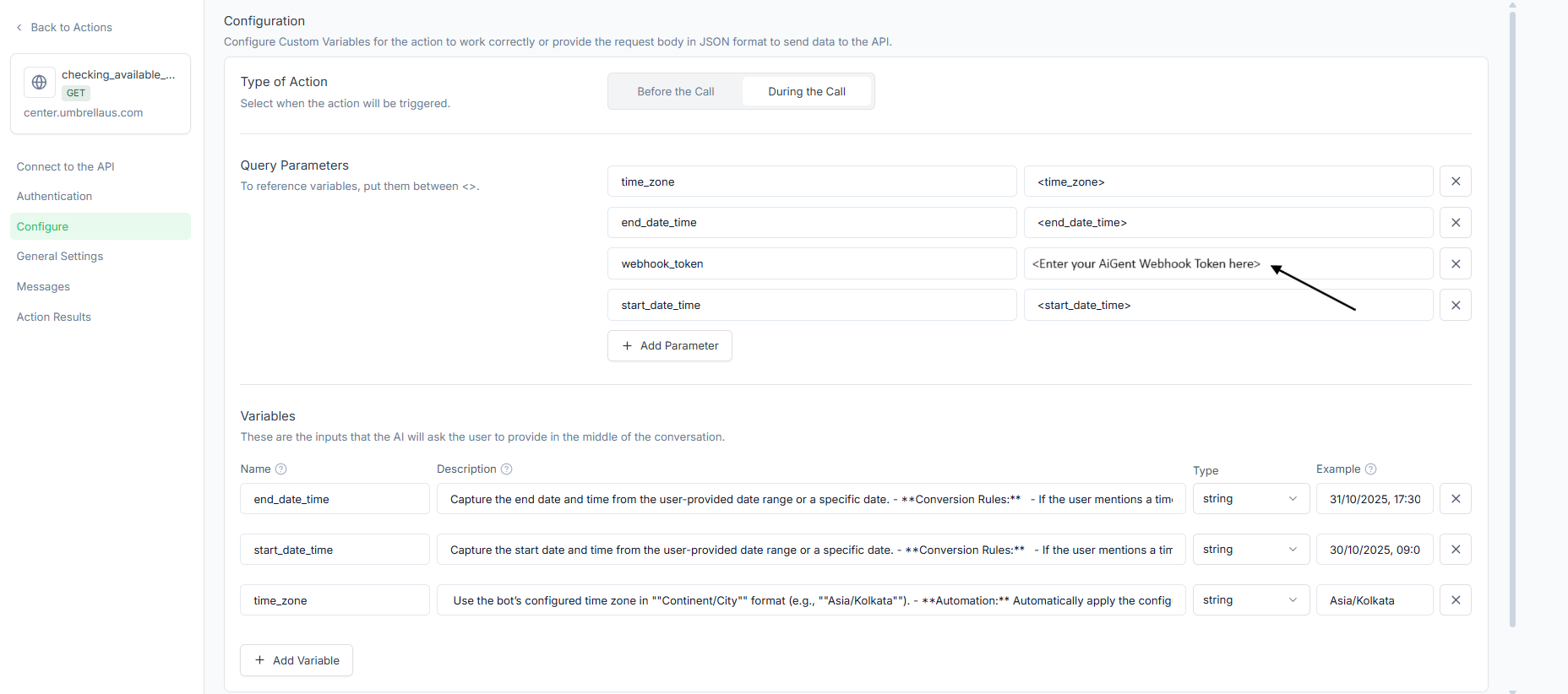
Query parameters:
Bind these to variables (see below).
start_date_time → <start_date_time>
end_date_time → <end_date_time>
time_zone → <time_zone> or e.g America/Los_Angeles. If your booking is constrained to a fixed time zone in IANA formar, you can predefine this value in the action; otherwise, ask the caller which time zone they’re in.
webhook_token → <YOUR_WEBHOOK_TOKEN>
Variables (Configure → Variables):
Name Description Type Example
start_date_time | Capture the start date and time from the user-provided date range or a specific date. Conversion rules: 1) If the user mentions a time, use it as the start time. 2) Add 30 minutes to define the default duration for the start slot. 3) Format as DD/MM/YYYY, HH:MM:SS. Example: User: “I’m looking for a slot on October 23 around 6:30 PM.” → System: Start Date/Time: 23/10/2024, 18:30:00. | string |
|
end_date_time | Capture the end date and time from the user-provided date range or a specific date. Conversion rules: 1) If the user mentions a time for the last day, use it as the end time and add 30 minutes to define the end boundary. 2) Format as DD/MM/YYYY, HH:MM:SS. Example: User: “I’m looking for slots between October 23 and October 25. Any time around 7 PM works for the last day.” → System: End Date/Time: 25/10/2024, 19:00:00. | string |
|
time_zone | Use the bot’s configured time zone in | string |
|
Expected response (shape):
{
  "status": "success",
  "data": {
    "available_slots": [
      "2025-10-30T09:30:00-07:00",
      "2025-10-30T10:00:00-07:00",
      "2025-10-30T10:30:00-07:00"
    ],
    "duration_minutes": 30,
    "time_zone": "America/Los_Angeles"
  }
}
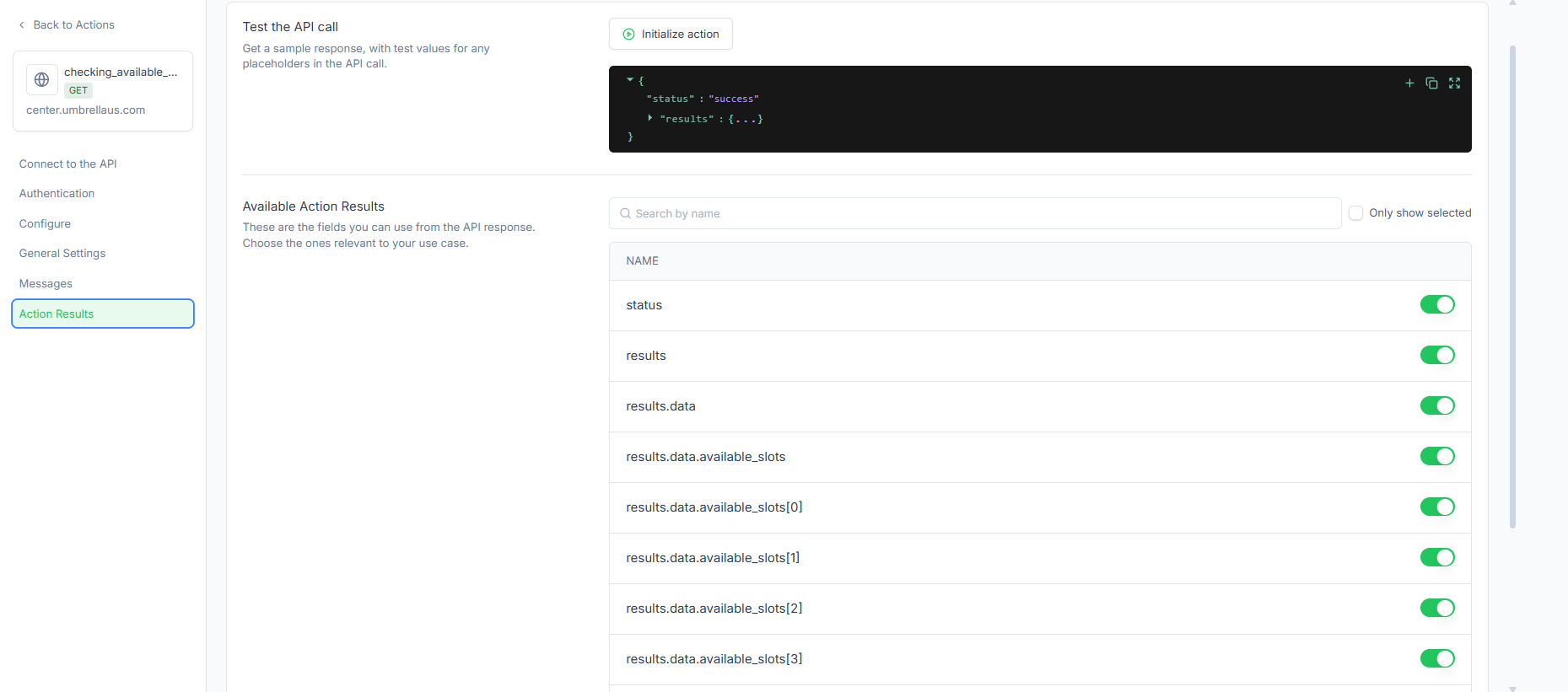
Action Results → enable:
status
results
results.data
results.data.available_slots
results.data.available_slots[0..n]
(optional) results.data.duration_minutes, results.data.time_zone
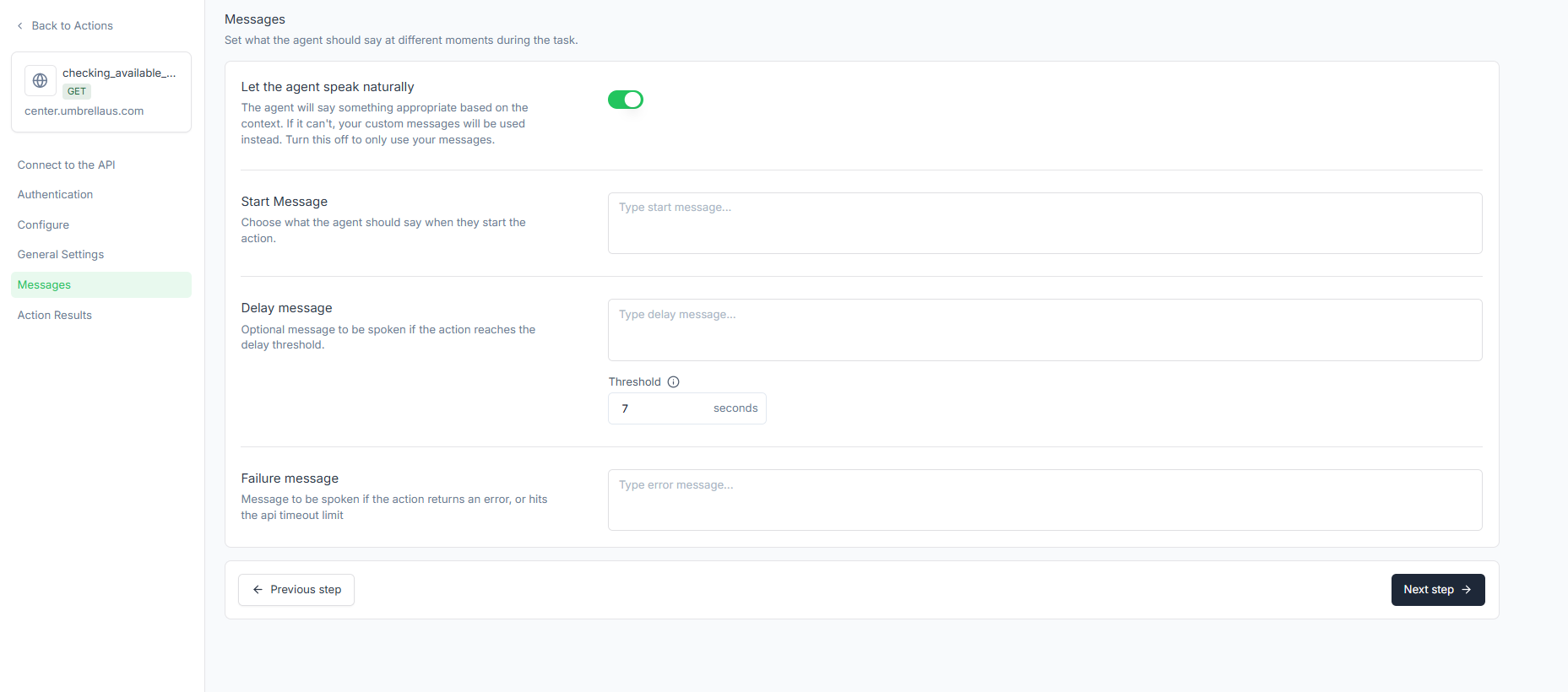
Recommended Sample messages:
Start: “Let me check the calendar for that window…”
Delay (7s): “Still checking - one moment.”
Failure: “I couldn’t fetch slots just now. Want to try a different date range?”
Goal: Confirm the user’s chosen slot and create the event in Google Calendar (via Umbrella).
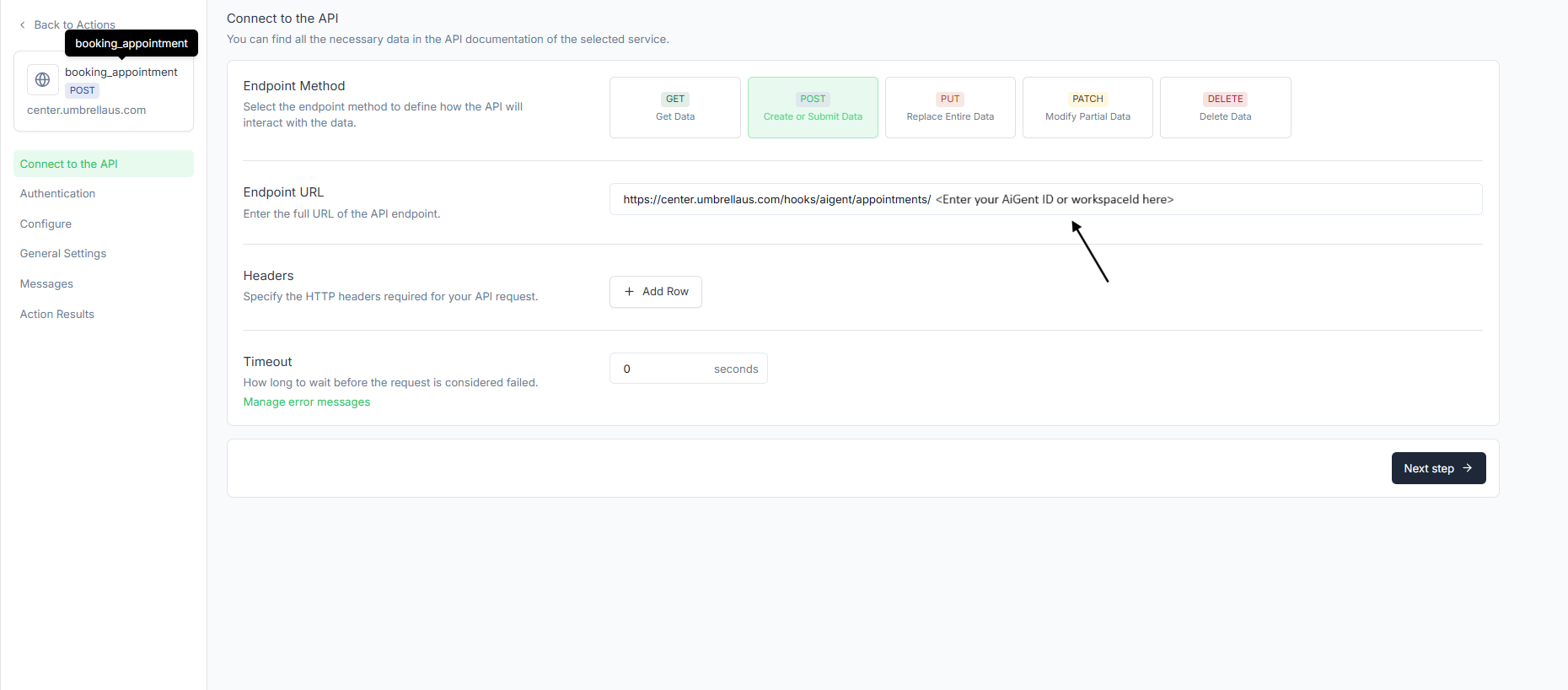
Action name: booking_appointment
Description: Invoke this action when the user confirms interest in booking and selects a preferred slot from the available options.
Method: POST
Endpoint URL:
https://center.umbrellaus.com/hooks/aigent/appointments/<workspaceId>
Example:
https://center.umbrellaus.com/hooks/aigent/appointments/17530879988775×149557233618255870
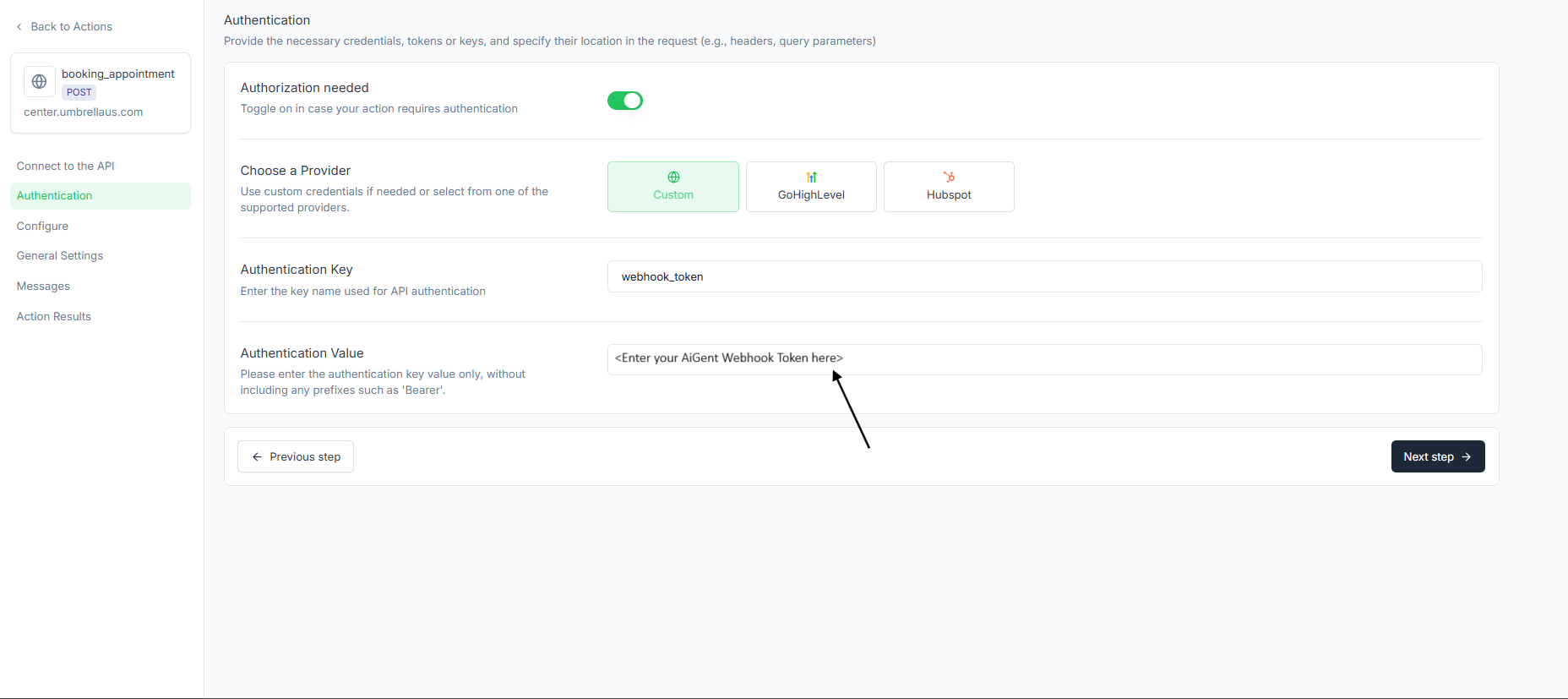
Authentication (Custom):
Key: webhook_token
Value: <YOUR_WEBHOOK_TOKEN>
Headers:Content-Type: application/json
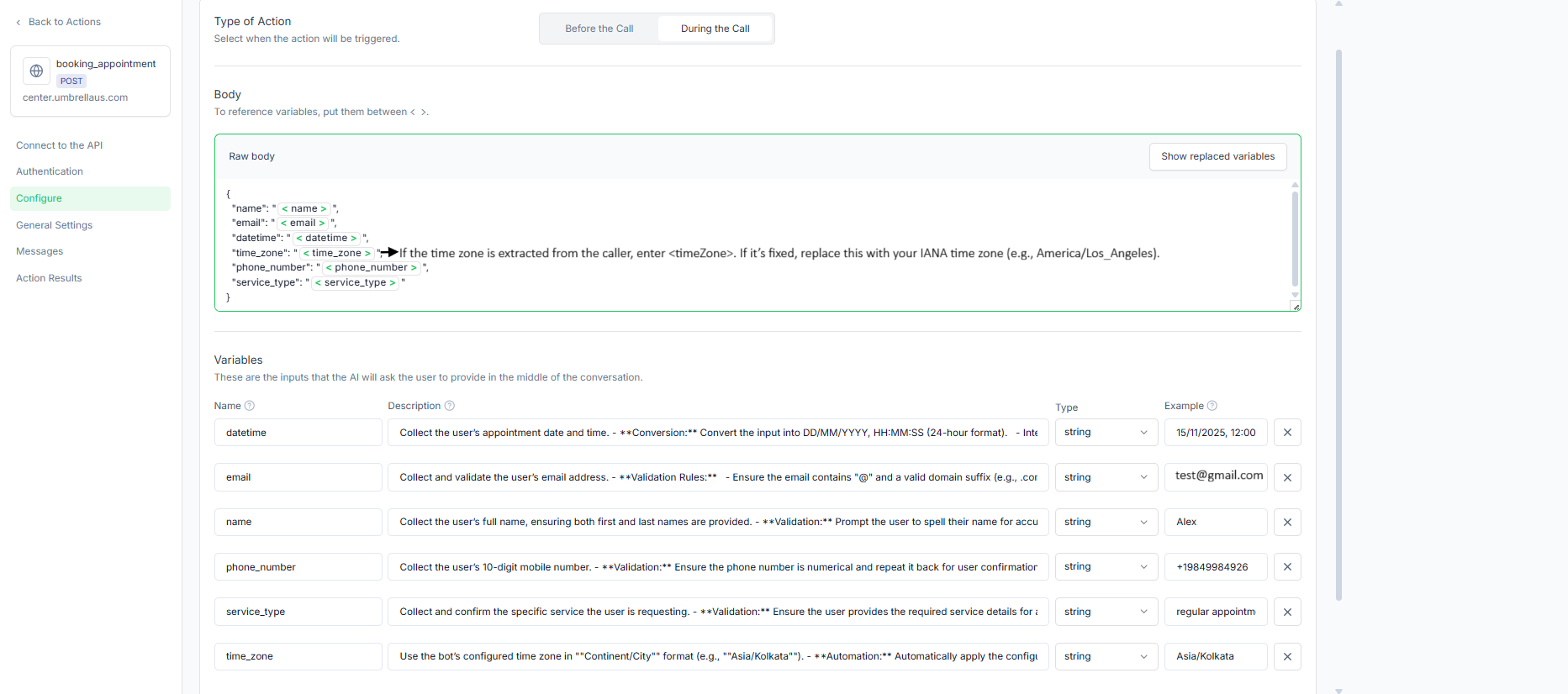
Body (raw JSON):
{
  "name": "<name>",
  "email": "<email>",
  "datetime": "<datetime>",
  "time_zone": "<time_zone>",
  "phone_number": "<phone_number>",
  "webhook_token":"YOUR_WEBHOOK_TOKEN",
  "service_type": "<service_type>"
}
Variables to capture (and validate) before calling:
Name Description Type Example
datetime | Collect the user’s appointment date and time. Conversion: convert to DD/MM/YYYY, HH:MM:SS (24-hour); interpret relative dates like “next Monday”; for same-day requests, start from current time to avoid past slots. Example: User: “Next Friday at 2 PM.” → System: 20/12/2024, 14:00:00. Confirmation: restate the time with the time zone for verification. | string |
|
Collect and validate the user’s email address. Rules: must contain “@” and a valid domain suffix (e.g., .com, .org). Convert to lowercase. Confirmation: “Could you confirm your email? I have it as [email protected].” | string | ||
name | Collect the user’s full name (first and last). Validation: prompt the user to spell their name for accuracy. Example prompt: “May I have your full name, please? Could you spell that for me?” | string |
|
phone_number | Collect the user’s 10-digit mobile number. Validation: ensure numeric; repeat it back for confirmation. Example prompt: “Can you confirm your phone number? I have it as 123-456-7890.” | string |
|
service_type | Collect and confirm the specific service the user is requesting. Validation: ensure required service details are provided for accurate scheduling. Example prompt: “Which service would you like to book this appointment for?” | string |
|
time_zone | Use the bot’s configured time zone in | string |
|
Expected success response (shape):
{
  "status": "success",
  "data": {
    "message": "Booked",
    "event_id": "google-evt-123",
    "calendar_id": "primary",
    "start": "2025-10-30T10:00:00-07:00",
    "end": "2025-10-30T10:30:00-07:00",
    "hangoutLink": "https://meet.google.com/abc-defg-hij"
  }
}
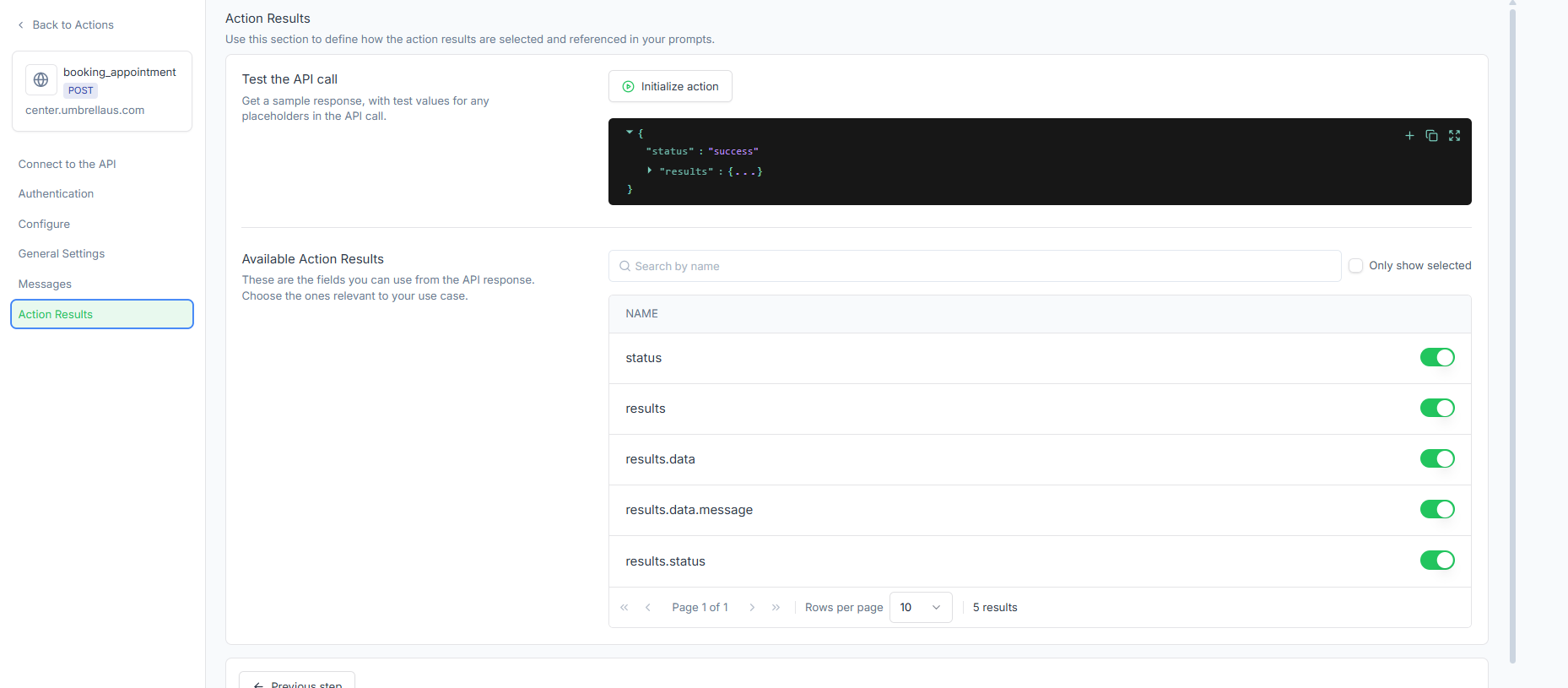
Action Results → enable (as in your screenshot):
status
results
results.data
results.data.message
results.status (if present)
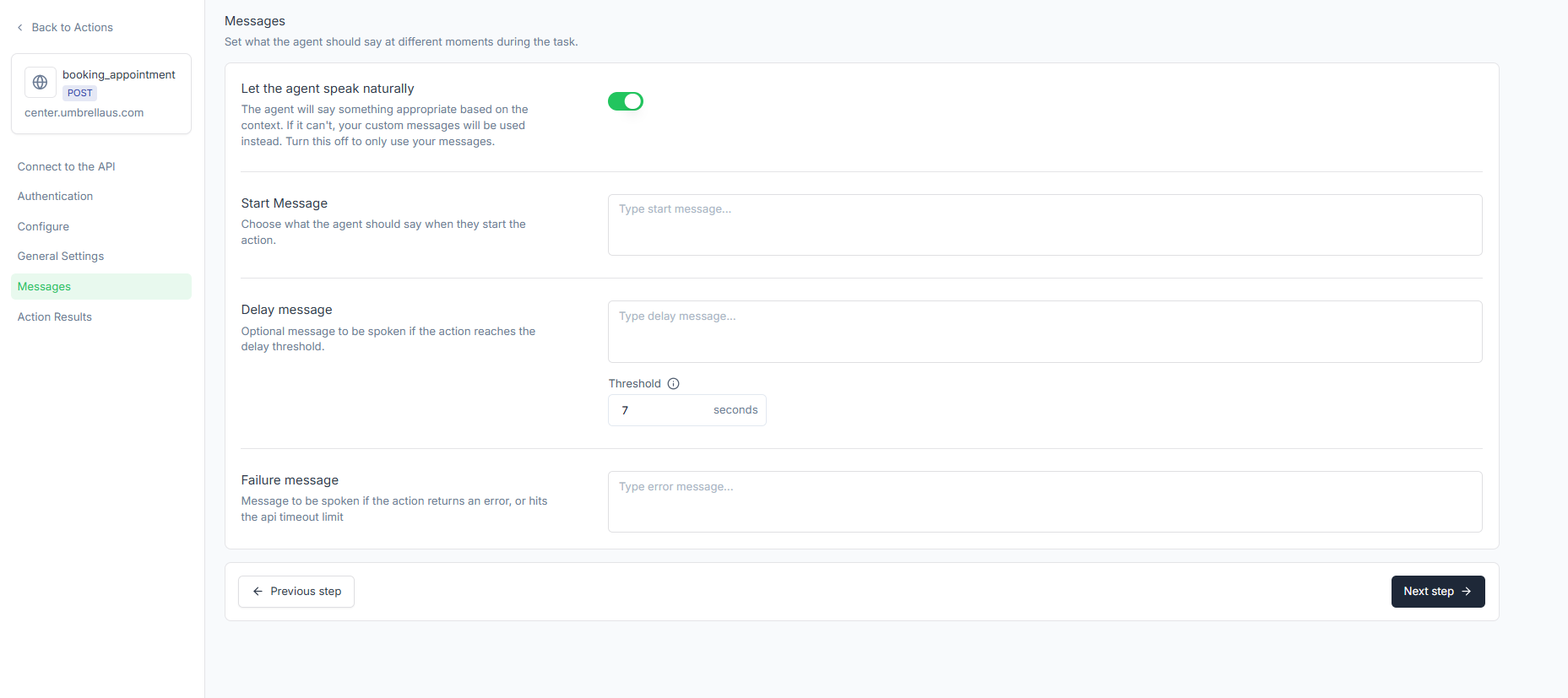
Recommended Sample messages:
Start: “Great - locking that in now…”
Delay (7s): “Booking the appointment - almost done.”
Failure: “The booking didn’t go through. Want me to try a different time?”
0) Time zone handling (pre-check)
If a predefined time zone exists:
“We’re scheduling in {predefined_time_zone}. We can book in this time zone.”
→ Set {time_zone} = {predefined_time_zone} (IANA string).
If not predefined:
“What is your current time zone?” (accept city/region or common abbreviations)
→ Normalize to IANA (e.g., PST → America/Los_Angeles, IST → Asia/Kolkata).
→ Set {time_zone}.
1) Clarify the window
“What day works for you — morning or afternoon?”
Collect:
{start_date_time}
{end_date_time}
{time_zone} (from step 0)
2) Check availability
#checking_available_slots
Input:
- start_date_time: {start_date_time}
- end_date_time: {end_date_time}
- time_zone: {time_zone}
If available_slots empty → “No openings in that window. Want to try a nearby date range?”
3) Offer 3–5 options (display in user’s {time_zone})
“Here are the available slots. Which would you like?”
Example: Thu 30 Oct • 10:00–10:30 (America/Los_Angeles)
4) Collect booking details
{name}, {email}, {phone_number}, {service_type}
Confirm selected slot as {datetime}
5) Book the appointment
#booking_appointment
Input:
- name: {name}
- email: {email}
- datetime: {datetime}          // selected slot
- phone_number: {phone_number}
- service_type: {service_type}
- time_zone: {time_zone}        // IANA
6) Confirm
“You’re booked for {start}–{end}. Meet link: {hangoutLink}. I’ve sent a calendar invite and confirmation email.”
Validation & error handling
Slot integrity: only allow booking if datetime ∈ available_slots.
Email: must contain @ and a domain (e.g., example.com). Reprompt once if invalid.
Time zone: ensure an IANA string (Region/City). If the user says “PST,” translate to America/Los_Angeles.
Resilience: if the booking fails (slot taken, network), show two alternate slots and offer to retry.
Go-live checklist
Google Calendar connected in Umbrella (correct account / calendar).
workspaceId and webhook_token are correct and stored securely.
GET action returns slots in your test range.
POST action succeeds with a picked slot; event appears in Google Calendar.
Confirmation content (title/description) matches your brand.
Failure messages are friendly and instructive.
Screenshots added for: IDs panel, both actions (every tab), and a successful test.
Troubleshooting
No slots returned: narrow the window; verify time zone; make sure Google Calendar is connected and not fully blocked.
401/403: check the webhook token and that it’s included either as Custom auth or query param.
Slot just vanished: another booking claimed it; re-run GET and present the next options.
Wrong time zone in calendar: confirm time_zone you send matches the user’s intended location; keep datetime in local time for that time_zone.
That’s it. With these two Custom Actions, your AI Agent books directly into the Google Calendar connected to your Umbrella CRM clean inputs, strong validation, and a simple, supportable setup.
