Umbrella's Zapier integration offers powerful ways to manage contacts. Beyond creating and updating, you can now:
Find Contacts: Search for existing contacts.
Integrate Custom Fields: Map and update custom data.
Assign Tags: Automatically add tags to contacts.
This integration provides a more comprehensive and automated contact management experience.
Zapier page with the details on integration with Umbrella CRM - https://zapier.com/apps/umbrella/integrations
Let's walk through an example of integrating a new contact created in Close CRM with Umbrella.
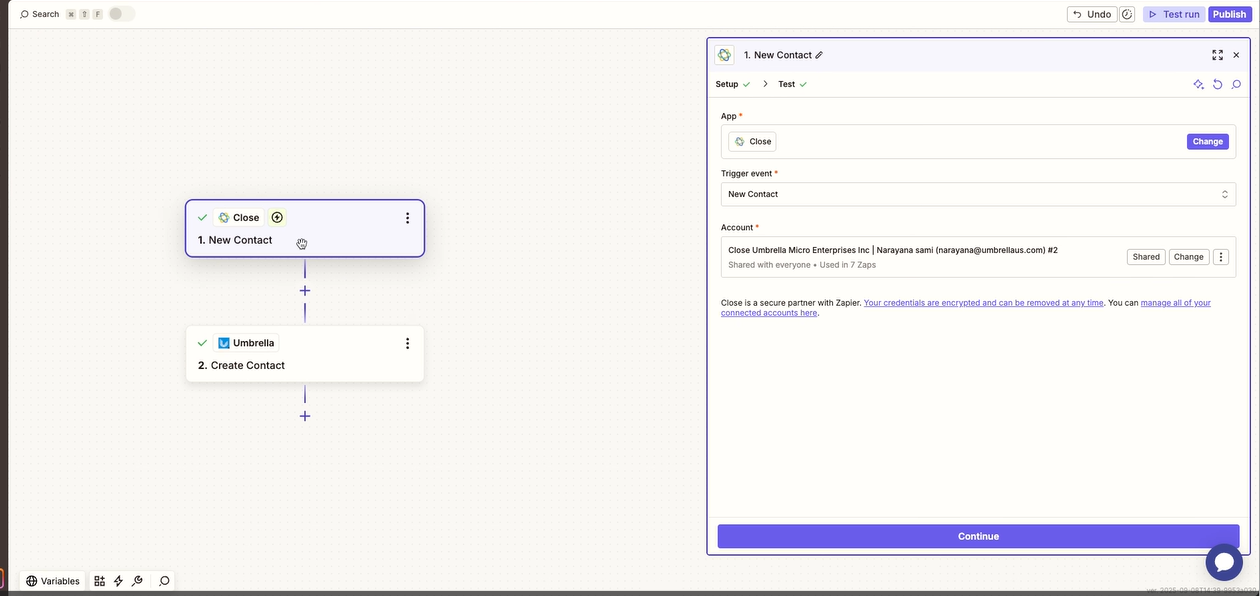
Choose Your Trigger App (e.g., Close CRM)
In Zapier, set up your trigger. For this example, we'll use "New Contact" in Close CRM.
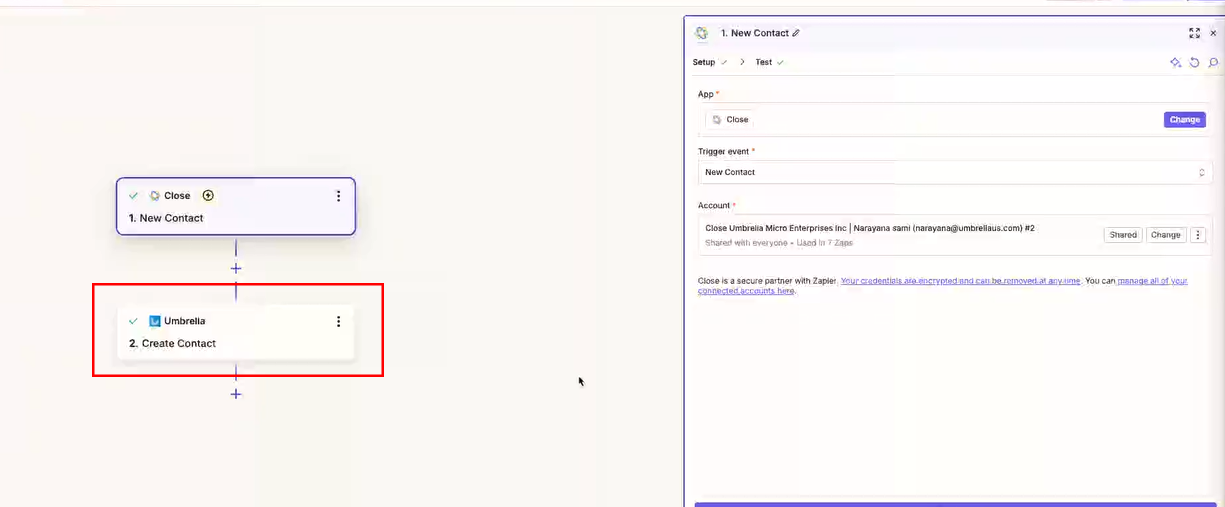
Choose Your Action App (Umbrella) and Event
Select Umbrella as your action app and "Create Contact" as the event.
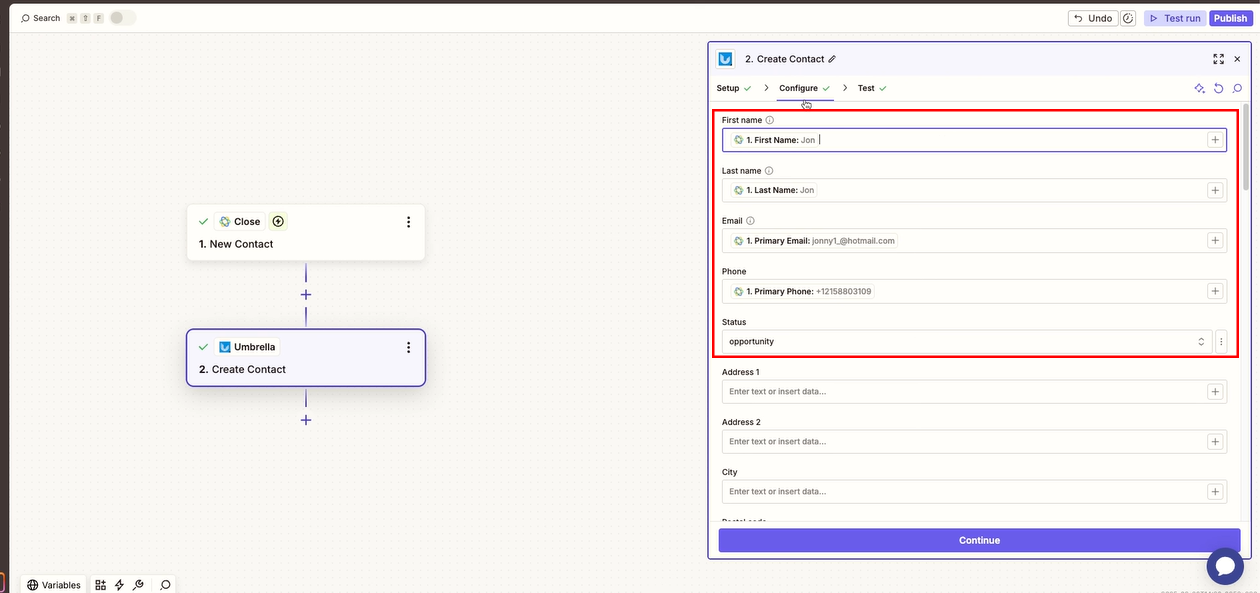
Map Standard Contact Fields
Map the standard contact fields (e.g., First Name, Last Name, Primary Email Address, Phone Number, Status) from Close to Umbrella. The "Status" field will offer options available on the Umbrella website.
Integrate Custom Fields
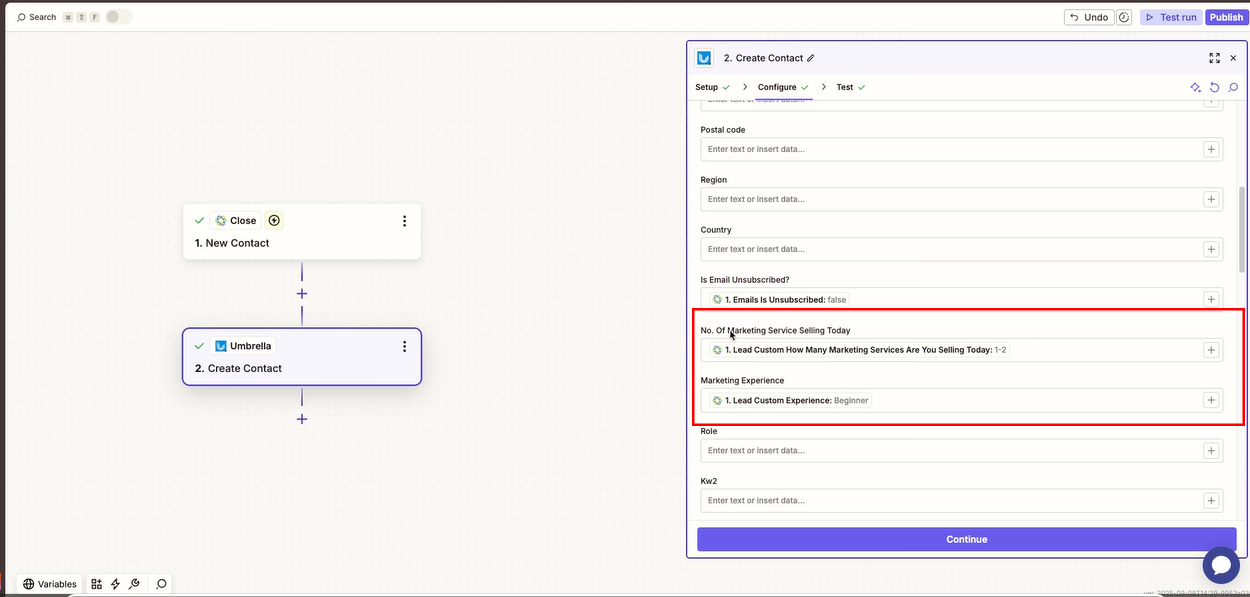
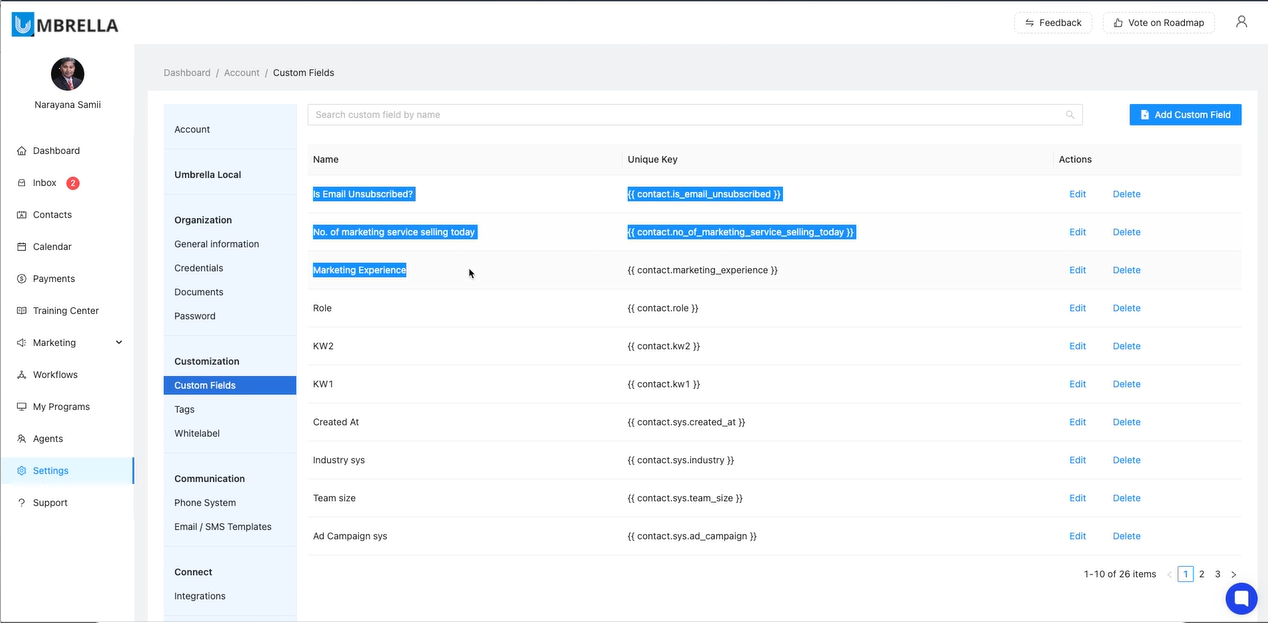
You can now map custom fields from your trigger app to Umbrella. For instance, if you have custom fields like "How many marketing services are you doing today?", "What is your lead custom experience?", or "Email Unsubscribed" in Close, you can map them directly to your custom fields in Umbrella.
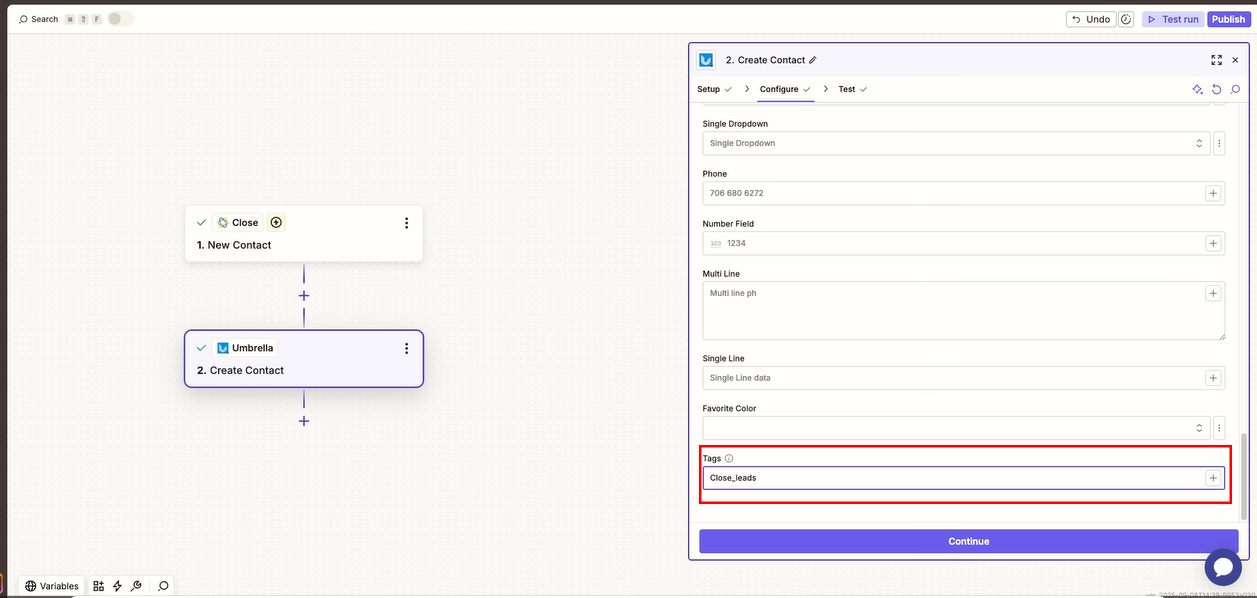
Assign Tags to Contacts
You can also assign tags to the new contact. If the tag doesn't exist in Umbrella, the system will create it
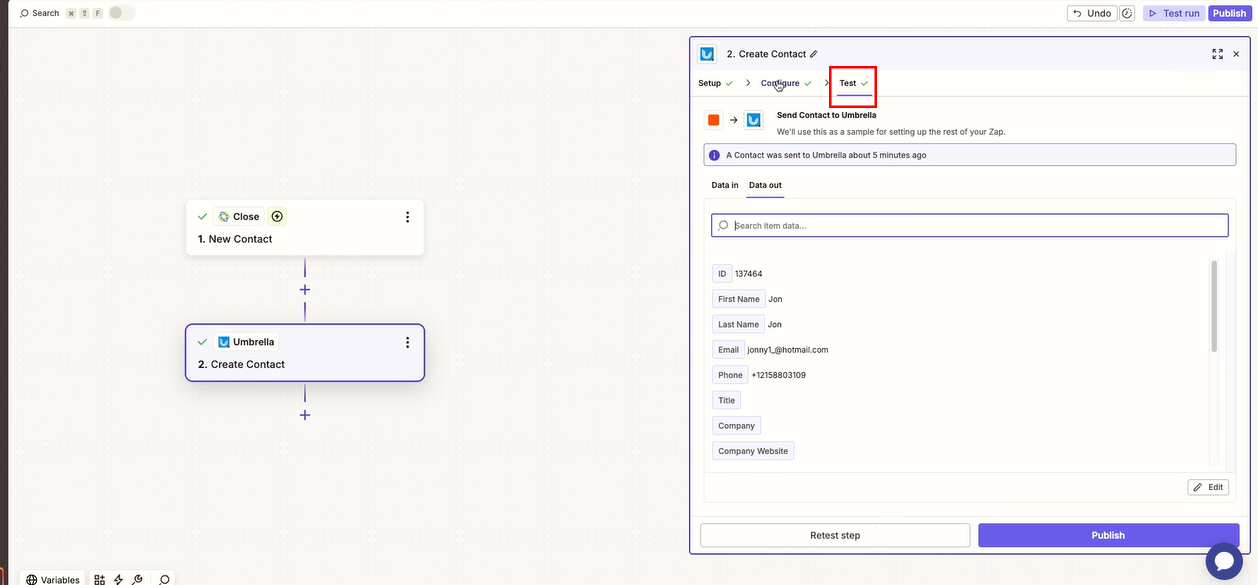
Test Your Zap
Run a test to ensure the contact is created correctly in Umbrella with all the mapped standard fields, custom fields, and assigned tags.
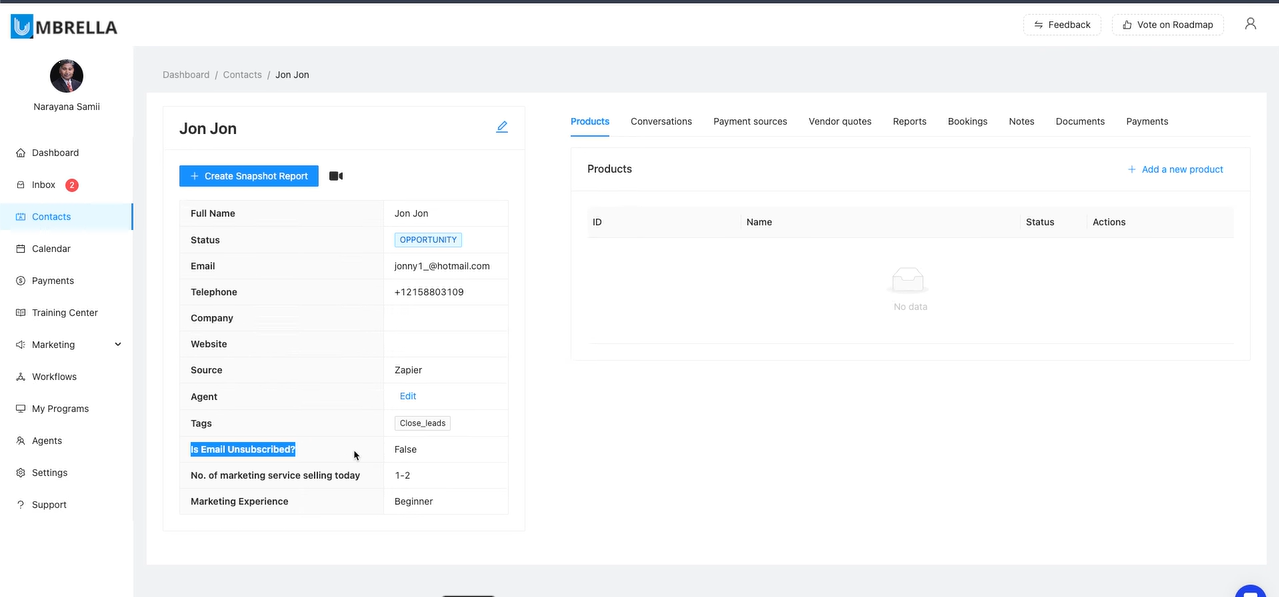
To update an existing contact in Umbrella via Zapier:
Choose Umbrella Action: Update Contact
Select "Update Contact" as your action event in Zapier.
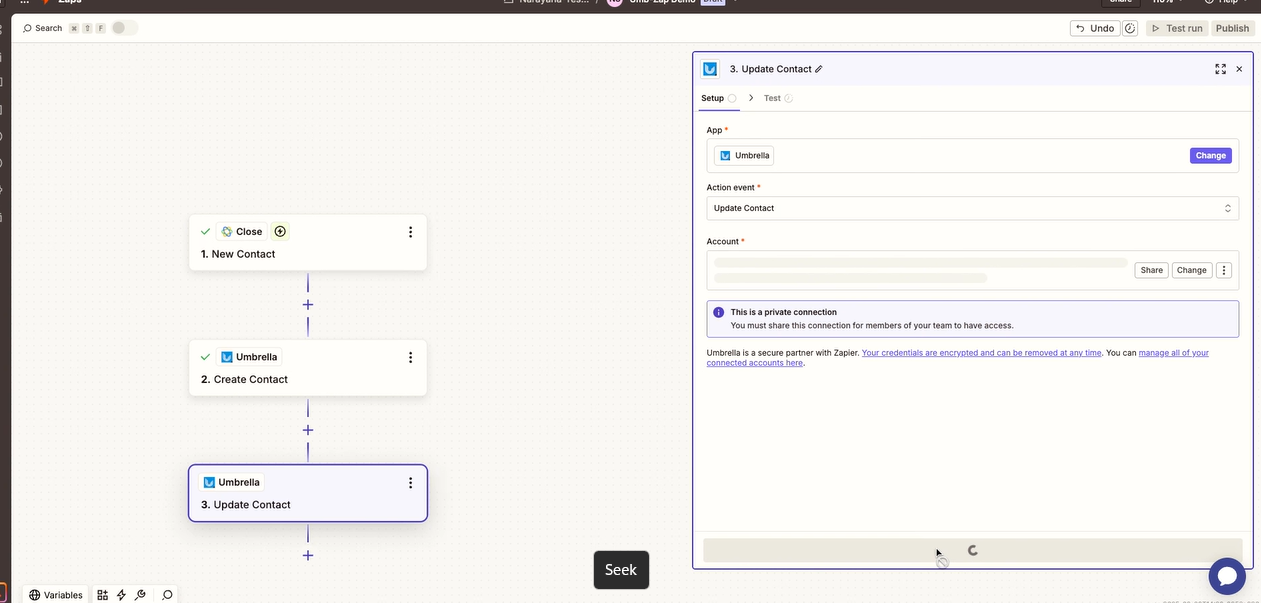
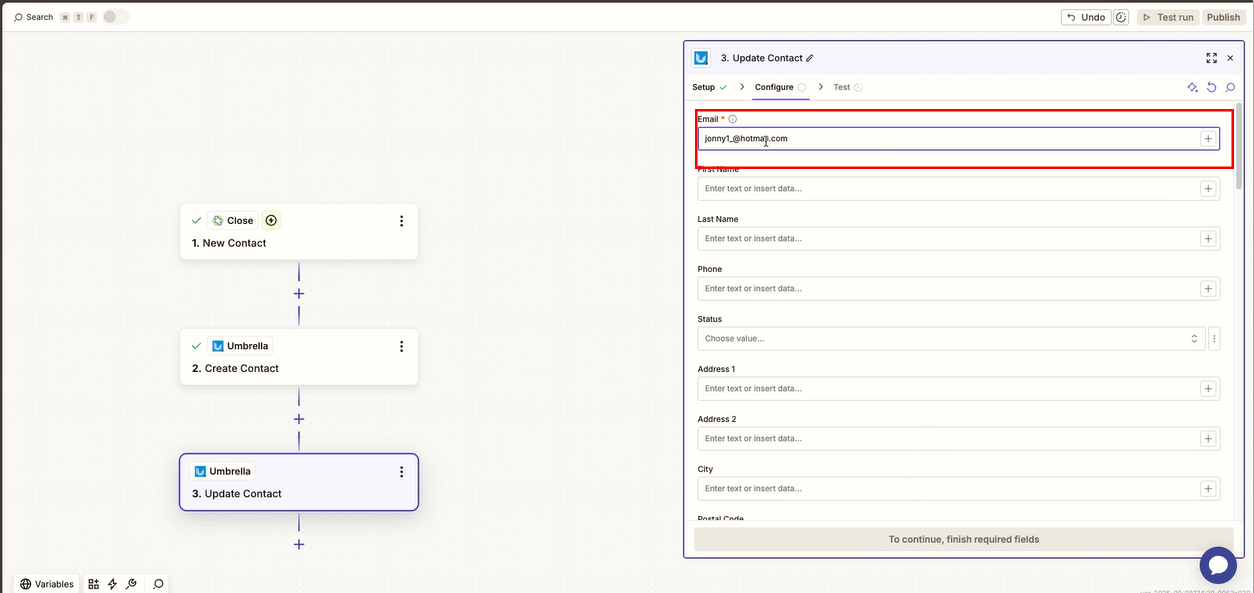
Find the Contact to Update
You will need to specify how to find the contact. The most reliable method is to use a unique identifier like the contact's Email Address or Contact ID.
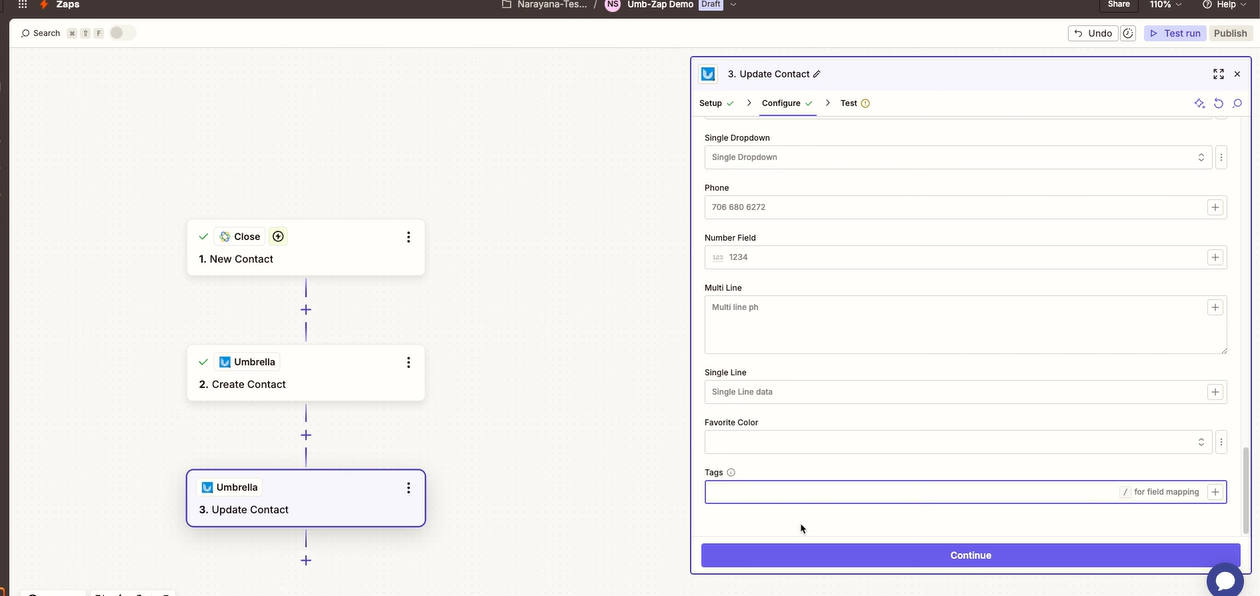
Update Fields and Add Tags
Map the fields you wish to update (e.g., Last Name, custom fields like "Number of Marketing Services") and add any new tags.
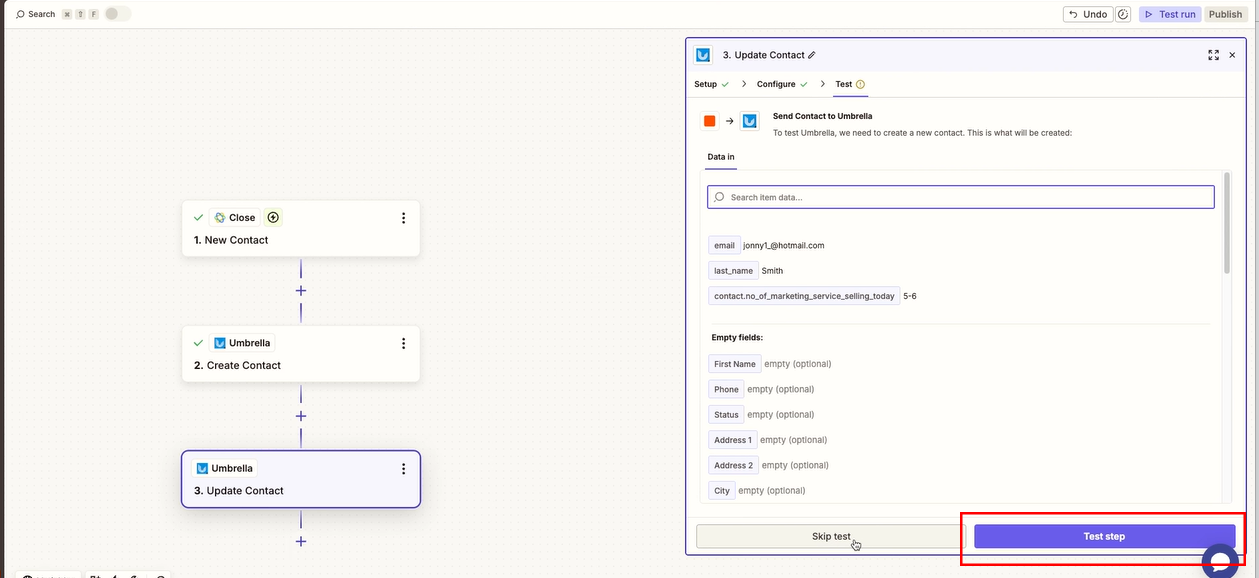
Test the Update
Run a test and then refresh the contact's profile in Umbrella to verify the changes.
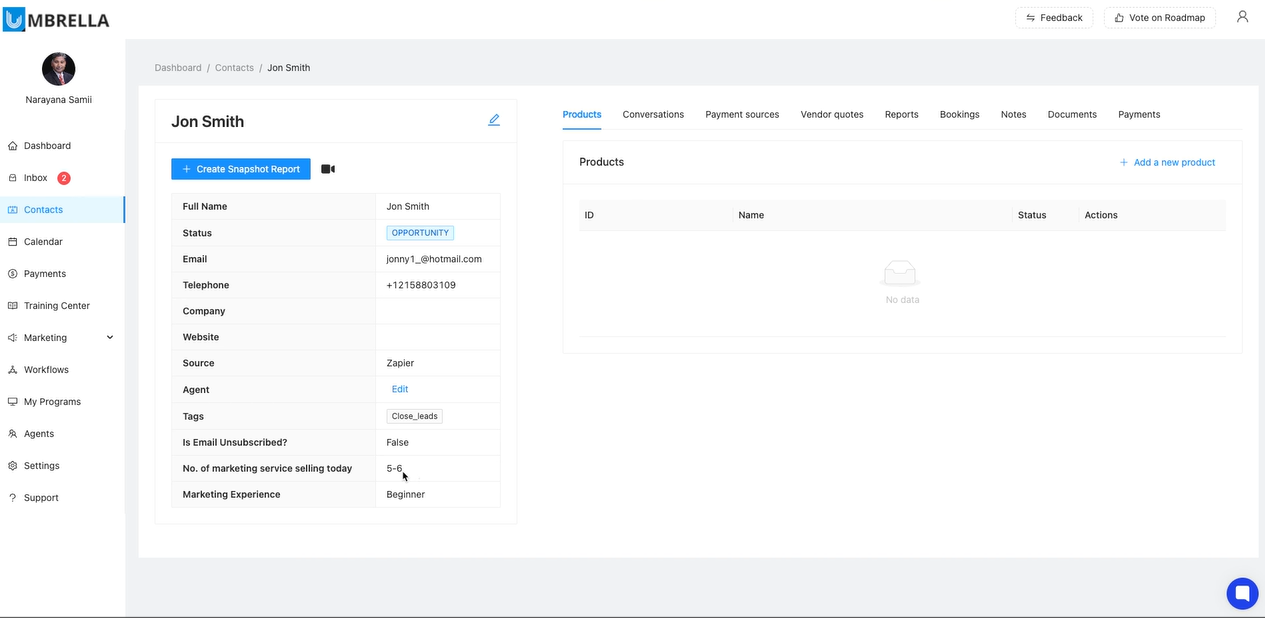
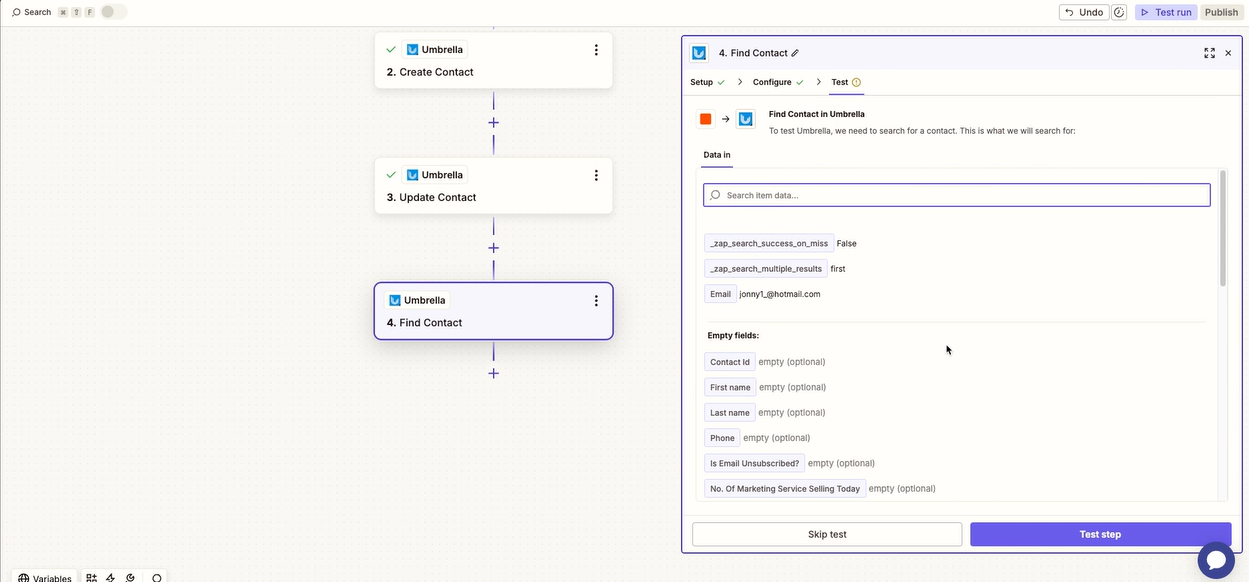
The "Find Contact" action allows you to retrieve contact information from Umbrella.
Choose Umbrella Action: Find Contact
Select "Find Contact" as your action event.
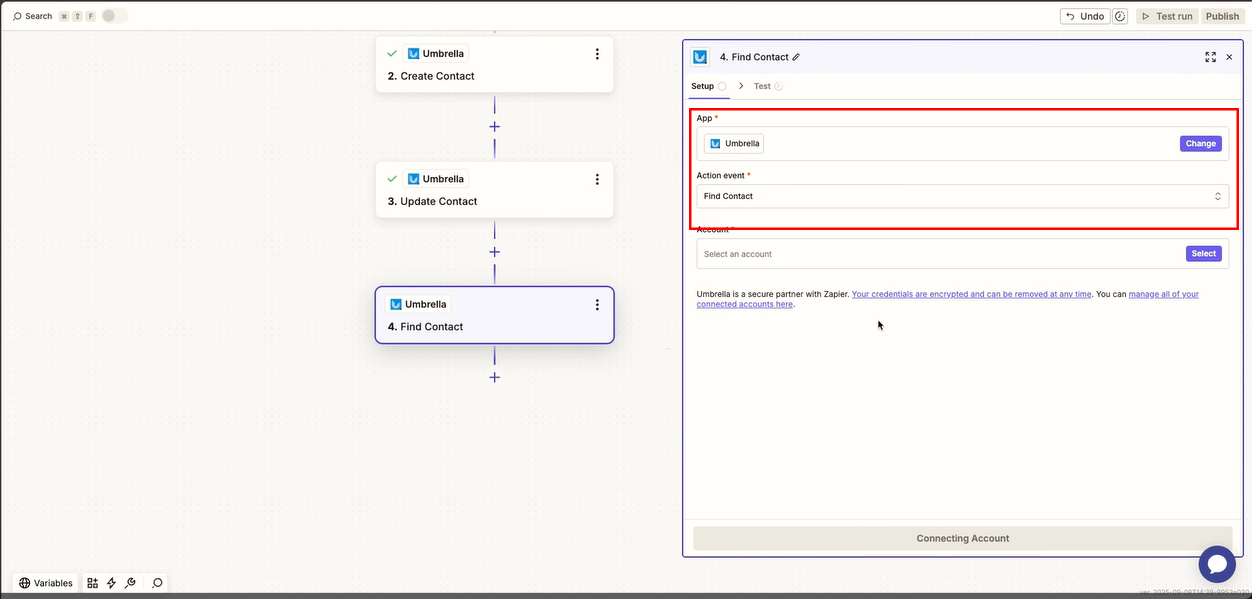
Specify Search Criteria
Again, using unique identifiers like Email Address or Contact ID is highly recommended. While other fields are available, if your criteria match multiple records, the system will randomly choose one.
Contact ID: You can find the Contact ID in the URL when viewing a contact's profile in Umbrella.
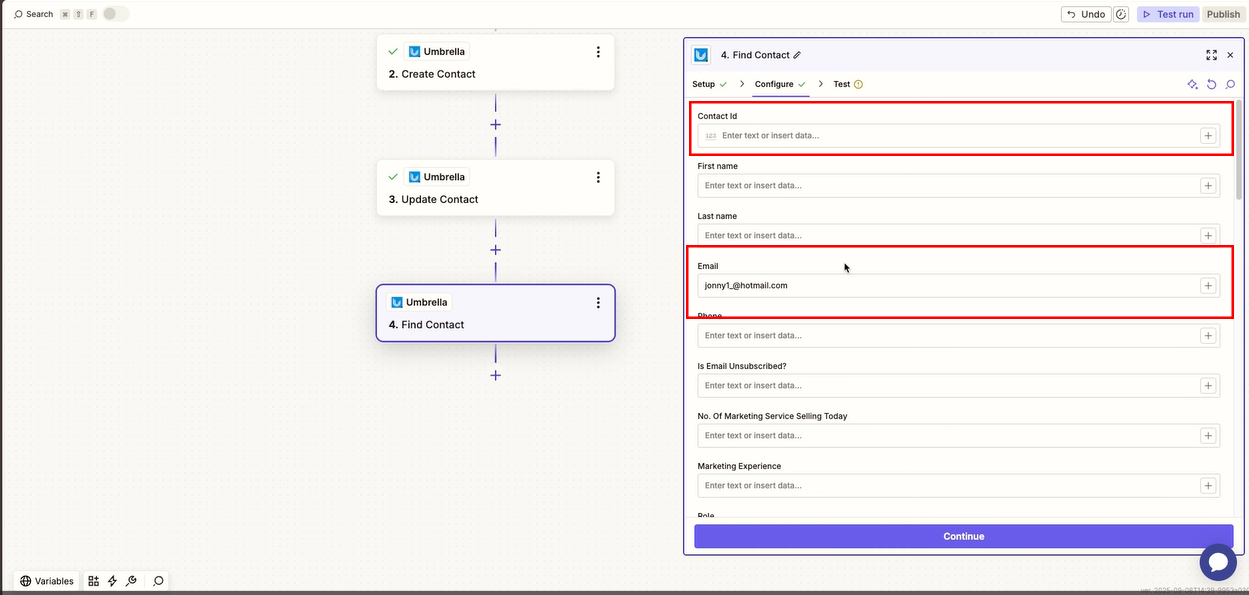
Test the Search
Test the step to ensure it correctly retrieves the contact's information, including standard and custom fields.