Following this guide, you will be able to connect your Twilio account and use any associated Twilio numbers.
Step 1: Log in to your hubOne (AIGent) account using your administrator or authorized credentials. Navigate to the main login page and enter your username and password. After logging in, you'll land on the AIGent dashboard, which serves as the home base for managing integrations and agents.
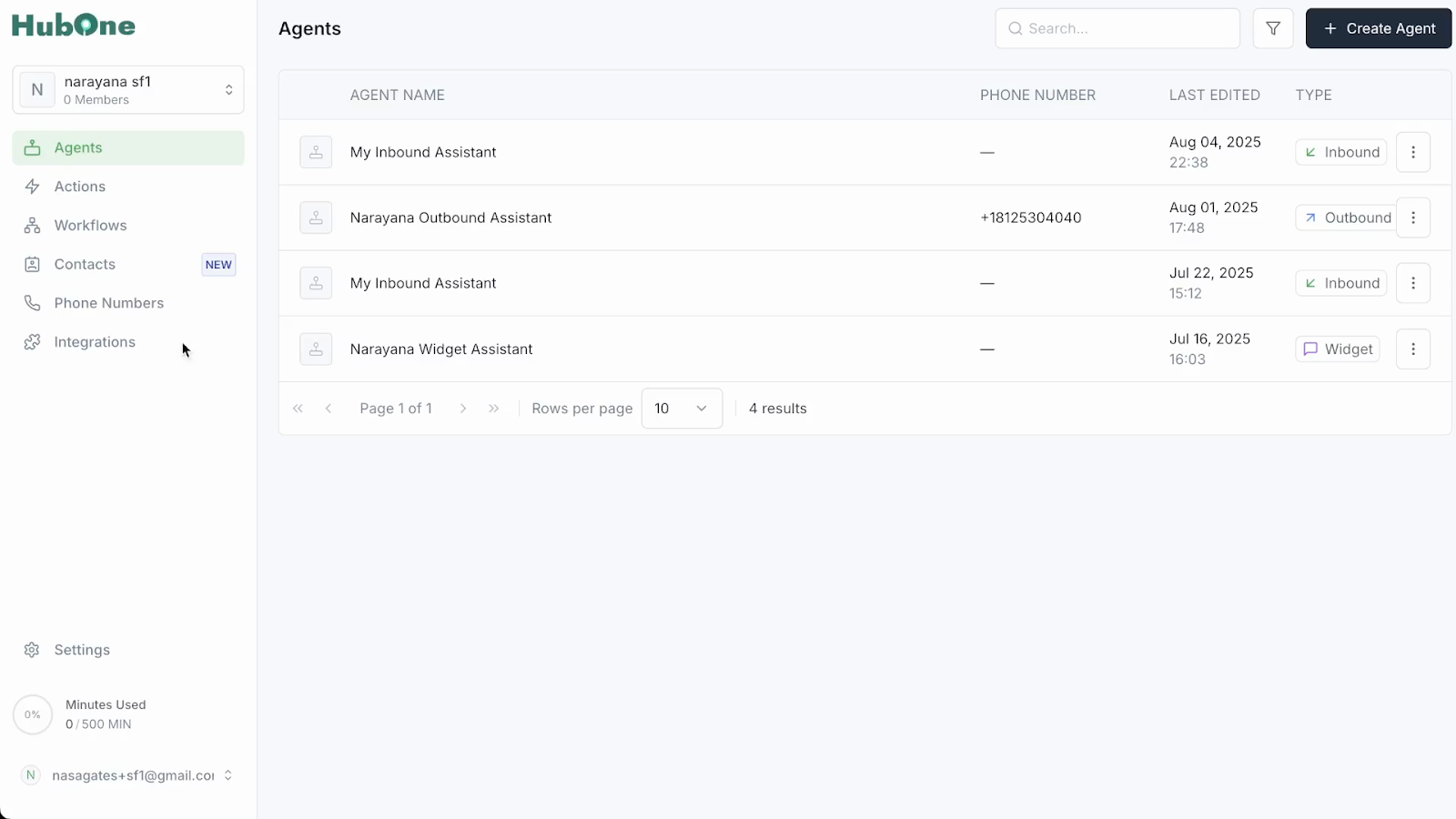
Step 2: Locate the main navigation menu, usually found on the left or at the top of the dashboard. Find and click on the option labeled Integrations. This page lists all available third-party integrations supported by AIGent. Look for the section labeled "Third Parties" or a similar grouping where common external services are shown. Here, Twilio should appear among the options.
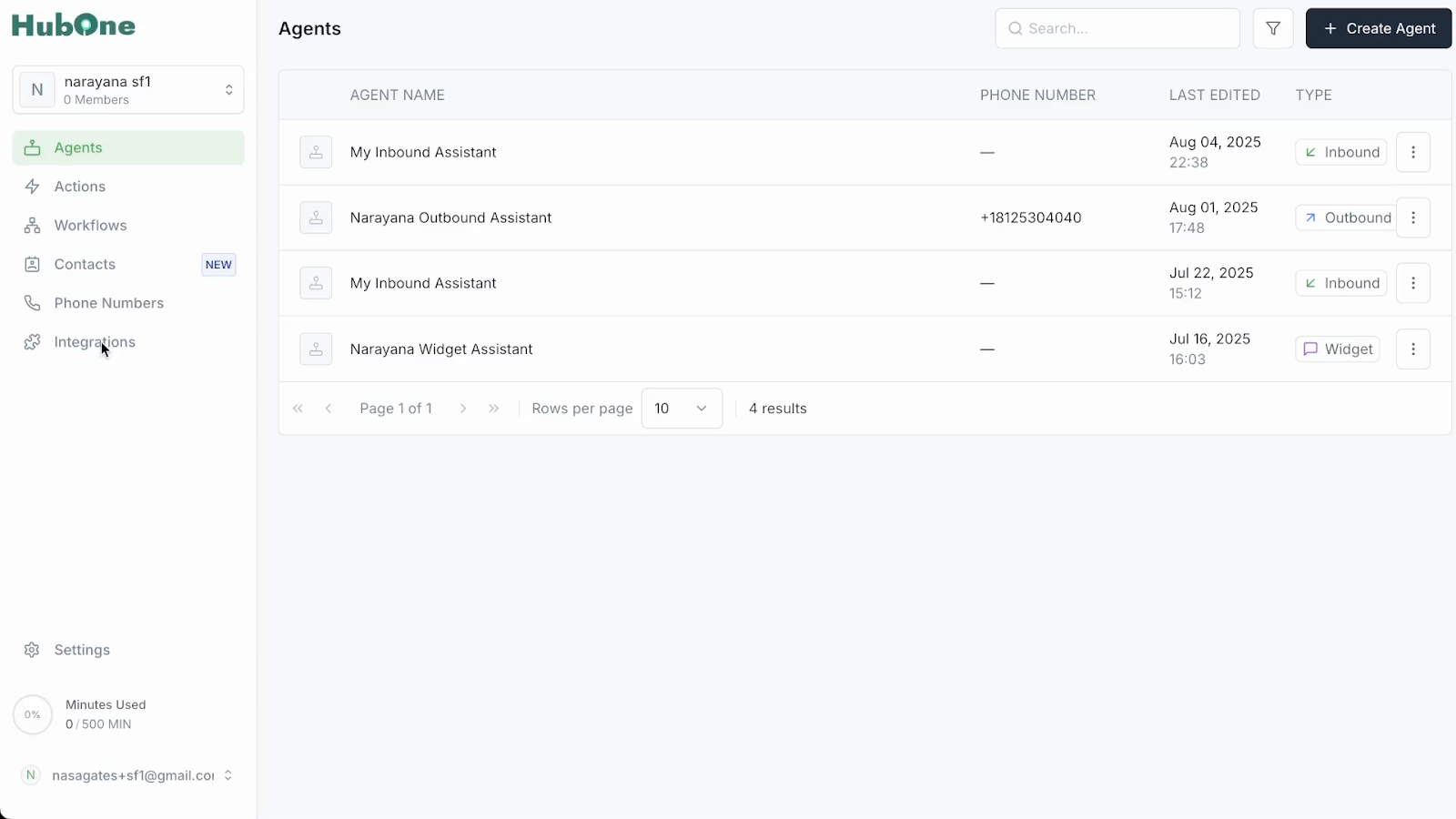
Step 3: Find the Twilio integration entry, which is often accompanied by the Twilio logo and a short description. Click on Twilio to begin the connection and setup process. This will open the Twilio integration setup menu where you can input credentials.
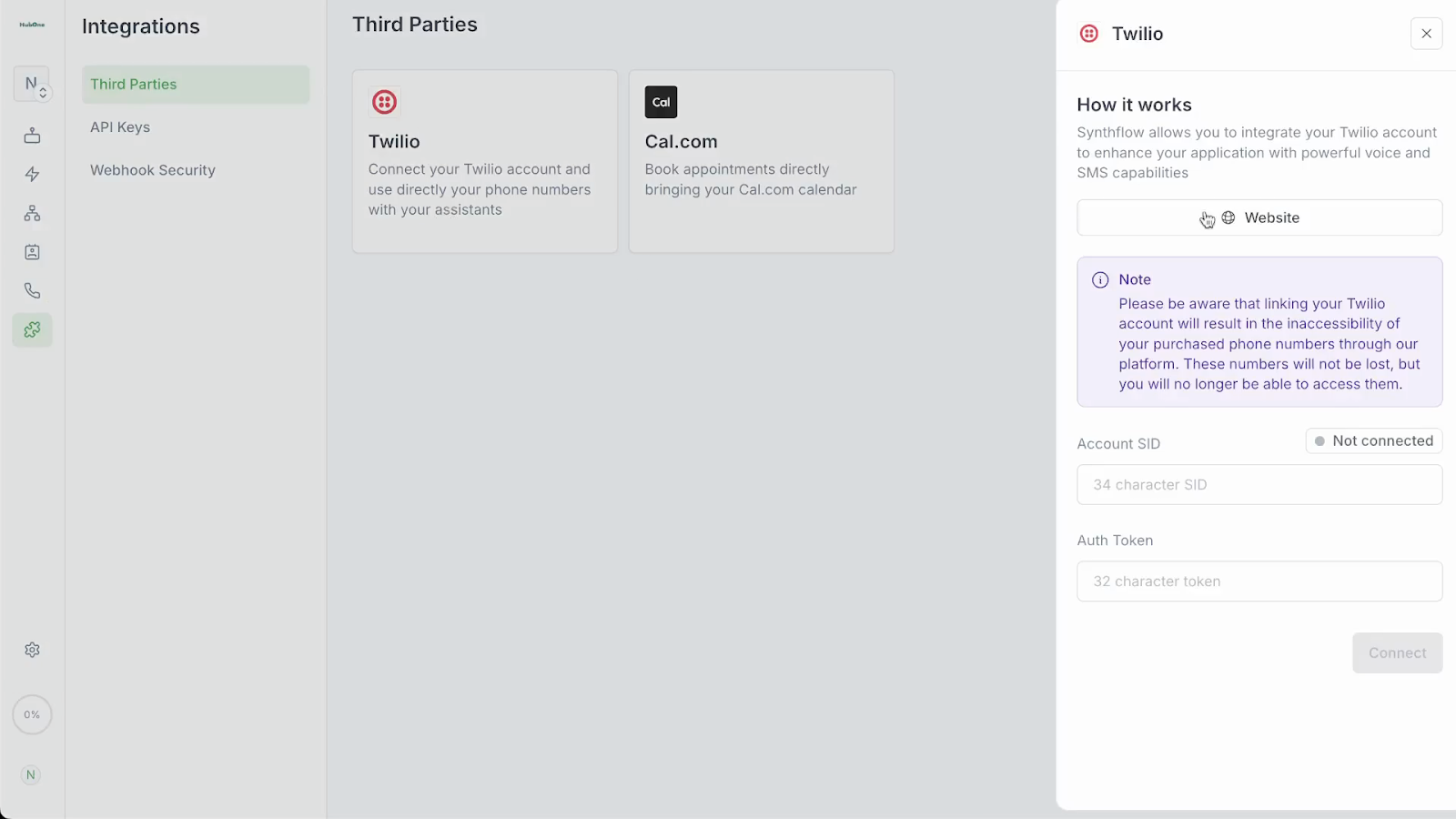
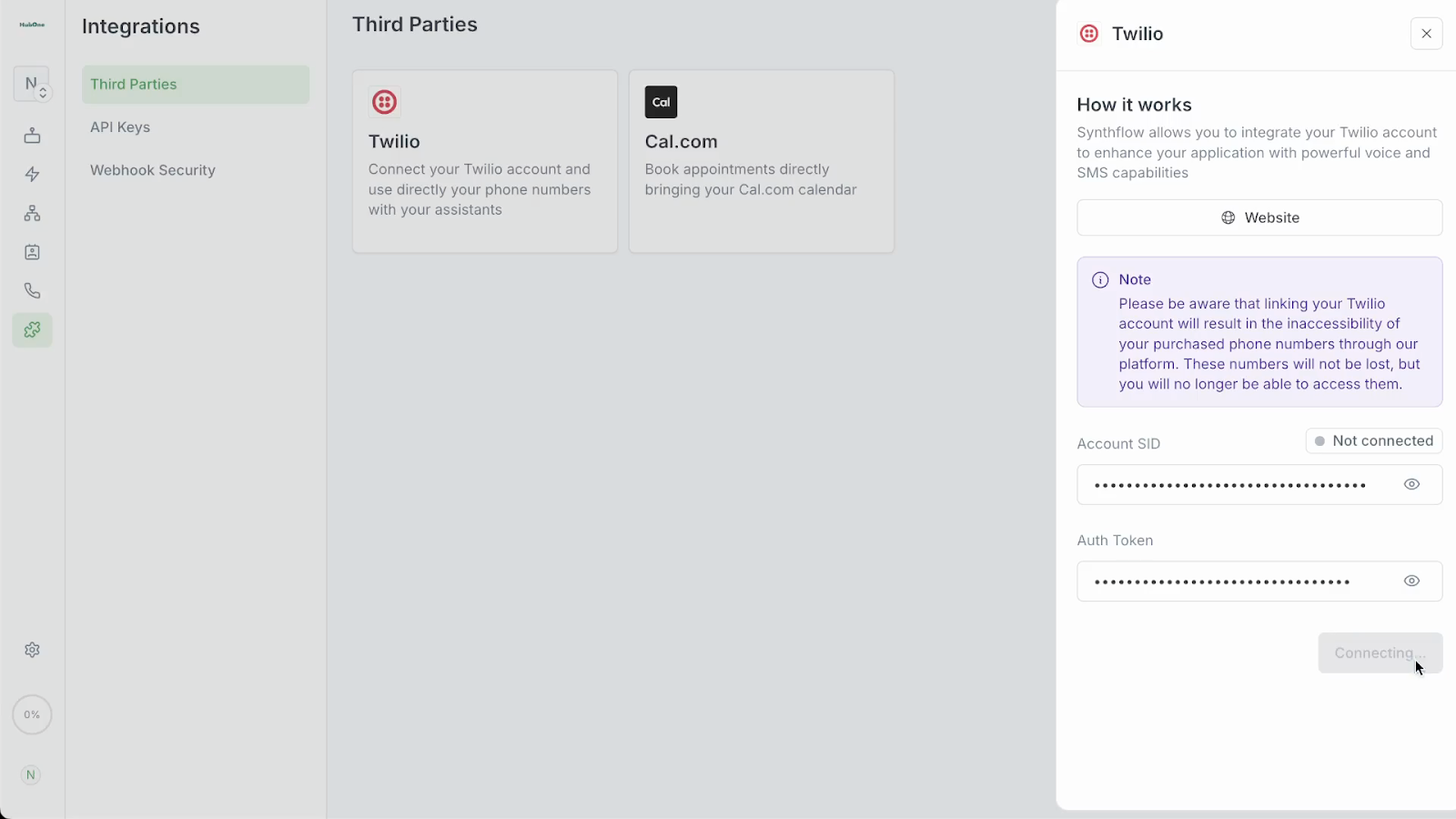
Step 4: On the Twilio integration page, you'll see fields prompting you to enter your Account SID and Auth Token. These credentials are essential for linking your Twilio account securely to AIGent. Make sure these fields are empty and ready to be filled with data copied directly from the Twilio dashboard to avoid errors.
Step 5: To retrieve these credentials, open a new browser tab and go to the Twilio Console at https://console.twilio.com/. Log in with your Twilio credentials if prompted.
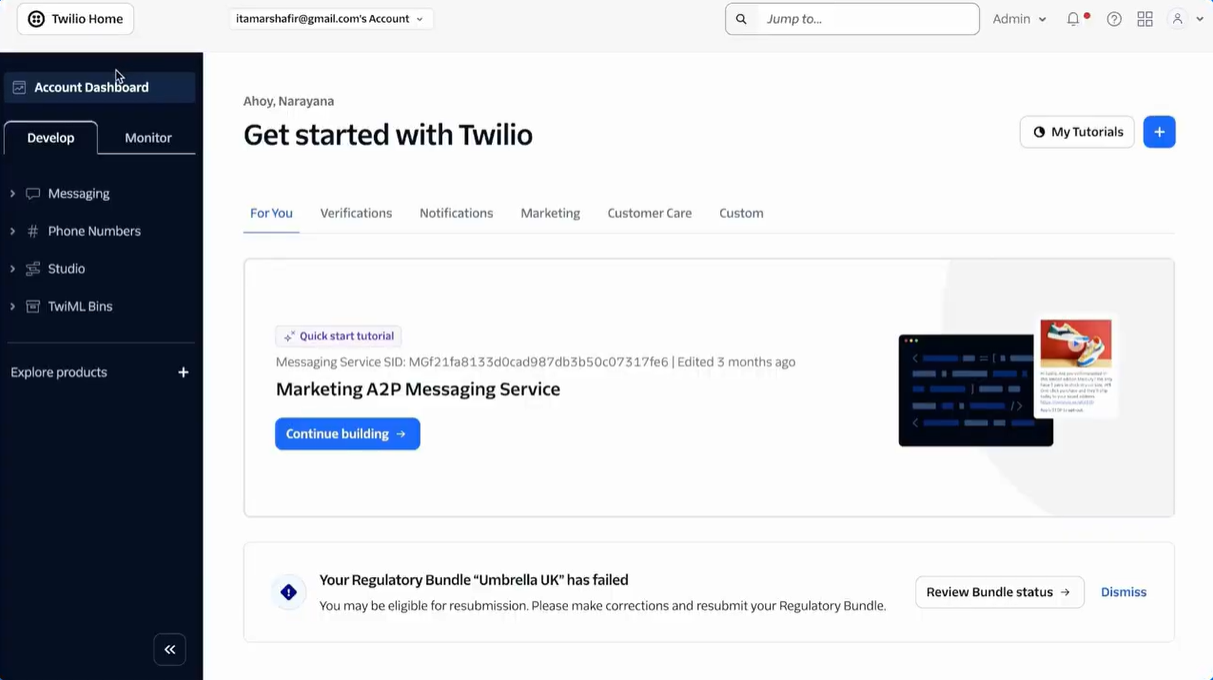
Step 6: Once inside your Twilio dashboard, locate your Account SID prominently displayed at the top of the main landing page. The Auth Token may be hidden, with a button labeled Show or Reveal that must be clicked to view the full token.
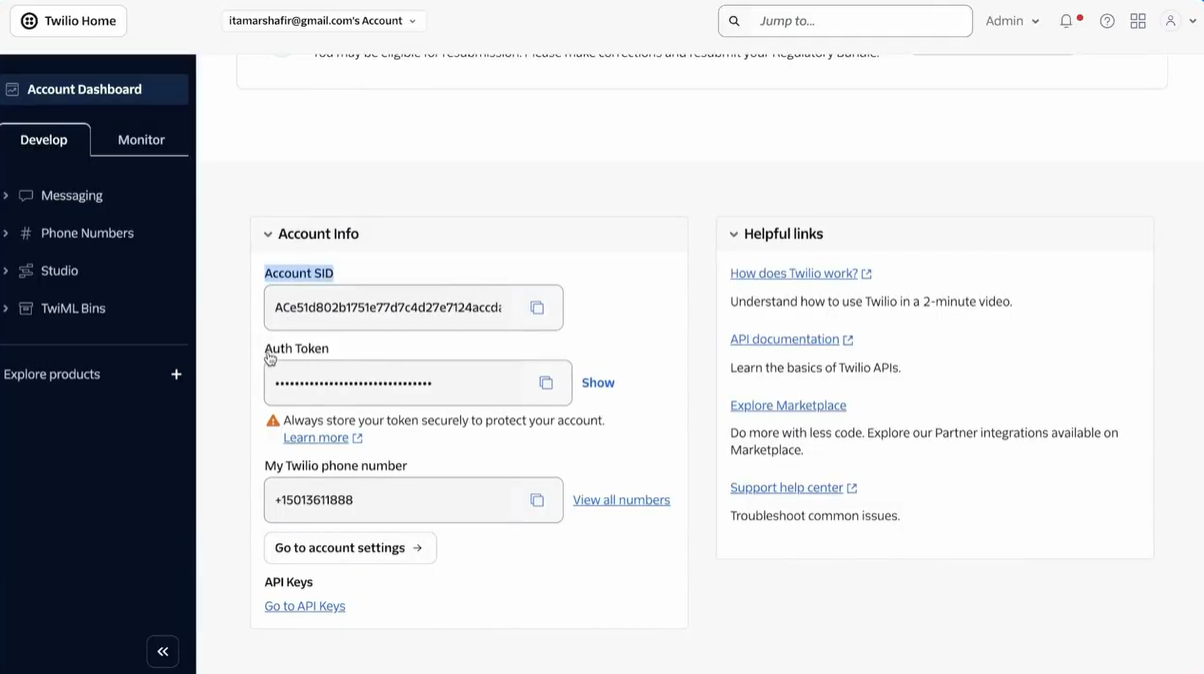
Step 7: Carefully copy your Account SID from the Twilio console. Return to the AIGent setup form and paste the SID into the corresponding field. Repeat the process for the Auth Token, making sure you do not include any extra spaces or characters. Accuracy is critical to ensure the credentials are accepted by AIGent.
Step 8: After both credentials are entered, click on Connect or the equivalent button shown on the AIGent interface. Wait a few moments as AIGent attempts to verify and establish a secure connection with Twilio. If successful, you'll receive a confirmation message indicating that the integration is active.
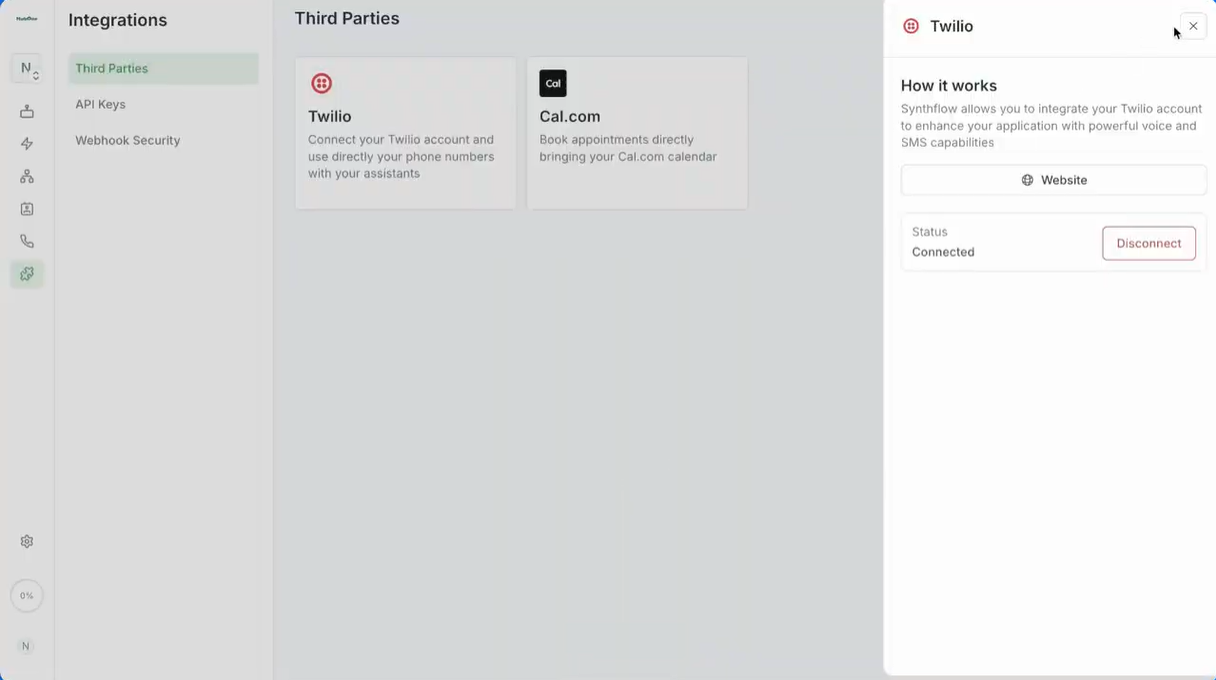
Step 9: When you see confirmation that Twilio is connected, close the integration window to return to the list of connected services. Twilio will now be displayed as a connected or active integration. This signifies your account credentials have been verified and all Twilio features are accessible from within AIGent.
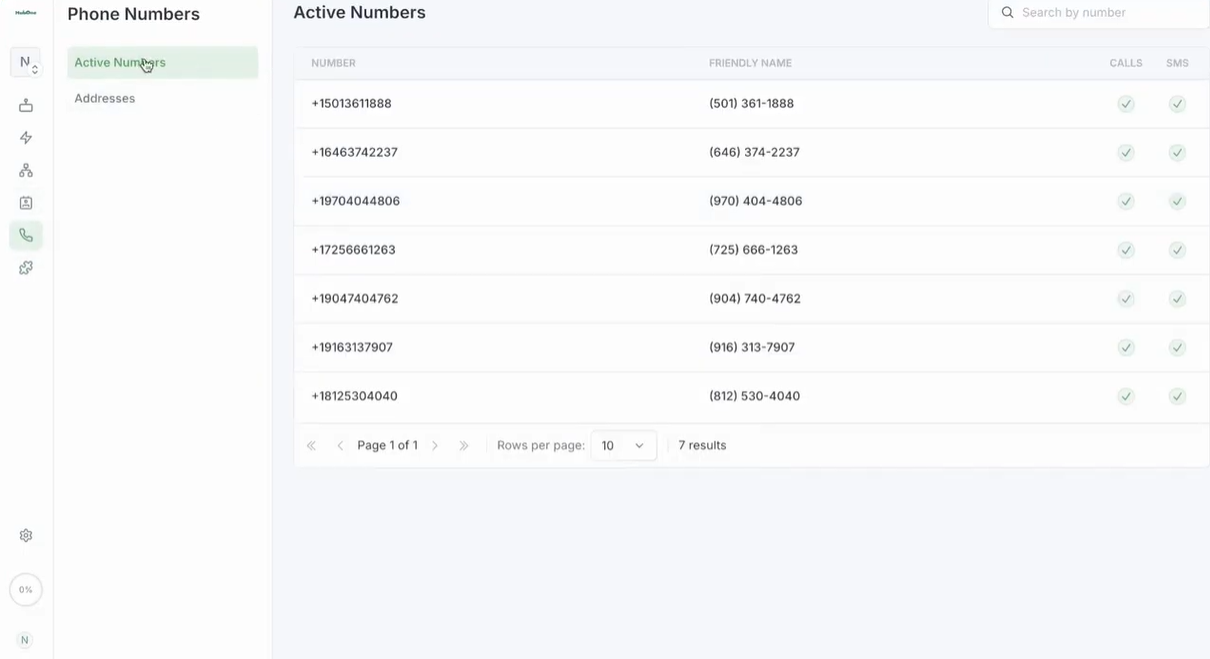
Step 10: Next, AIGent will automatically fetch your list of active Twilio phone numbers. On the integrations page or phone number management area, you'll see the active numbers associated with your Twilio account. These are the numbers you can assign to agents for inbound or outbound calling.
Step 11: To use these numbers for communication, you must assign them to agents or assistants within AIGent. Open the Inbound Assistant section from your dashboard. This option is usually found in your agent or assistant management menu.
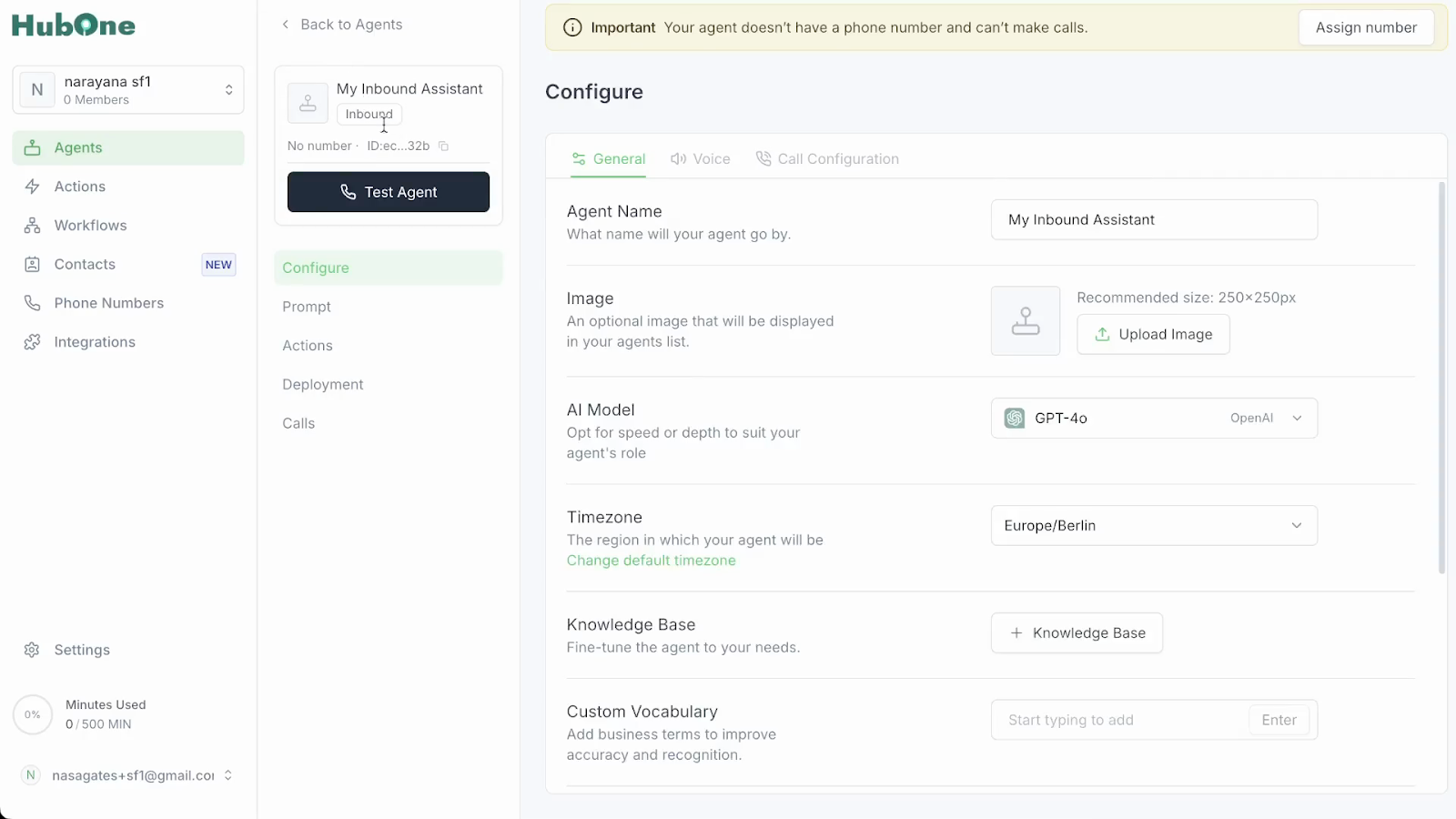
Step 12: In the chosen assistant's profile, navigate to the Deployment tab or section. This is where you configure how the assistant interacts with callers and which phone numbers are used for inbound calls.
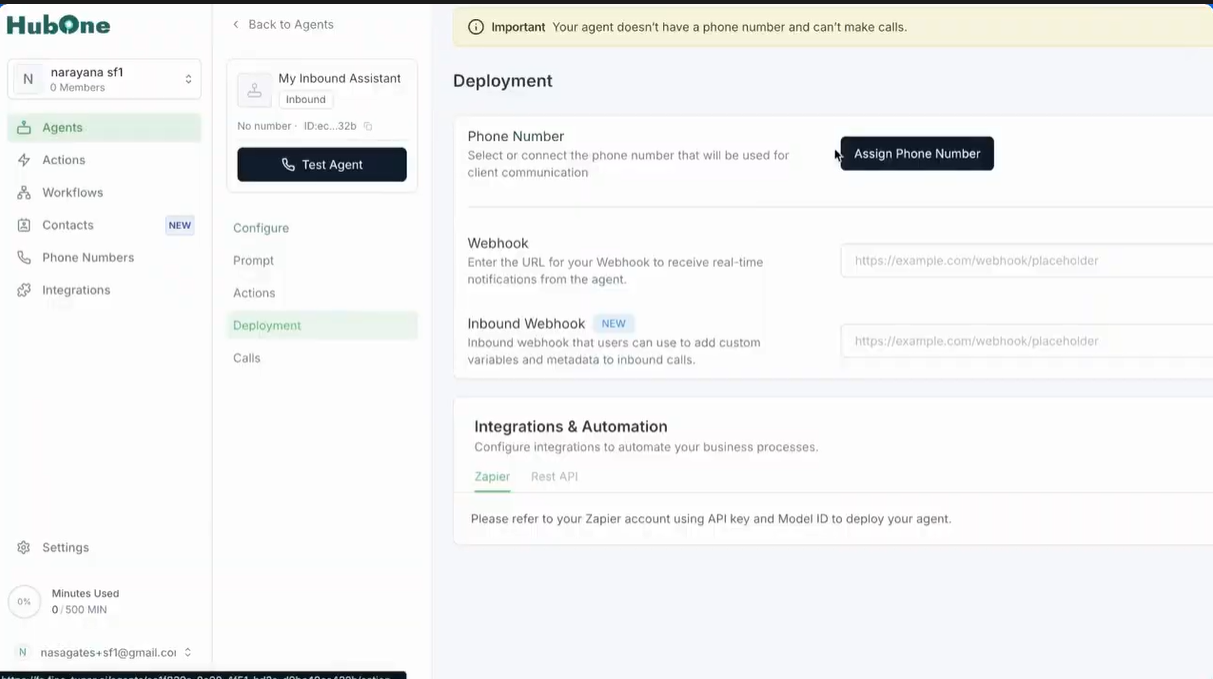
Step 13: Scroll down within the deployment settings until you see the Phone Number management box. Click on the Assign Phone Number button or link to start the assignment process. A dialog or dropdown will appear listing the imported Twilio numbers.
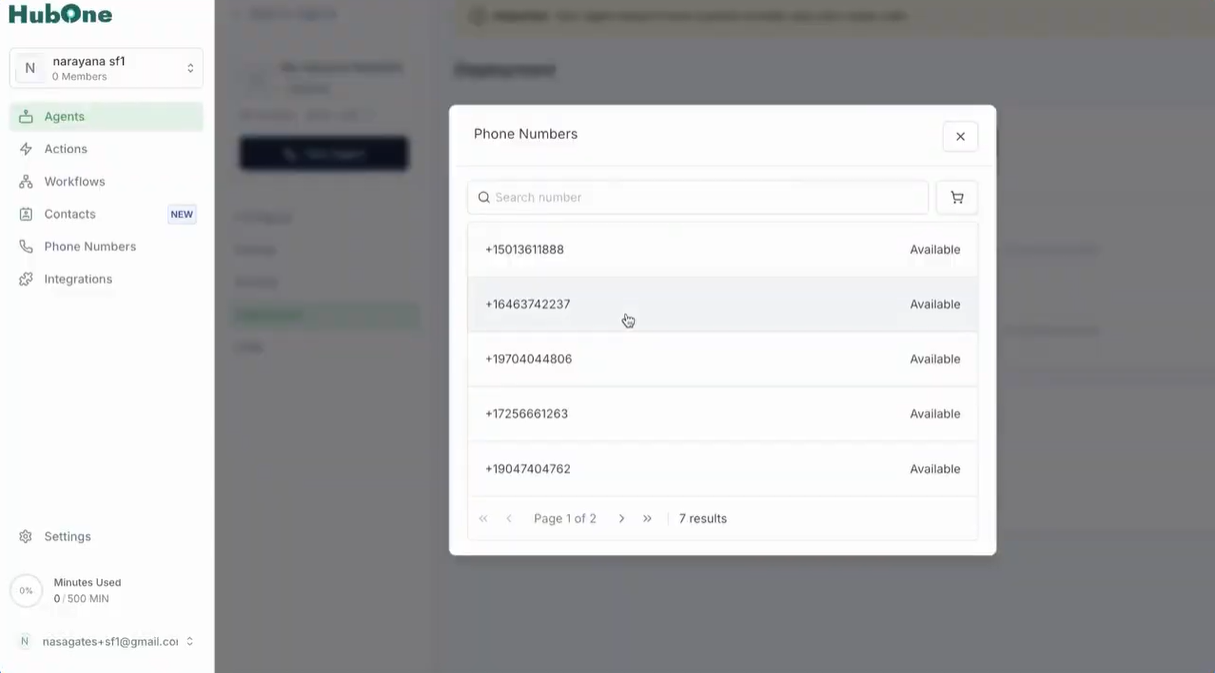
Step 14: From the list, select the Twilio phone number you want to assign (for example, a number ending in 725). Wait a few seconds for the system to confirm and attach the number to the assistant. You'll see a visual or text indication that the phone number is now attached to the selected agent.
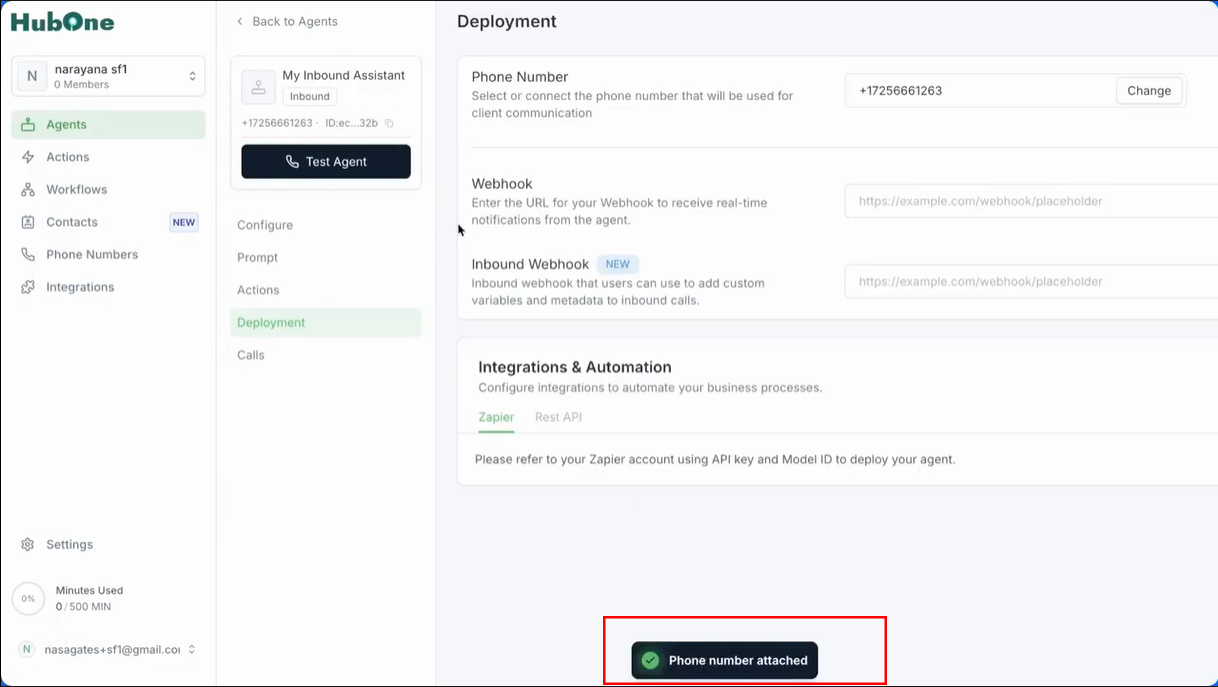
Step 15: The setup is complete. Your agent or assistant is now connected to the selected Twilio phone number. Customers who call or message this number will be routed to the corresponding assistant within AIGent, allowing for seamless communication using your Twilio phone system.
If you run into any issues, double-check your credentials, ensure your Twilio account is active, and that the numbers you wish to use are available in your Twilio console. Always use the provided interface buttons and double-check assignments in each assistant’s deployment settings. Once complete, you’re able to receive and make calls via AIGent using your Twilio integration.
