Navigate to the Contact:
Go to the Contacts section in the left-hand navigation menu.
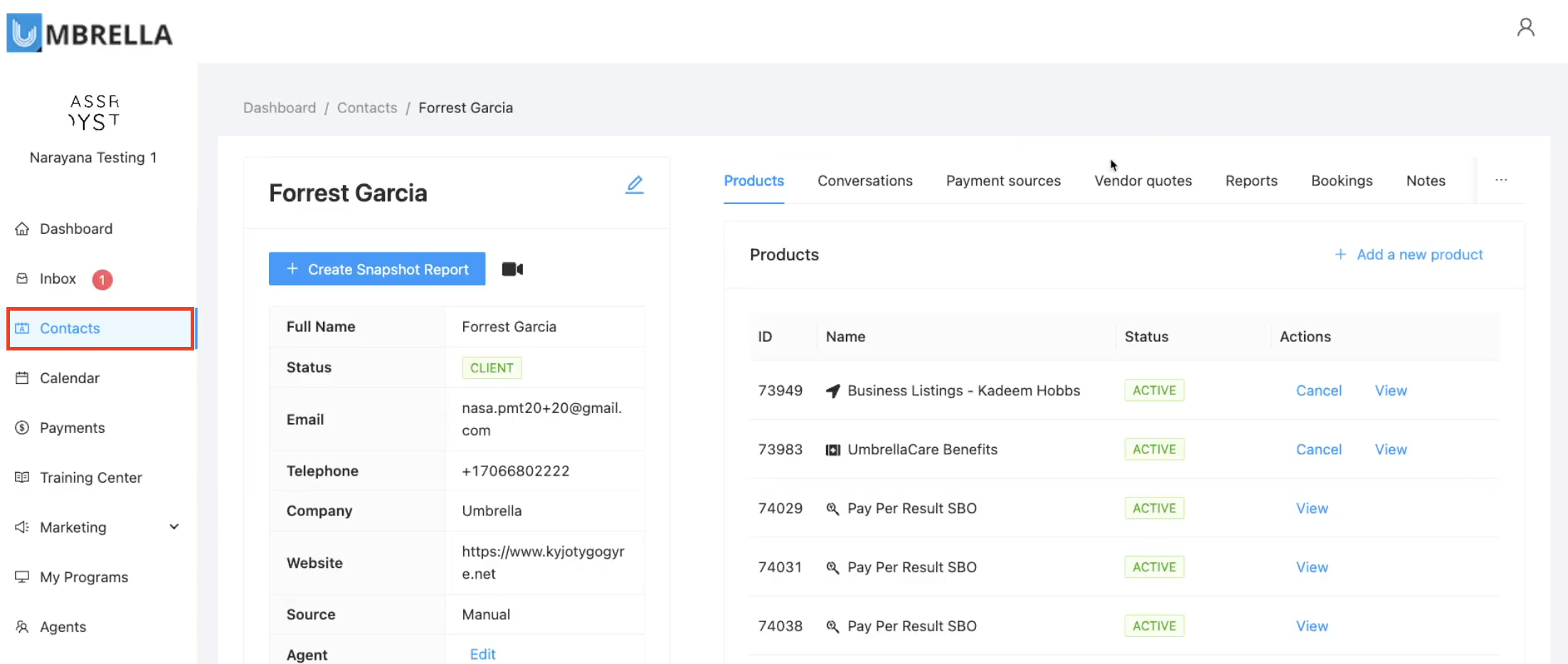
Find and click on the specific contact you want to provision the HubOne account for (e.g., Forrest Garcia).
Access Products:
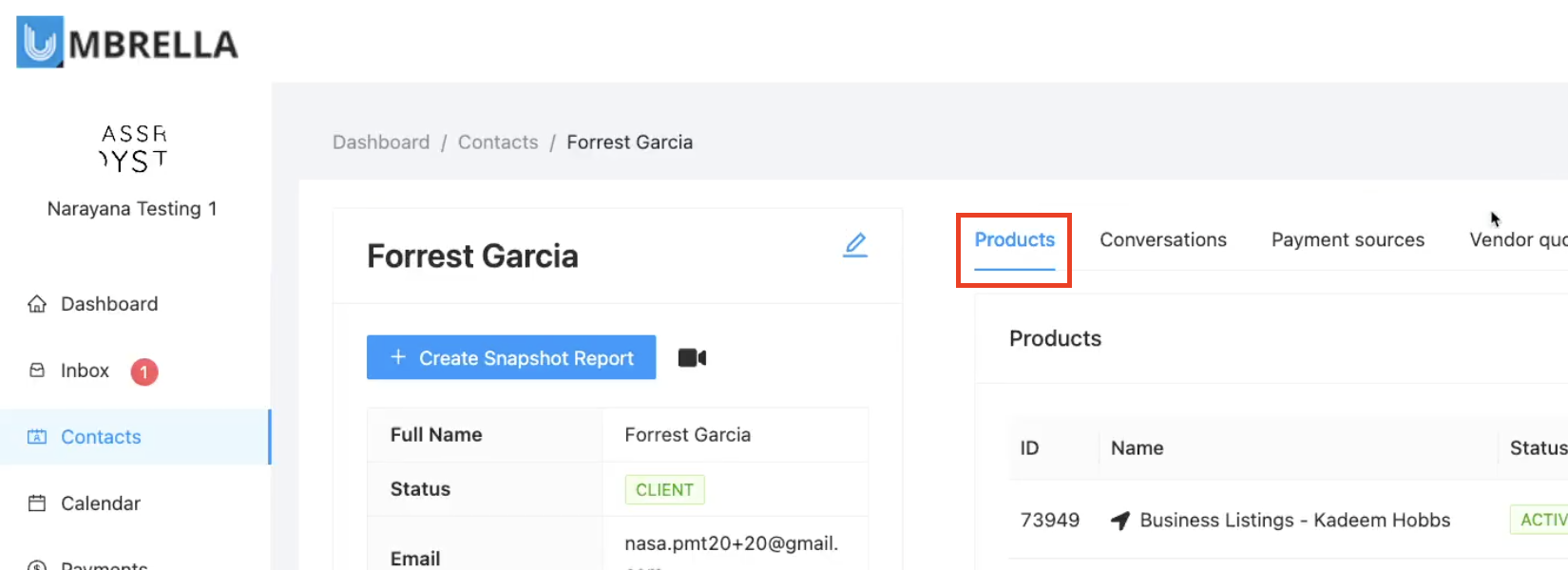
Within the contact's record, click on the Products tab.
Add New Product:
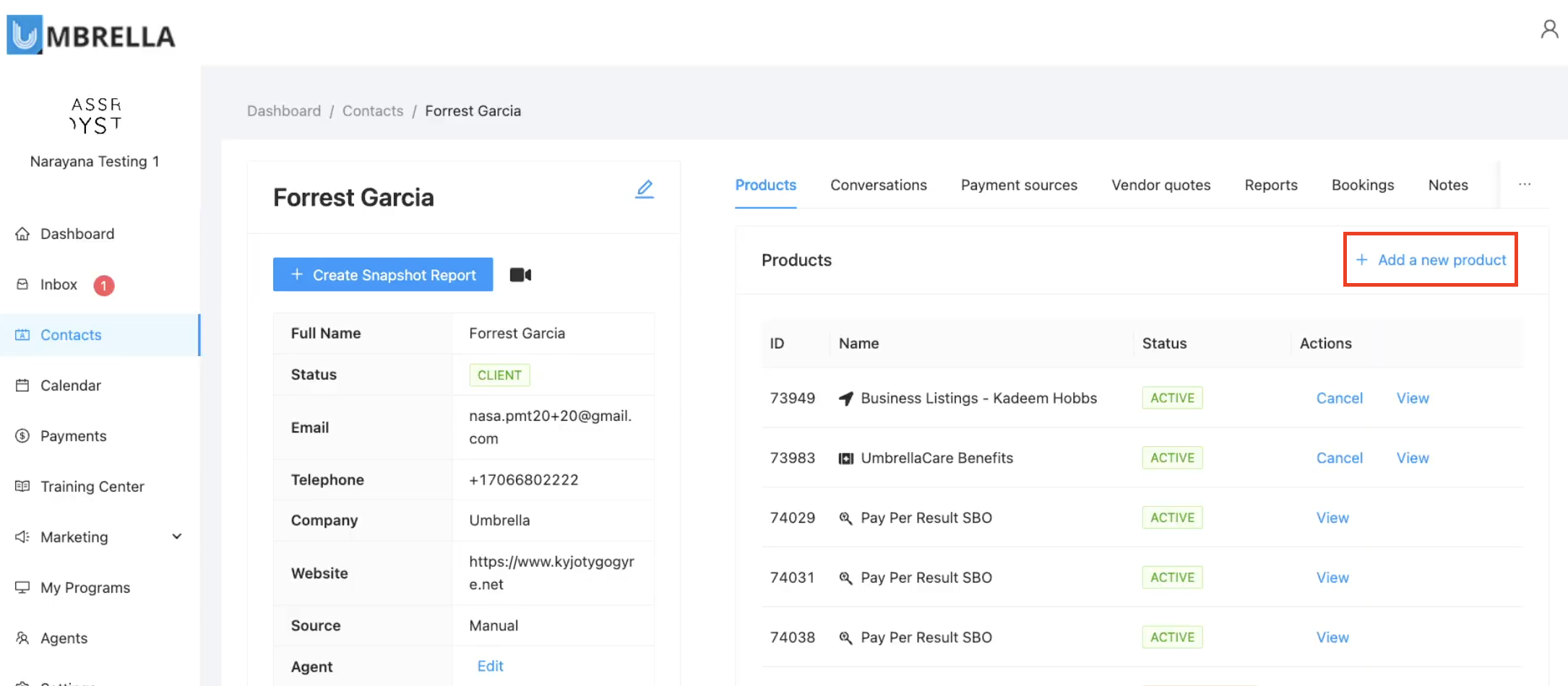
Click the + Add a new product button located on the right side of the Products section.
Select HubOne Subscription:
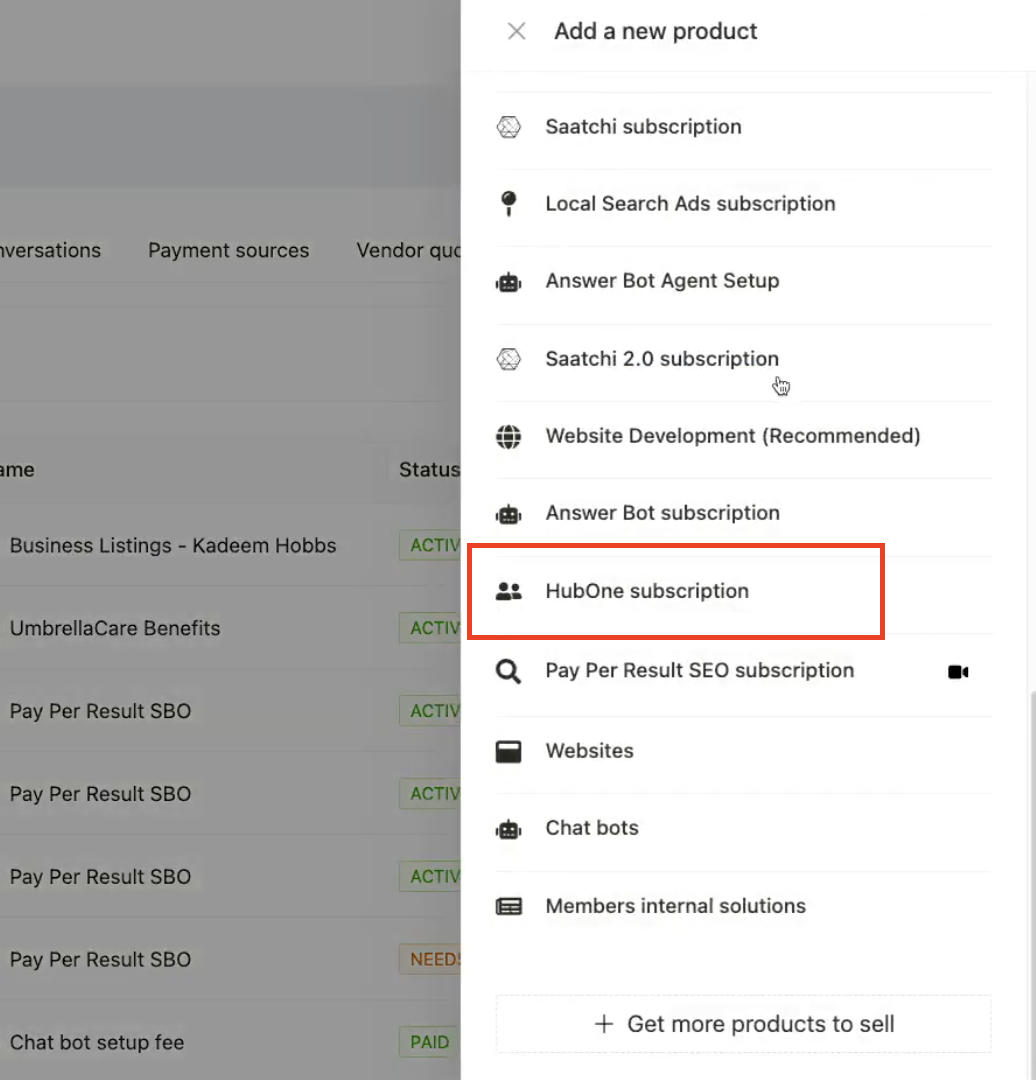
From the dropdown list of available products and services, find and select HubOne subscription.
Select Plan:
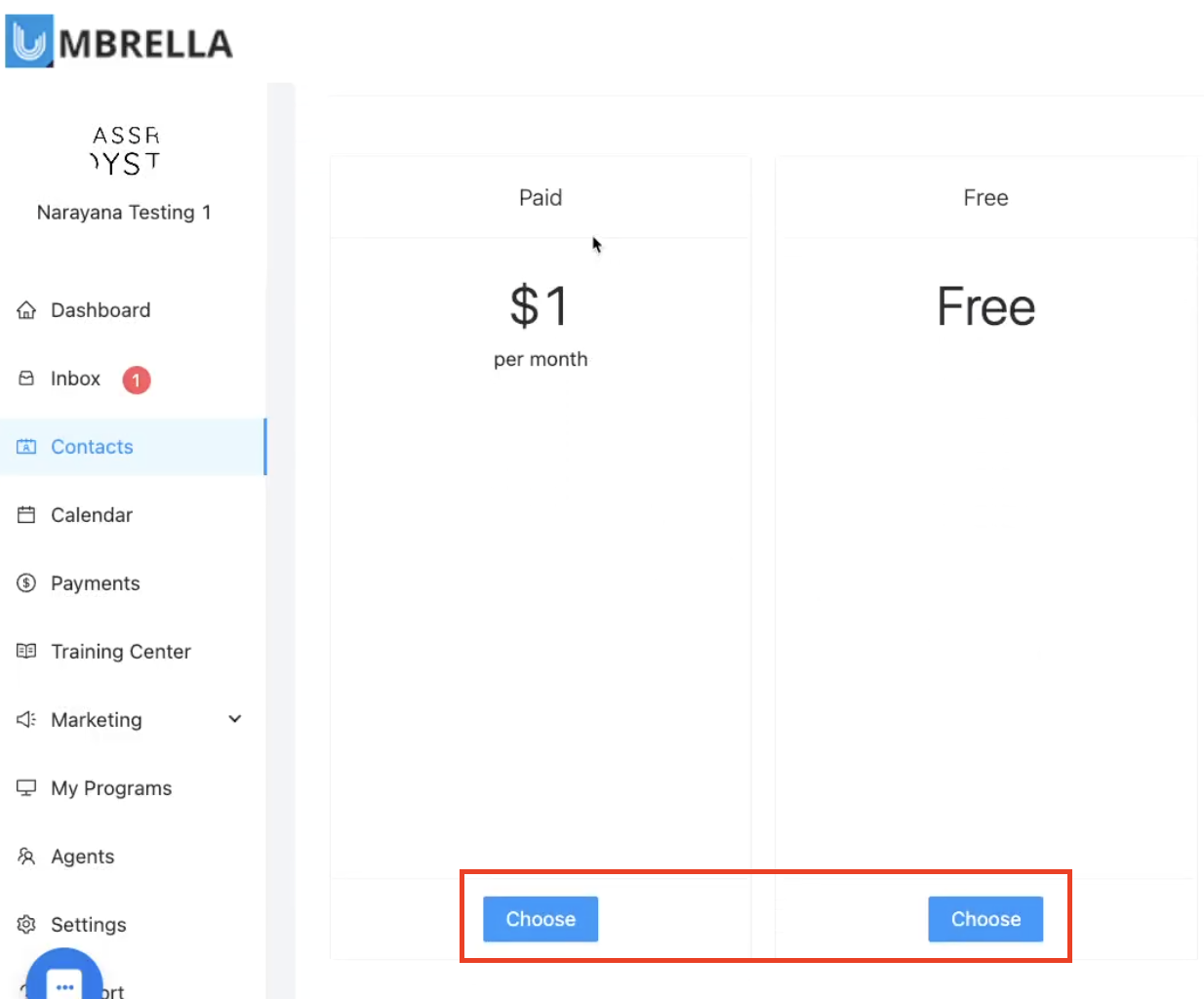
You will typically see plan options (e.g., "Paid" at $1/month wholesale, "Free"). Choose the desired plan by clicking the Choose button below it.
Configure Markup (Paid Plan):
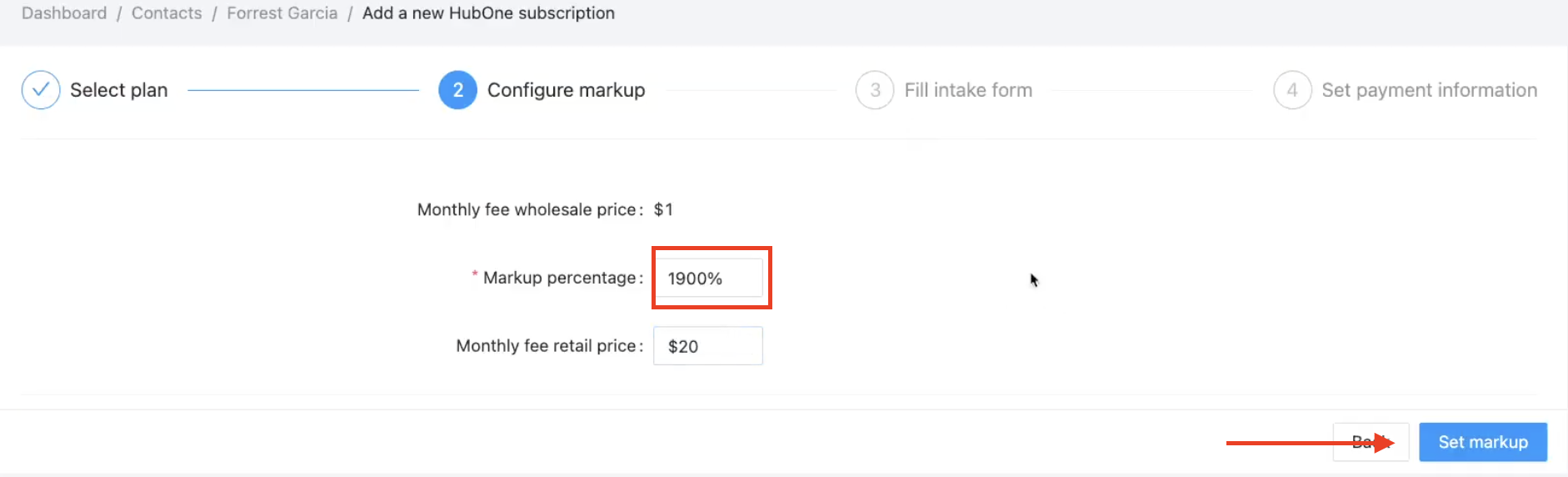
If you selected a paid plan, you need to configure the markup.
The Monthly fee wholesale price is shown (e.g., $1).
Enter the Markup percentage you wish to apply OR directly enter the final Monthly fee retail price you want to charge your contact for this account (e.g., $20). The system will calculate the corresponding percentage.
Click Set markup.
Fill Intake Form:
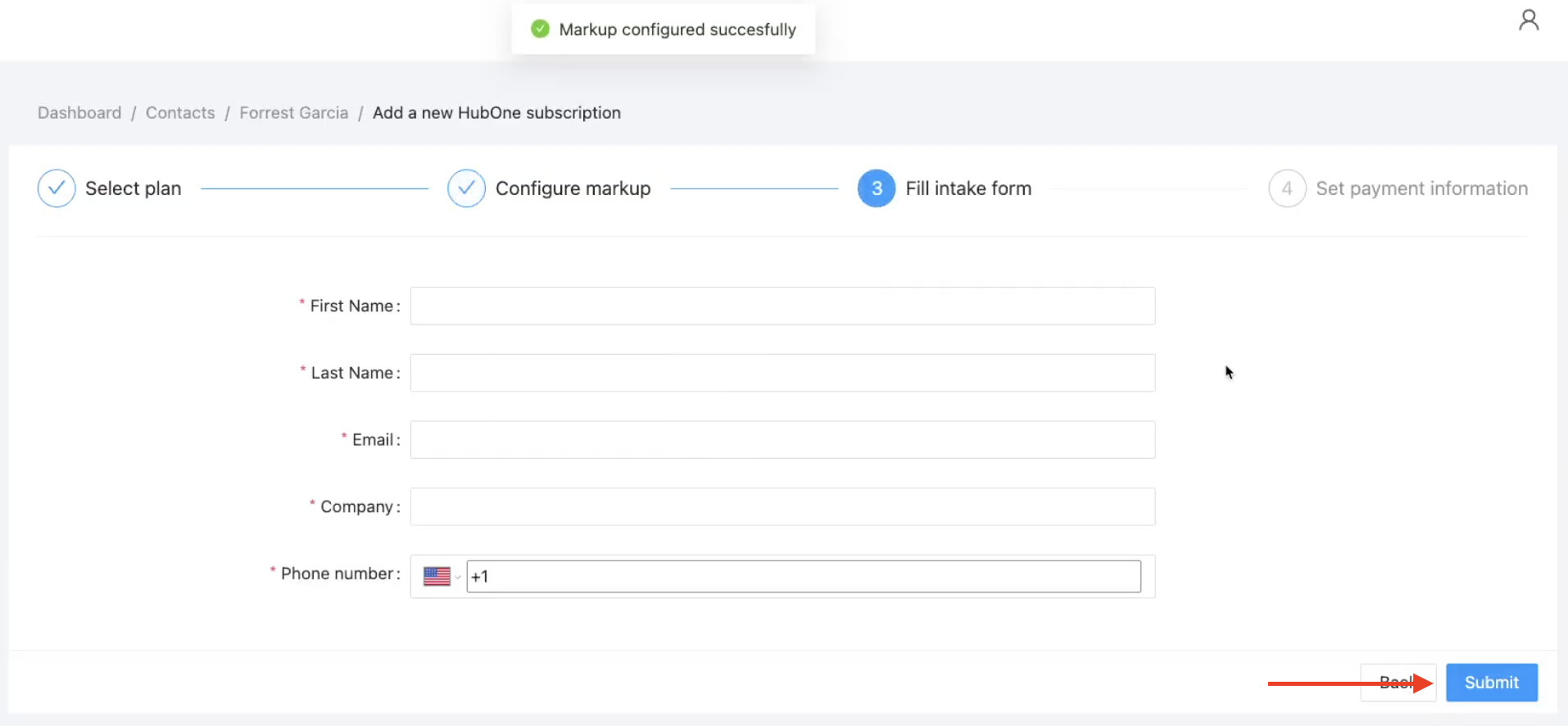
Enter the details for the contact who will be using this HubOne account. This information creates their user profile within their HubOne instance.
Fill in the First Name, Last Name, Email (this will be their login username), Company, and Phone number.
Click Submit.
Set Payment Information:
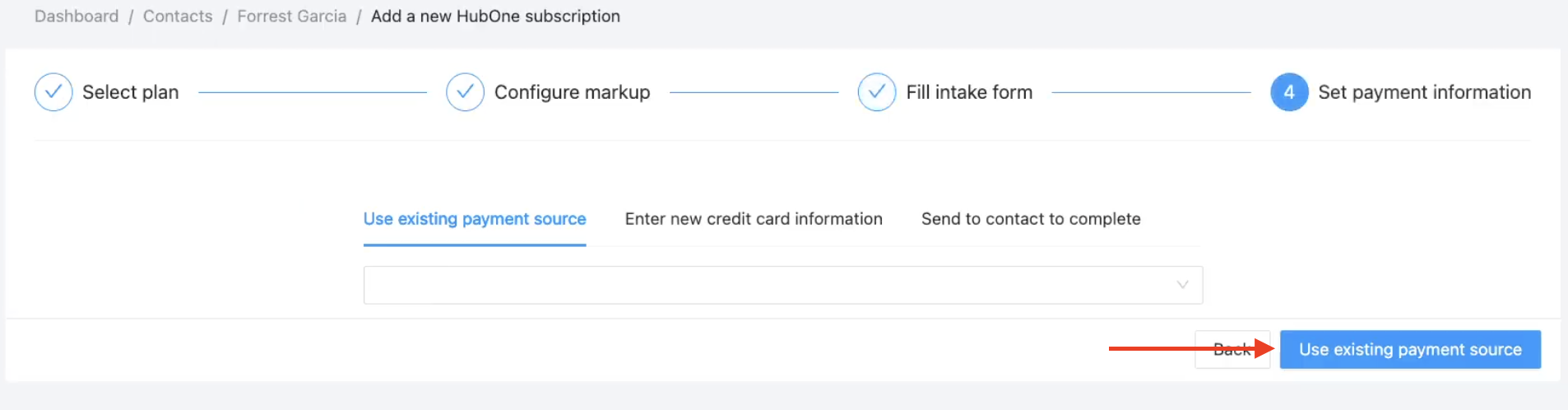
This step determines how you will pay the wholesale cost for this subscription.
Select your preferred method:
Use existing payment source: Choose one of your saved cards from the dropdown.
Enter new credit card information: Add a new card specifically for this.
Send to contact to complete:
Click the corresponding button for your chosen method.
Confirm Provisioning:
The system will submit the payment and provision the account. You'll see a "Payment submitted successfully" confirmation.

Verify Activation:
You will be redirected back to the contact's HubOne subscription details page.
The status should now show as Active.
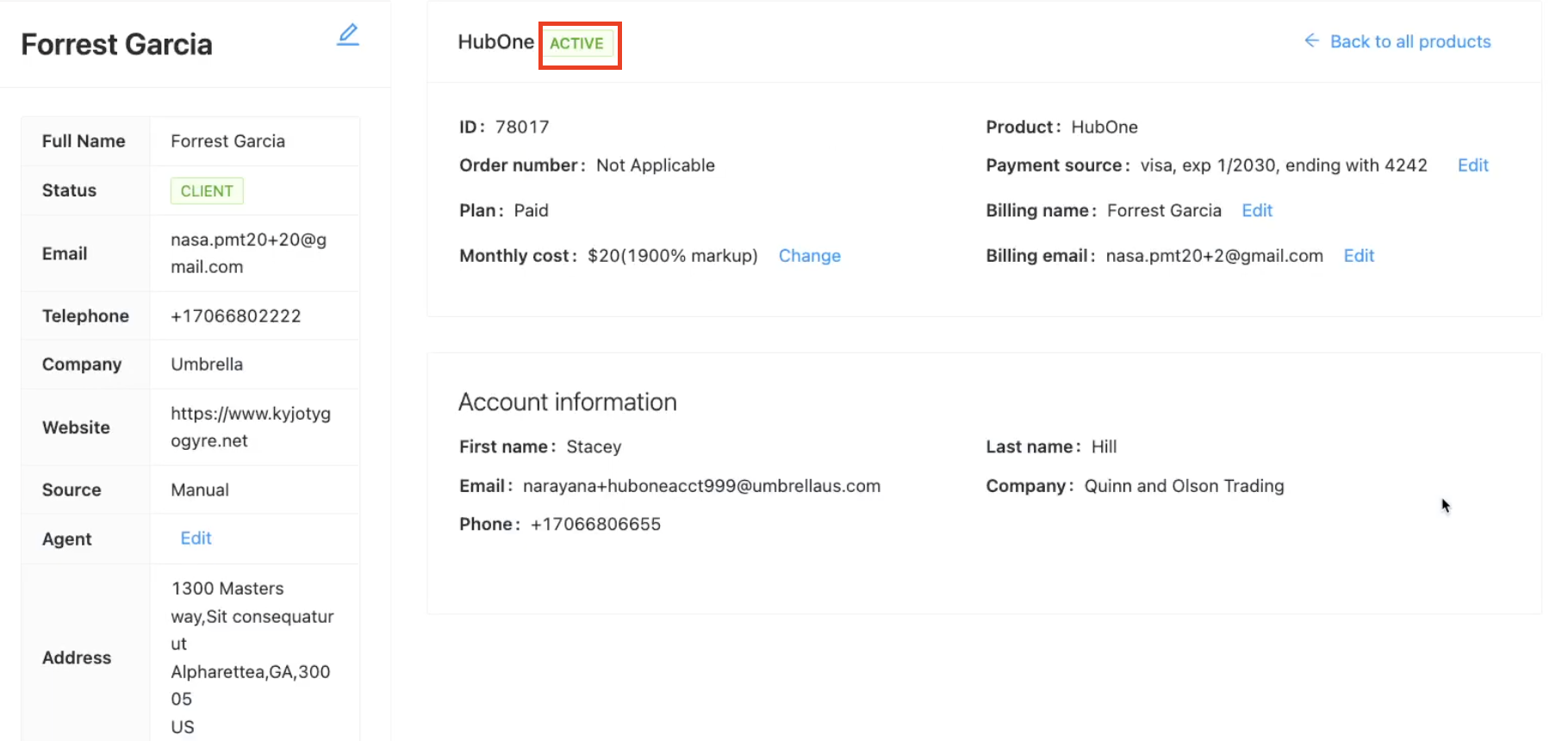
You can review the plan details, monthly cost (including your markup), and the account information you entered.
