Calendar Views
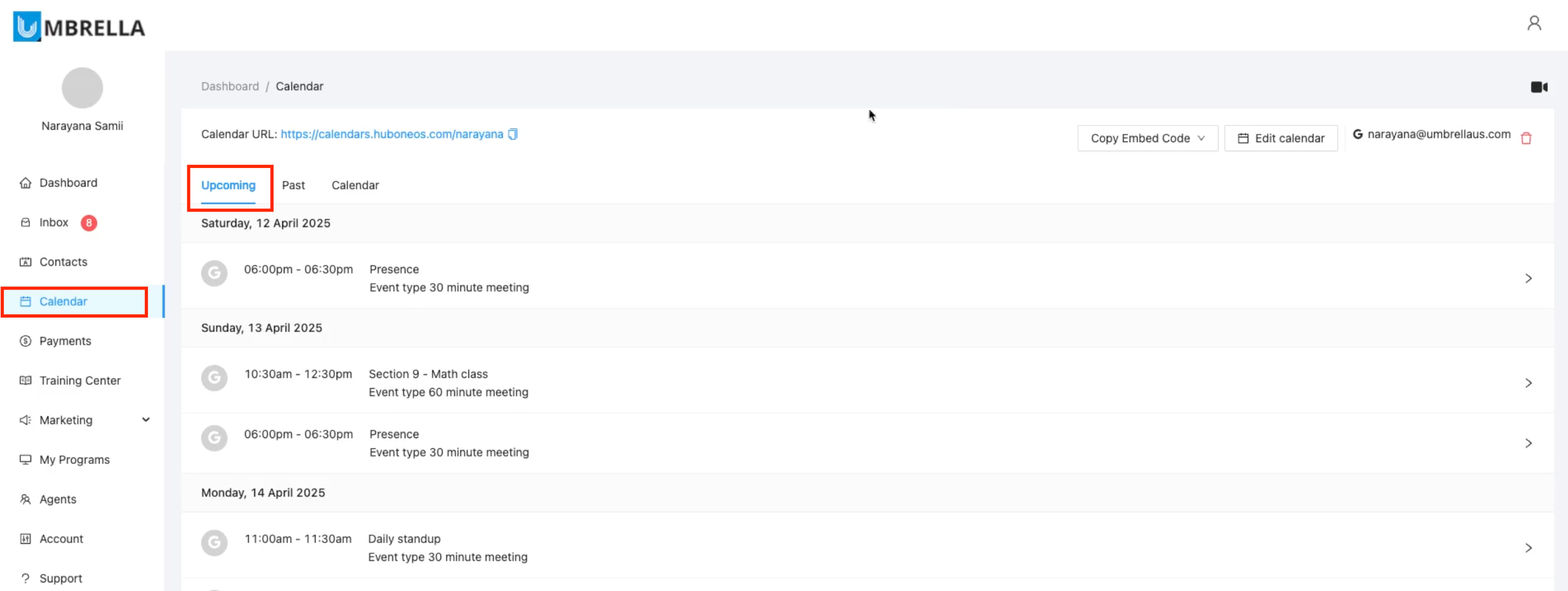
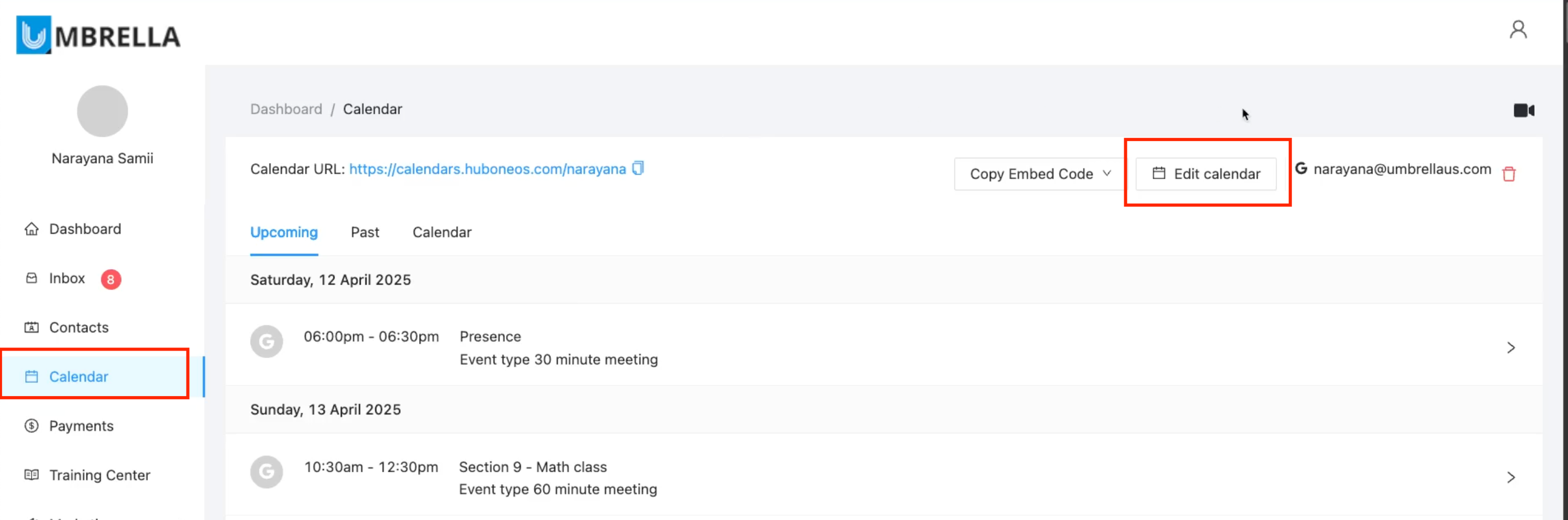
When you navigate to the Calendar section from the main menu, you have three main views:
Upcoming: (Default View) Lists all your scheduled future appointments chronologically.
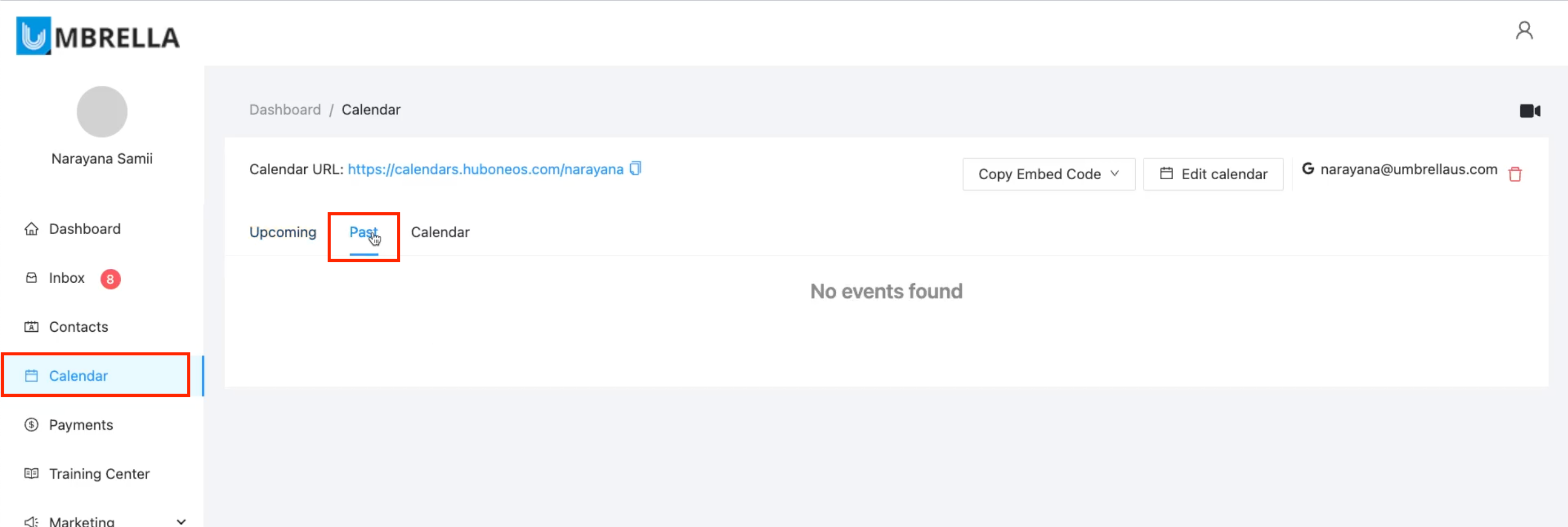
Past: Lists appointments that have already occurred.
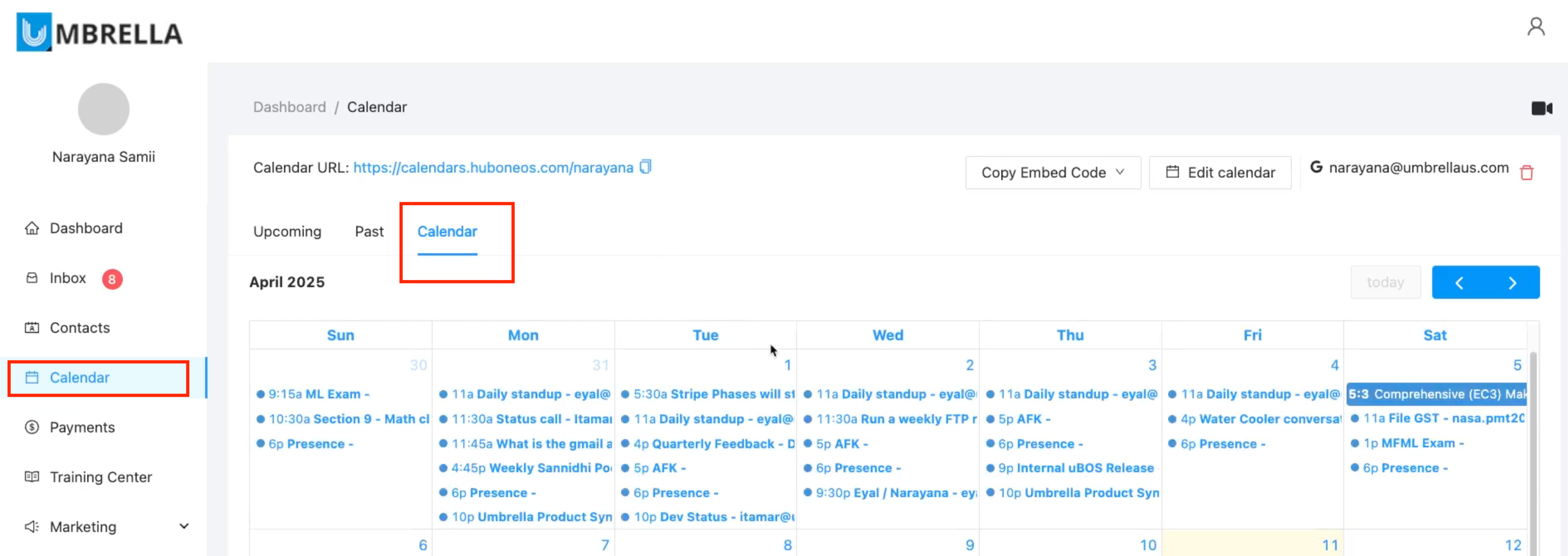
Calendar: Shows a traditional monthly calendar view displaying your scheduled events.
How to Find and Share Your Link:
Go to the Calendar section.
At the top of the "Upcoming" tab, you'll see your Calendar URL
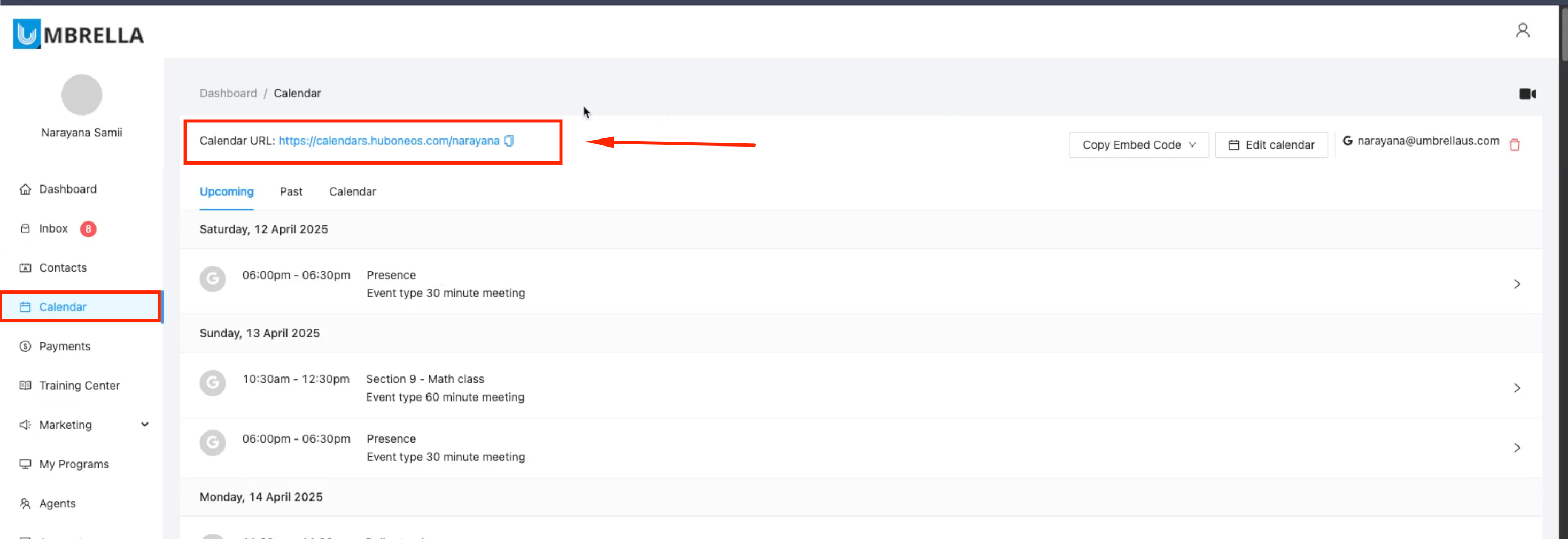
You can copy this URL and share it directly with clients for booking.
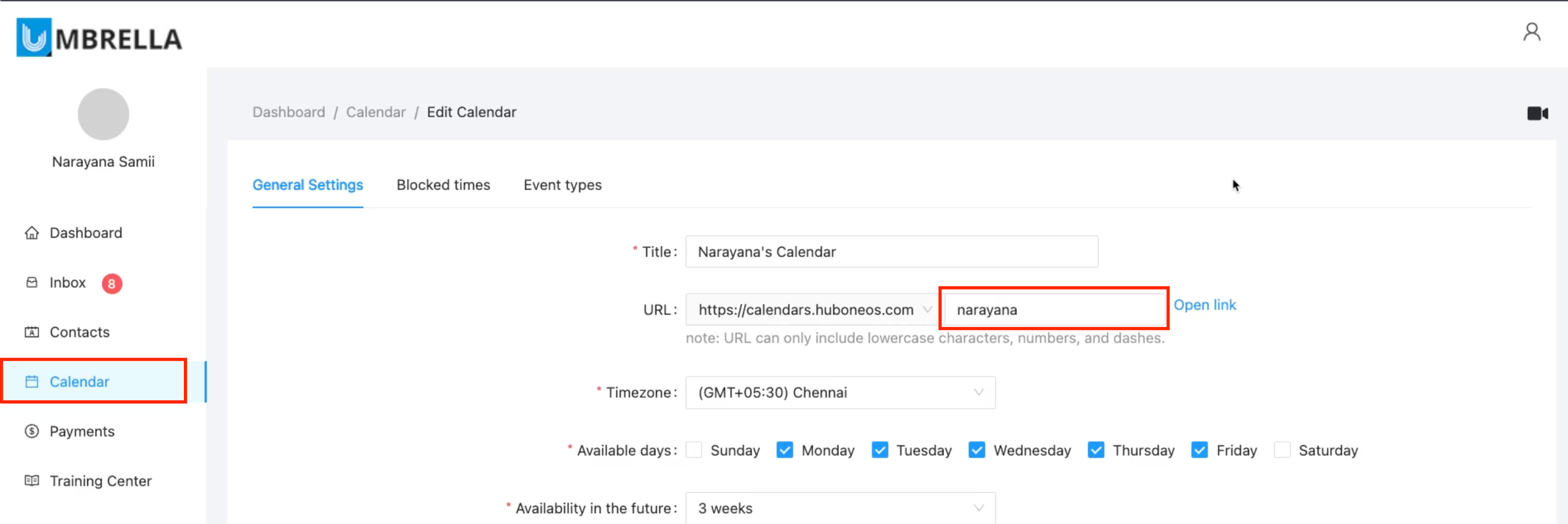
(Optional) To customize the ending part of the URL (the "slug"), click Edit calendar and modify the URL field under General Settings.
Rescheduling and Canceling Appointments
You can manage existing appointments directly from the "Upcoming" list.
How to Reschedule:
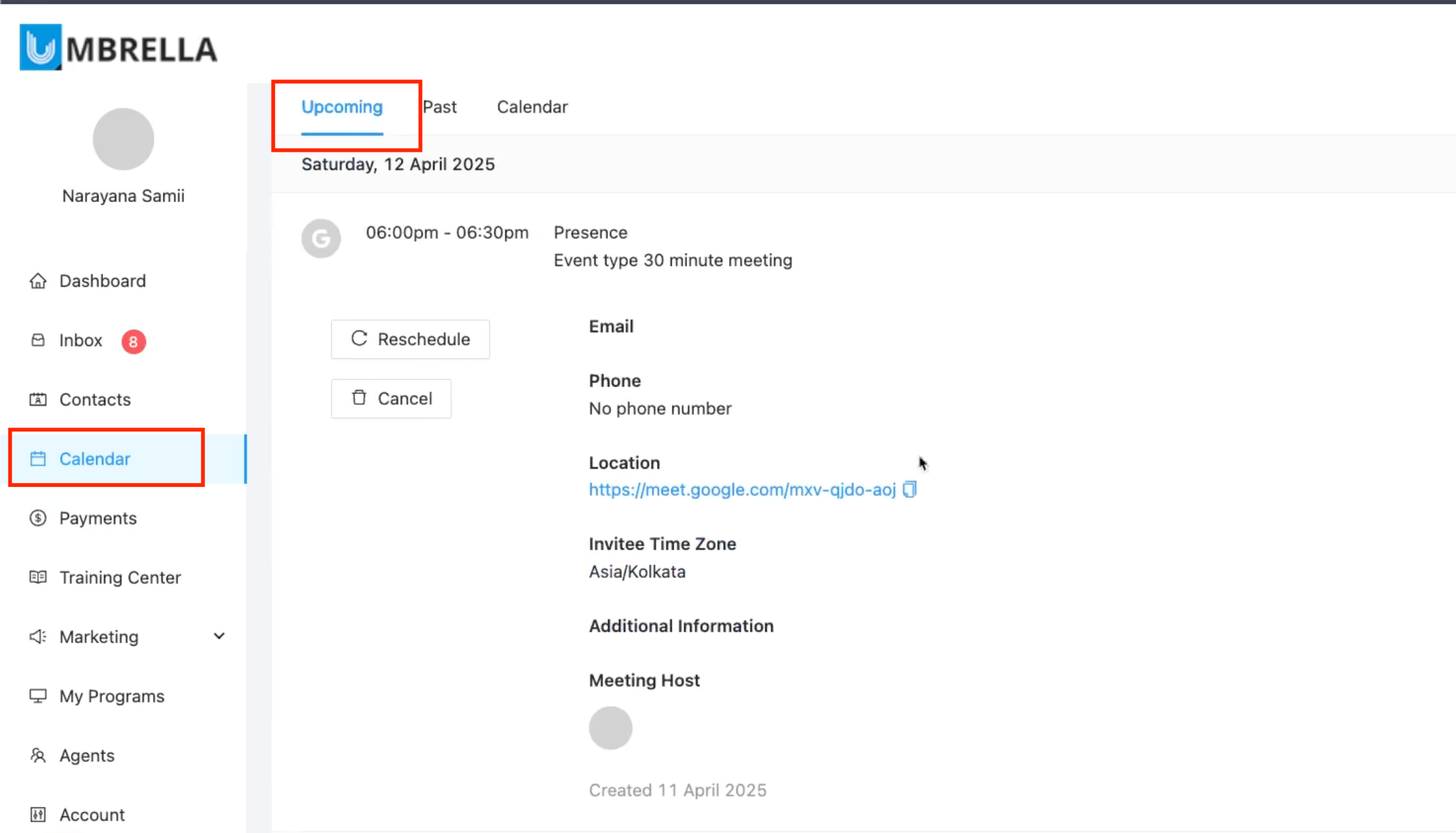
Go to the Calendar section > Upcoming tab.
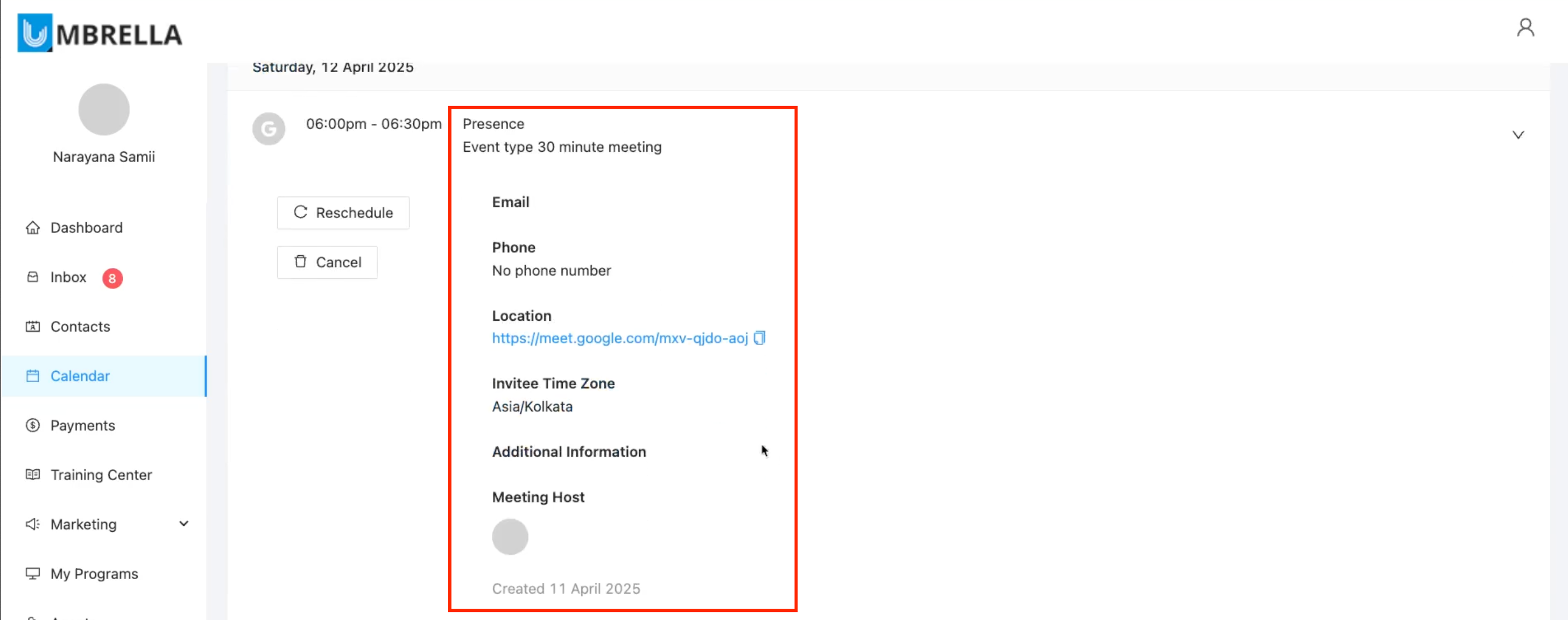
Find the appointment you want to change and click on it to expand the details.
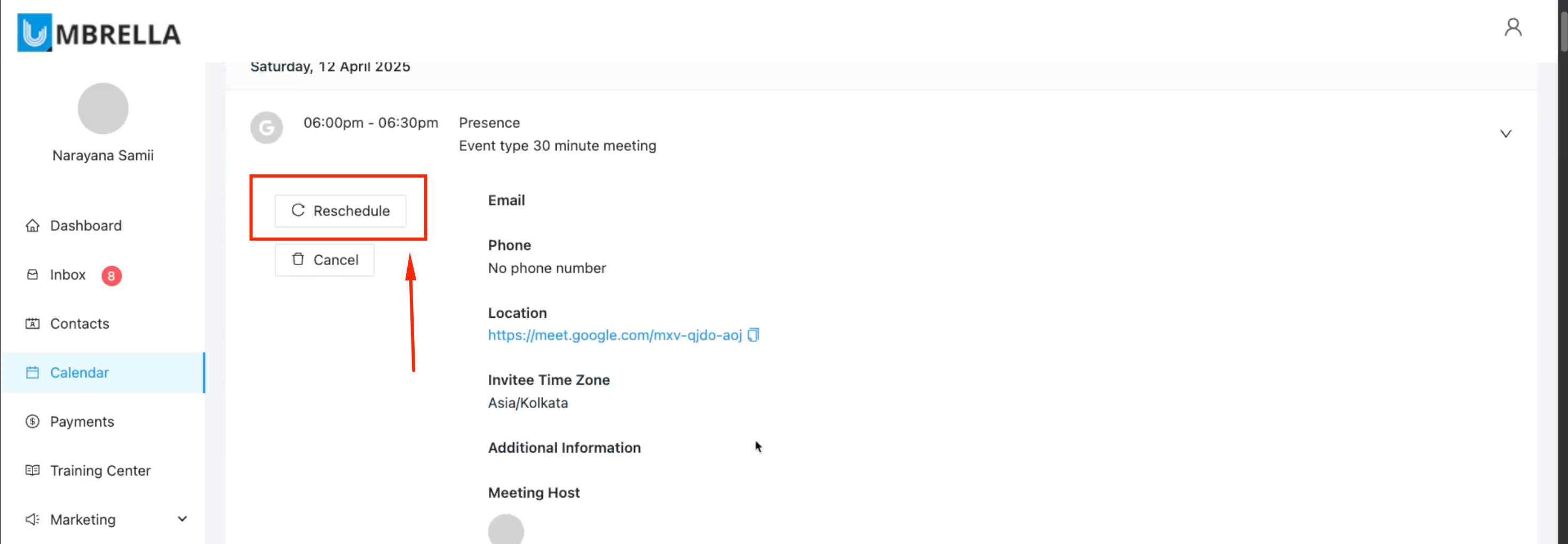
Click the Reschedule button.
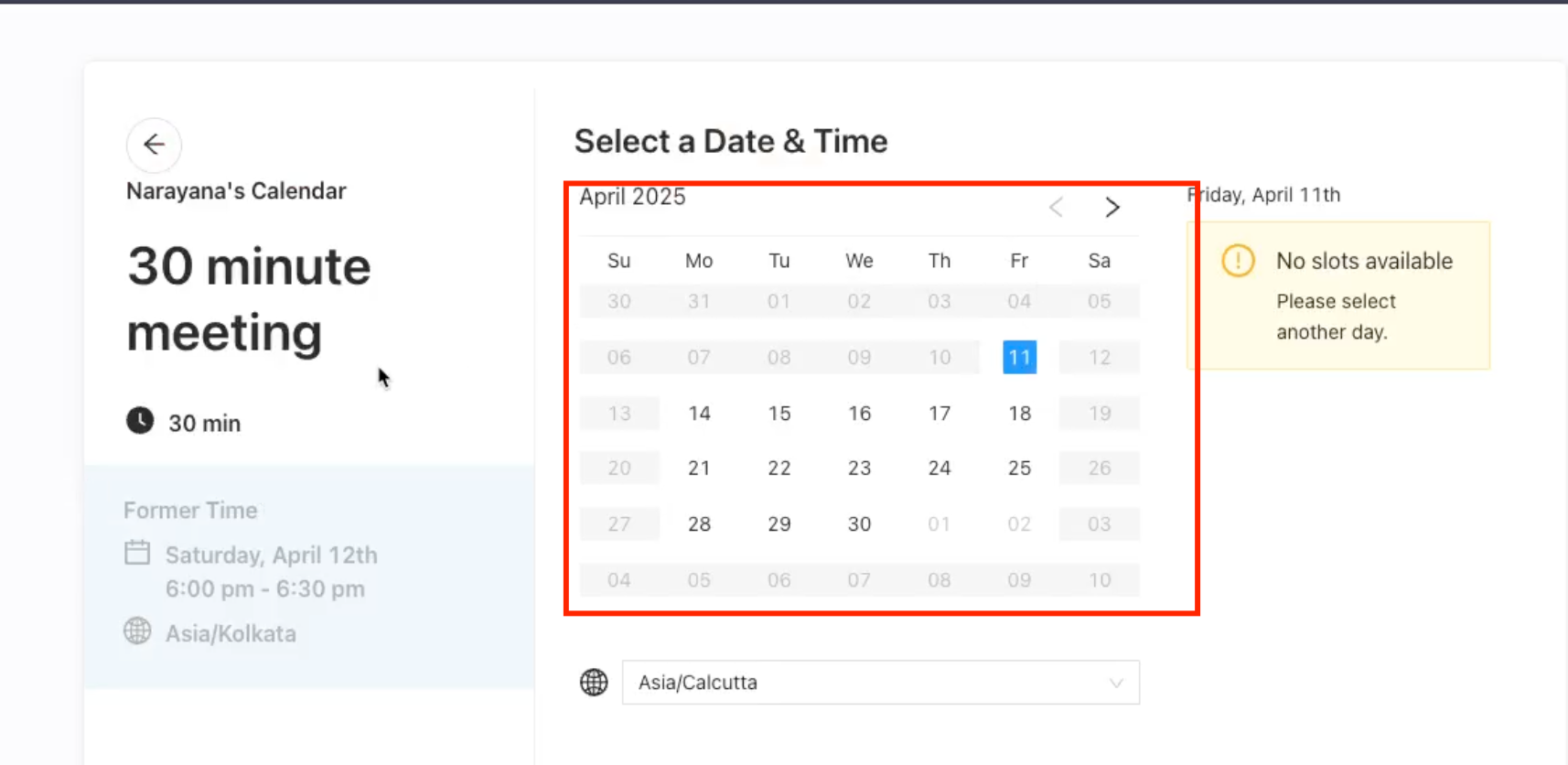
A calendar view will appear. Select a new available date and time slot.
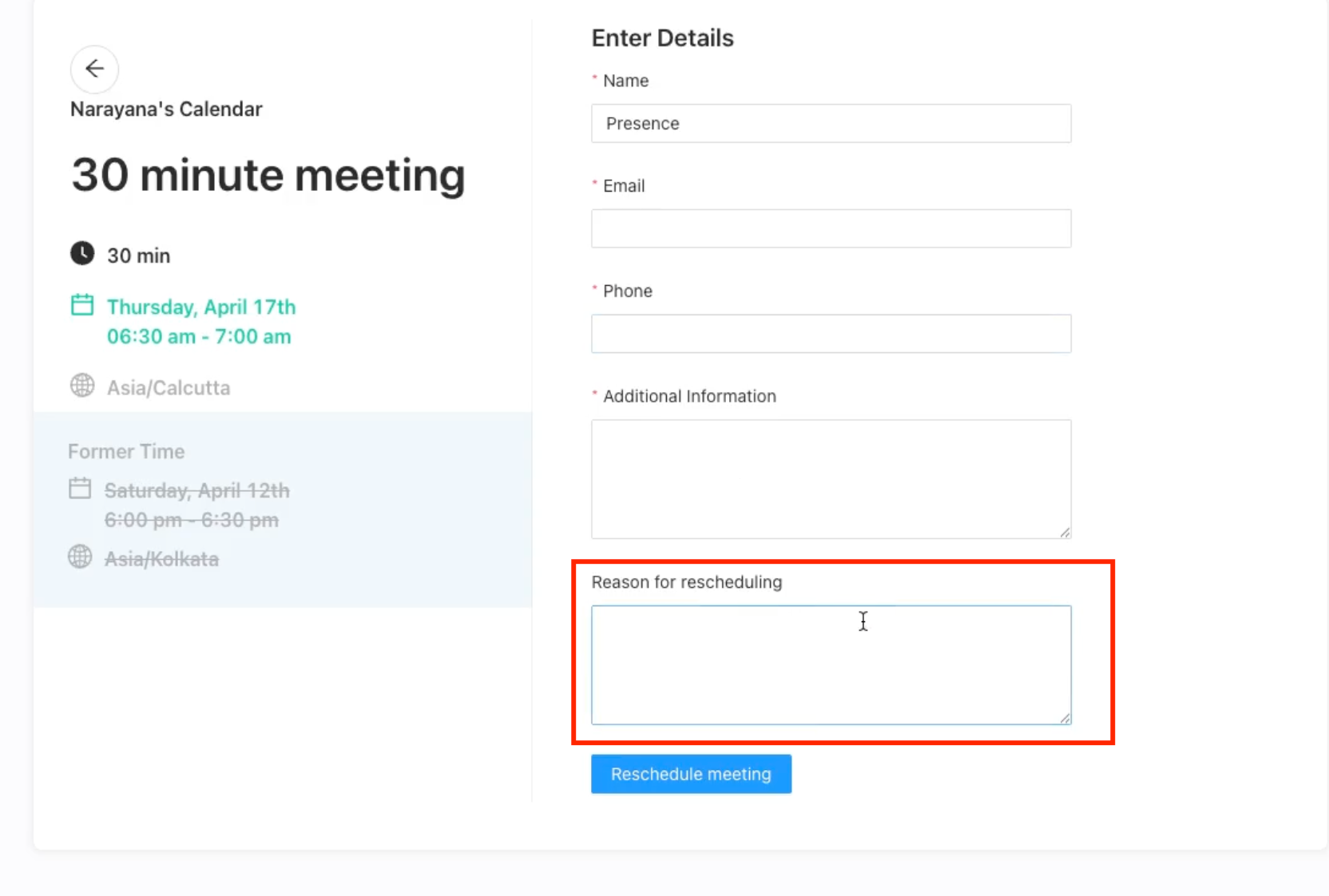
(Optional) Enter a Reason for rescheduling.
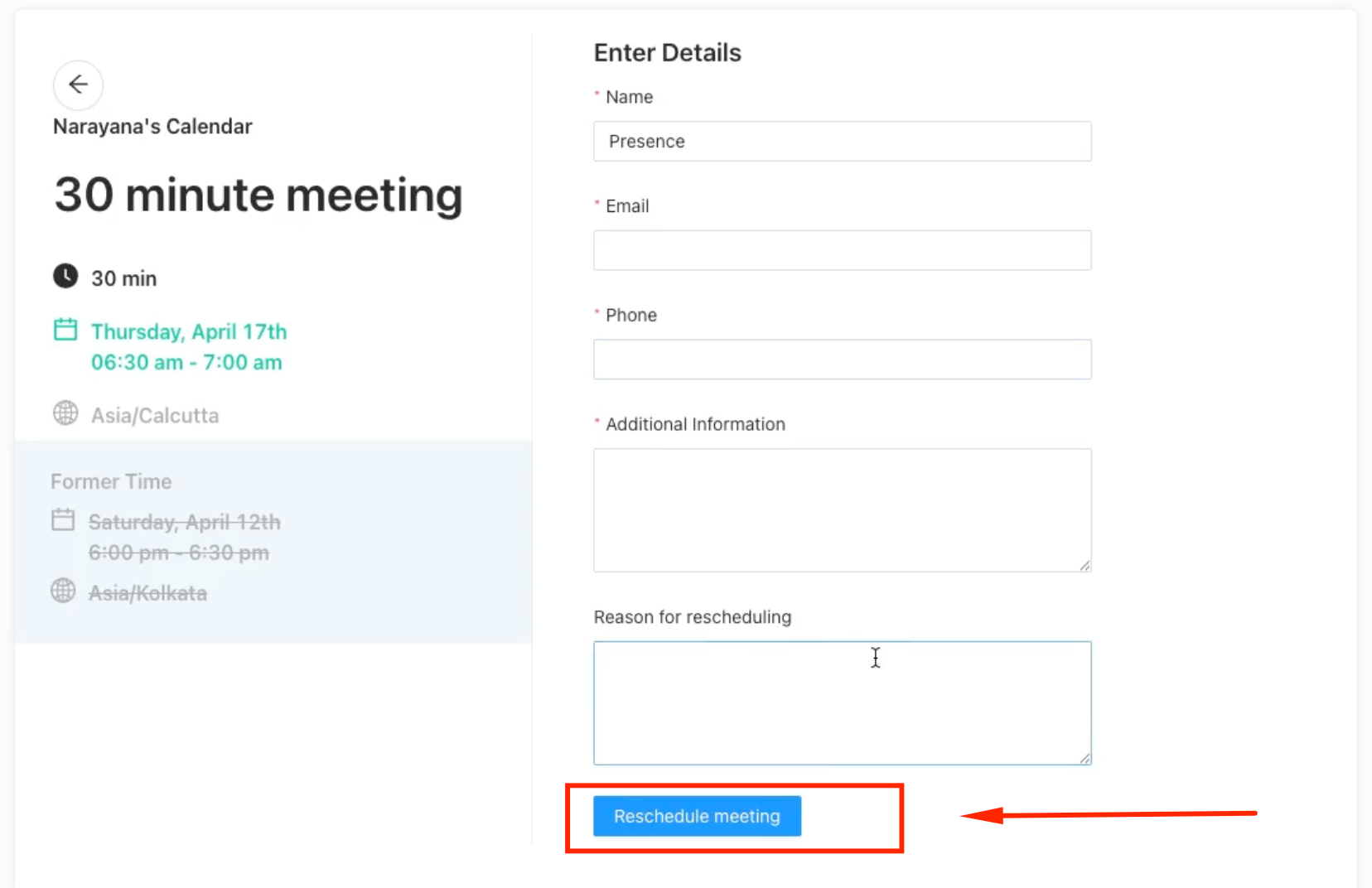
Click the Reschedule Meeting button.
How to Cancel:
Go to the Calendar section > Upcoming tab.
Find the appointment you want to cancel and click on it to expand the details.
Click the Cancel button.
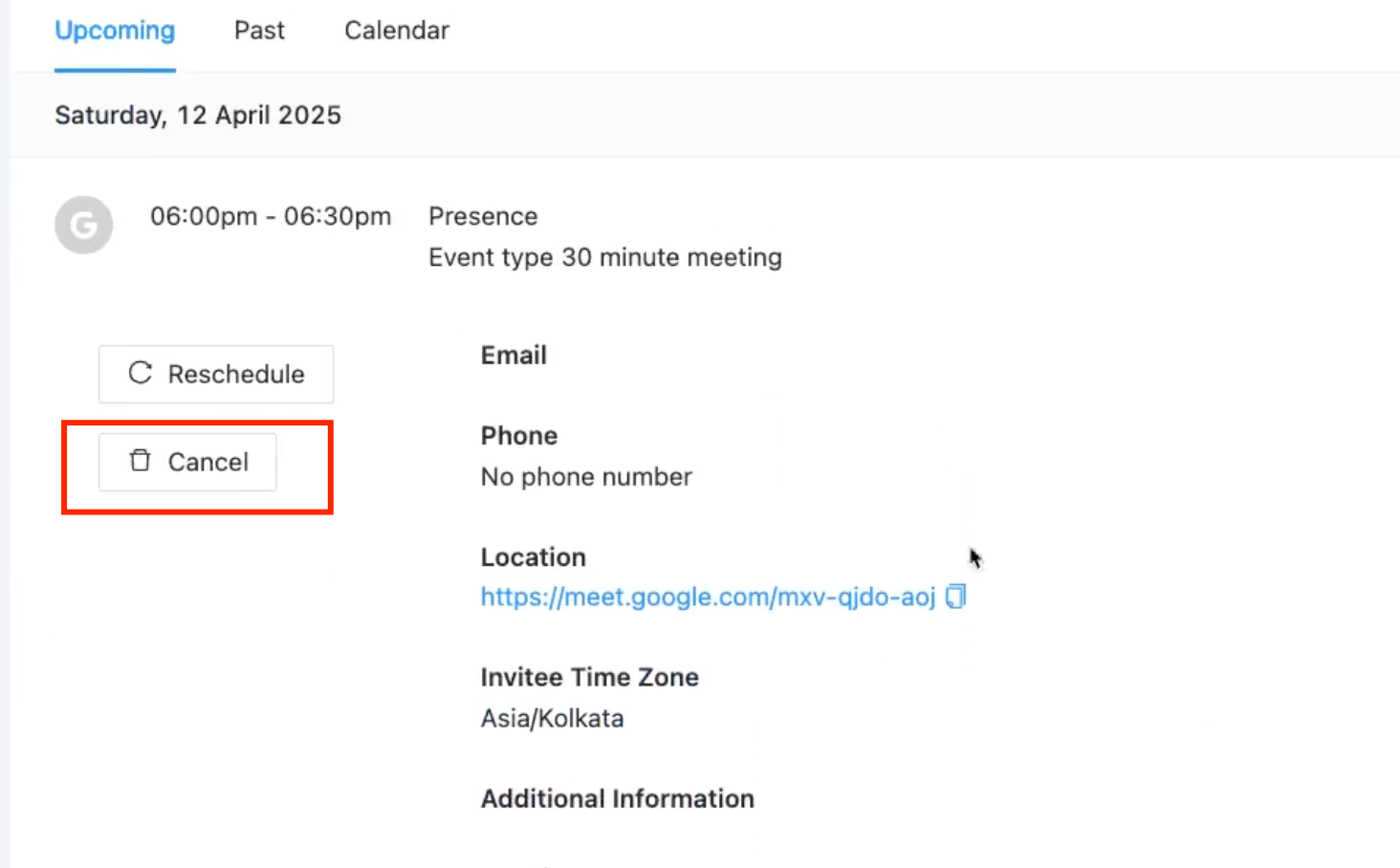
Confirm the cancellation if prompted.
