1. Create or Select the Client Contact
Navigate to the Contacts section.
Click "+ Add a new contact" to create a new client profile (requires first name, last name, and email).
If the client already exists, simply click on their name in the contact list.
2. Add the uEqual Product
On the client's contact page, click the blue "+ Add a new product" text.
From the list of services, select "Digital Accessibility Subscription".
3. Choose a Plan and Configure Pricing
Select the desired plan for your client (e.g., the free option).
In the "Configure Markup" section, set the final price for your client. You can do this by either entering a percentage markup or typing a specific monthly price.
If you plan to bill the client yourself, leave the price at zero.
4. Fill Out the Intake Form
Complete the following fields:
Short Name: An internal reference for the client.
Website: The full URL of the client’s website where the widget will be installed.
Widget Language: The primary language for the widget (e.g., English).
Website Platform: The platform the site is built on (e.g., WordPress, Duda, Wix).
Provided by: Your own agency or business name.
Provided by URL: Your agency's website link. Important: Make sure it is a valid URL, including the https://.
5. Complete the Payment Step
After submitting the form, you will be taken to a payment page.
You can either enter the client's card information or send them an invoice link to complete themselves.
Note: A card must be entered even for the free plan. This is to get the subscription active in the system; it will not be charged.
6. Generate the Widget Code
Once the subscription is active, go back to the client's product page and click "Generate New Embed Code" to open the widget editor.
7. Customize the Widget's Appearance
Language: First, confirm the widget's language.
Icon/Text: Choose whether you want the widget to appear as an icon or as text.
Colors: Customize the colors of the widget's background and icon to match the client's website branding.
Shape: Change the shape of the icon button.
8. Set the Widget's Position
Use the live preview to see how the widget will look on a desktop or mobile site.
Adjust its size and location on the screen (e.g., bottom-right, bottom-left).
9. Copy and Install the Code
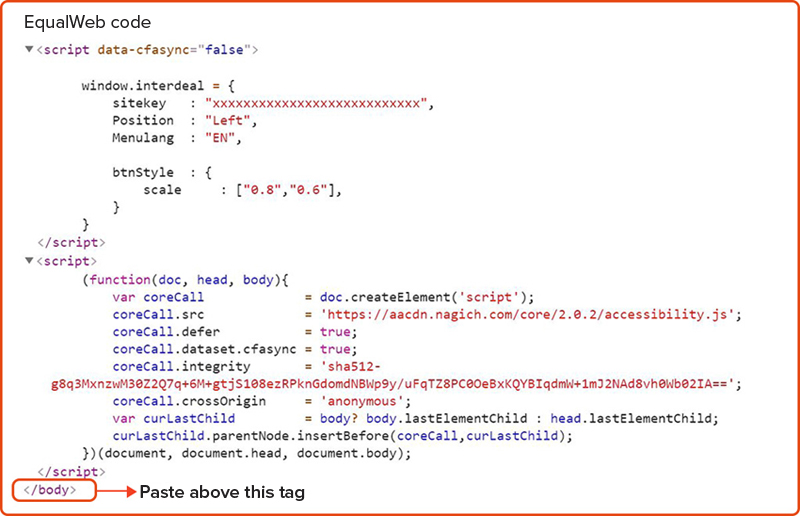
In the final step, click "Copy to Clipboard" to get the widget's HTML code.
Paste this code into the <body> section of your client's website HTML. Once the code is pasted and the site is updated, the uEqual widget will be live.
If a client needs the guaranteed 100% compliance service with manual remediation and the warranty, use this process in the Umbrella Dashboard to ensure you get the 20%-30% commission:
Go to the Contacts tab and ensure the client is added (or add them with their website URL).
Navigate to the Vendor Quotes section.
Click Request a Quote.
Choose Premium Accessibility (or the equivalent term for uEqual's 100% service).
Associate the quote request with the correct client contact.
Submit the request. Ann's team (uEqual specialists) will then contact the client to assess needs, provide the formal quote, and handle the sale.
Enable fullscreen
Embedding the uEqual Widget code on a website
Embed the code above the body tag on all of the site pages. Usually in most site builders there is a Global Tags section, sometimes referred to as Global HTML, Tracking Code, etc. Where you can embed the code once for all pages.
Different builders such as Wix, Weebly, WP, will have different ways of adding CUSTOM CODE. See a few example below this image.
Builders examples,
Wix
Go to "Settings" in your site`s dashboard.
Click the "Custom Code" tab under "Advanced Settings".
Click + "Add Custom Code" at the top right.
Paste the code snippet in the text field.
Choose a name for your code.
Choose the "Load Code Once" option from the select box.
Place the code at the body end.
WordPress
On the menu, choose "Plugins" -> "Add New"
Search for the plugin – "Equalweb", and install it, wait until the installation is completed, and an "Activate" button will appear, click it.
On the Equalweb Plugin, simply copy paste your accessibility code and save changes.
Duda
Click “Settings” in the left side menu.
Select “Header HTML”.
Paste EqualWeb script inside of the text area’.
Click “Save” button.
Shopify
At the bottom sidebar, choose – "Online store", And then click on "Themes".
Online store screenshot at Shopify platform
Next, click "Action" -> "Edit Code"
Choose "Theme.liquid", scroll down to the end of the code, and paste EqualWeb implementation code above thebody tag2 tag.
If you run into any issues during this process, you can contact our support team by submitting a ticket through the Help widget located in the bottom right of the Umbrella dashboard for assistance.
