Snapshot Reports Demand-Generation Reports
You can use the Snapshot Report feature in your Dashboard to generate comprehensive online presence analyses for potential and existing clients. These reports are powerful tools for demand generation and discovery conversations.
Navigate to the Contact:
From your Umbrella Dashboard, go to the Contacts section on the left-hand menu.
Either Create a new contact (filling in their details, especially First Name, Last Name, Email, Status as "Prospect", Company, and Website) or Select an existing contact from your list.
Initiate Report Creation from the Contact's Profile:
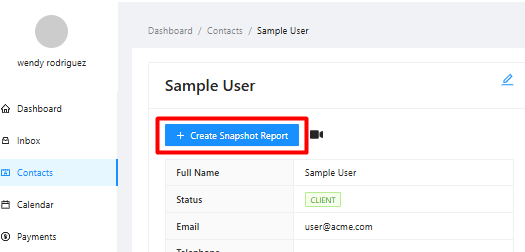
Once on the specific contact's profile page, you will see a "Create Snapshot Report" button . Click this button.
Fill out the Snapshot Report Form:
Busin ess Name: Enter the exact legal/listed name of the business. This is crucial for accurate local listing checks.
Business Phone Number: Enter the main business phone.
Street Address, City, Postal Code, Country, Region/Province: Provide accurate location details.
Website: Enter the business's main website URL
Keywords / Search phrases: Enter relevant keywords for their services (e.g., "Kitchen Remodeling Services", "Remodeling services", "Kitchen remodeling"). The system will automatically combine these with the location for local search analysis.
Click Generate report.
Report Access:
Generated reports are listed under Marketing > Reports.
Each report has a unique, shareable, white-labeled link (e.g., share.mysite.report/share/...).
Main Report Tabs:
Overview: A summary of findings across all categories.
Detail: Click any item from the Overview to get in-depth information, explanations of why it's important, and specific recommendations.
Competitors: A report of the business in comparison to competitors
Buying Report Credits
Navigate to Marketing > Reports from the left-hand menu in your Umbrella Dashboard.
On this "Snapshot Report" page, you will see a sample report. To the right of the sample report, under the heading "Buy reports," you'll find options to purchase report credits.
The "Create snapshot report (X remaining)" button in the upper right of the report list page (if you've navigated back there) also indicates your current credit balance.
Click on the desired package.
You'll be taken to a payment page. Select the package again and click Next.
Enter your credit card information (Name, Email, Card details) and click Pay with new card.
The purchased credits will be added to your account and reflected in the "remaining" count.
FAQ:
Q: Does creating a Snapshot Report cost anything?
A: 1 Report (1 count) - $3
10-pack (10 count) - $25
20-pack (20 count) - $40
Q: What information is needed to create the report?
A: Business name, Phone number, Website URL and the Keywords to Analyse
