
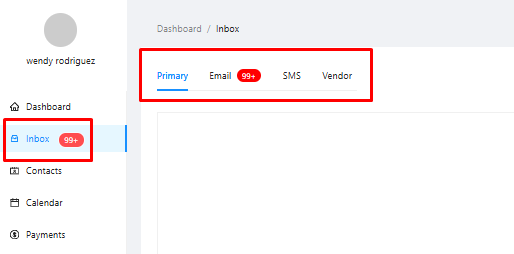
The inbox is organized into four distinct tabs:
Primary: This is your main, consolidated view, displaying all email and SMS conversations you've had with your contacts in a single chronological feed.
Email: This tab filters your inbox to show only email correspondence.
SMS: This tab provides a focused view of all your text message conversations.
Vendor: The original functionality is retained here, allowing you to manage all internal communications with your vendors.
How to Send New Messages
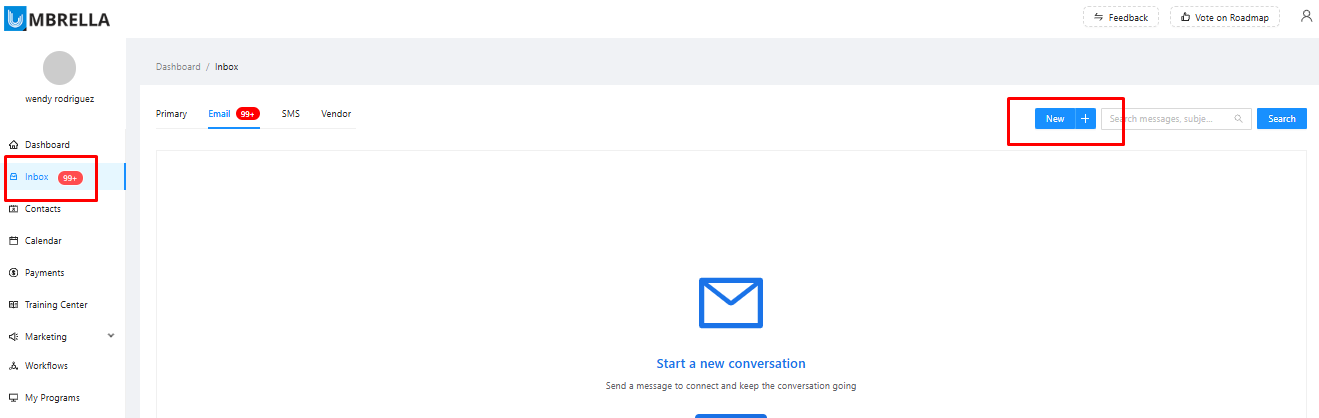
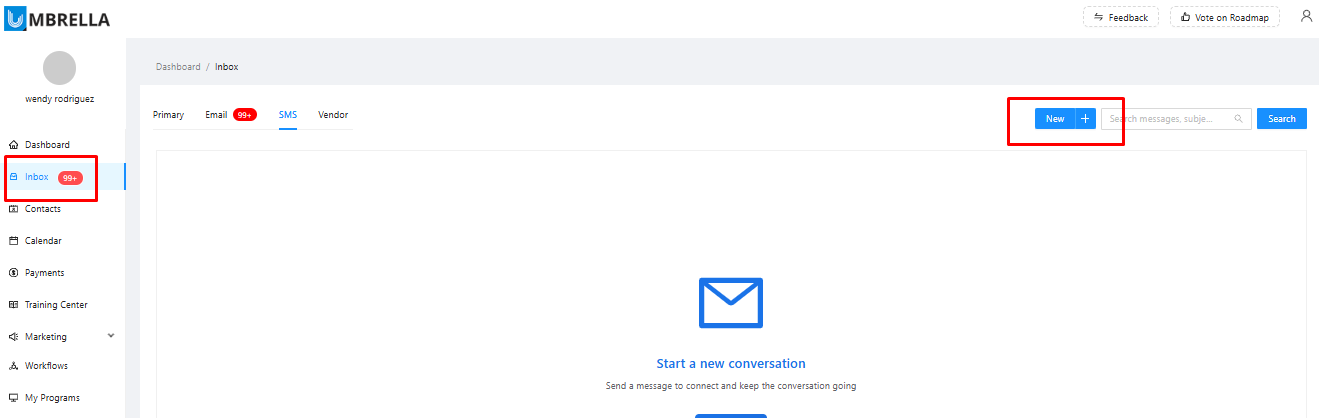
Communicating with your contacts is now easier than ever. The "New" button in the top right corner allows you to compose a new message on the spot.
To Send a New Email:
Click New > New Email.
The "From" address will automatically populate with the email you have connected in your Account > Integrations settings.
In the "To" field, select a recipient from your existing contact list.
Compose your message, add a subject, and send. You can also apply pre-saved email templates to save time.
To Send a New SMS:
Click New > New SMS.
Select the phone number you wish to send from. These numbers are managed in your Account > Phone System settings.
Choose the contact you wish to message. Only contacts with a saved phone number will appear.
Type your message and click Send.
Viewing Conversations from a Contact's Profile
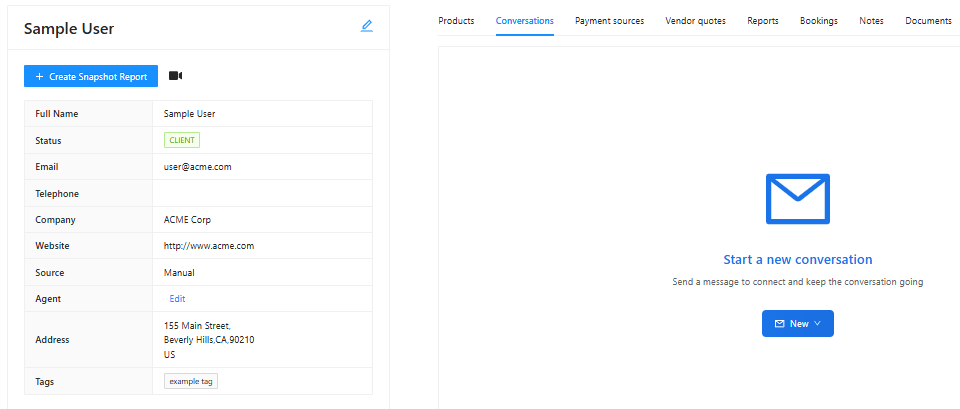
In addition to the central inbox, you can still view all communications related to a specific person directly from their contact page. Simply navigate to the Contacts section, select an individual, and click on the Conversations tab to see a complete history of your interactions with them.
Important Note on SMS Compliance
To send SMS messages to numbers within the United States, your account must have A2P 10DLC approval. This is a mandatory compliance requirement to ensure message deliverability. You can manage your phone numbers and view your approval status under the Phone System section in your account settings.